Kelrova findings in Studio
Studio chats can list, read and report on your Kelrova findings with the computer's sign-in, with no MCP connection to set up. Scans run in Kelrova Cloud.
Where in StudioStudio → Settings → Agents → Cloud findings
Updated View as markdown
On this page
A chat in Studio can work on your organization's Kelrova findings: find the project for a repository, list its findings, read one, report a fix and ask for a re-check. There is nothing to connect. The chat uses this computer's Kelrova sign-in, so it acts as you. The scans that produce the findings run in Kelrova Cloud, never in Studio; see What Kelrova finds and Run your first scan.
What a chat can do
A chat gets the same six tools as the Kelrova MCP server, with the same names and results. Each call shows as a row in the transcript:
| Tool | What it does | Row in the transcript |
|---|---|---|
list_projects | Finds the Kelrova project for the repository, from its git remote. | Projects Listed |
list_findings | Lists a project's findings, most severe first. | Findings Listed |
get_finding | Reads one finding in full, with its evidence and location. | Finding Read |
get_finding_activity | Reads what has happened to a finding. | Finding Activity Read |
report_finding_action | Reports a fix, work in progress, a note, a false positive or an accepted risk. | Finding Action Reported |
request_recheck | Asks Kelrova to check one finding again on the tracked branch. | Re-check Requested |
While a call runs the row reads, for example, Reading Finding…; a failed call reads, for example, Finding Read Failed. Arguments and details of each tool are in The six tools.
Who the chat acts as
- You. The tools act as the member signed in on this computer, in the organization active on it when the chat's turn starts, and only on the projects you can access right now. If you sign out or switch organization, calls from running chats stop working.
- Reports carry your name. The portal shows a report as made by you via Kelrova Studio, for example Reported fixed via Kelrova Studio. No computer name, chat title or run is stored with it.
- No connection to manage. Studio does not appear under Connected apps in the portal, because it has no connection there. Signing this computer out ends it for this computer.
Turn it on or off
Where in StudioStudio → Settings → Agents → Cloud findings
The Cloud findings pane sits under General in the agent list. Its switch, Use in chats, is on by default. It applies to new chats and is synced across your computers.
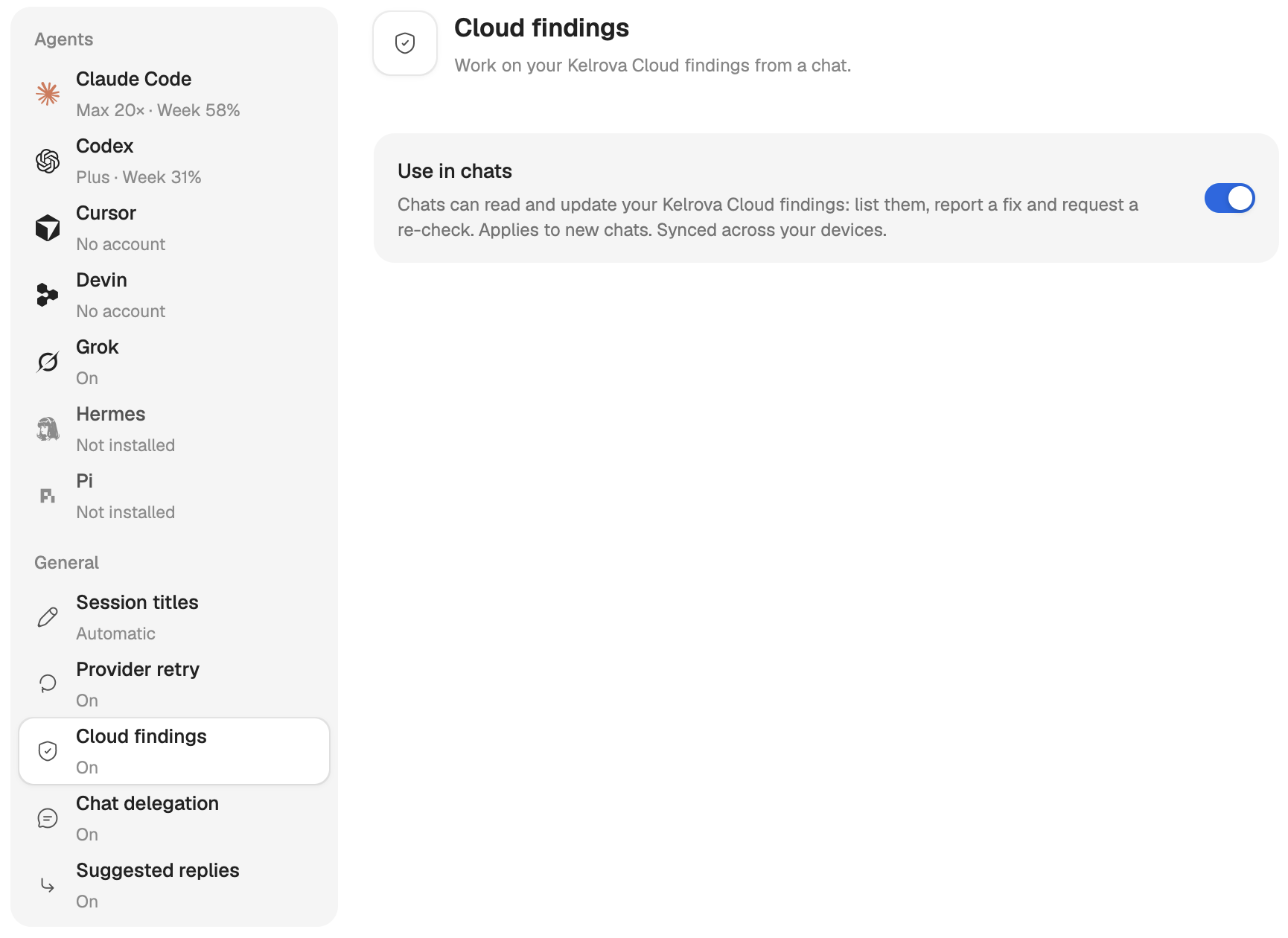
The agent list shows the pane's state:
| State | Meaning |
|---|---|
| Off | You turned the switch off. New chats do not get the tools. |
| Needs sign-in | This computer is not signed in to your Kelrova account. The pane says Sign in to use Cloud findings. |
| Not applied | The stored value comes from a computer this one does not trust, so it is not used here. |
| Unavailable | The setting could not be loaded. Choose Click to retry. |
Which chats get them
Ordinary chats on a computer that is signed in, with the switch on. The agents Orchestra starts inside a chat do not get them, and neither do Cloud scan runs. When a condition is not met, the chat works as usual, without the tools.
Organization rules
Your organization's MCP settings apply to Studio exactly as to a connected app. If an owner turns MCP off for the organization, or turns off reporting or re-checks, Studio chats get tool errors, or no tools, until it is on again. The organization's list of allowed clients does not apply: Studio is a Kelrova client. See Organization settings for MCP.
Limits
- The usual MCP rate limits apply, counted for you across all your chats and computers, and for the organization together with connected apps.
- Re-checks: 10 per hour for you and 50 per hour for the organization.
- A chat runs one call of each tool at a time. A second call of the same tool while one is running is refused as rate limited.
- A call that cannot complete, for example because the computer is signed out or Kelrova cannot be reached, fails with a generic error. The chat sees no address, status code or credential.
What a report changes
A fixed report marks the finding fixed at once; the next scan of the tracked branch, or a re-check, confirms it. False positive and accepted risk need a note and become a proposal that a project member accepts or dismisses in the portal. What a report does and Statuses and what changes them cover every case.
Warning: Finding text is untrusted
Titles, descriptions and evidence come from automated analysis of repository content and can be wrong or hostile. Studio tells the agent to treat them as data, to check their claims in the code, and to report a fix only after it is committed. Read what the agent proposes before you let it run commands.