Projects and checkouts
A project is a folder on one of your devices. Each chat works in the project's current checkout or in a new Git worktree of its own.
Where in StudioStudio → New chat → Project and checkout
Updated View as markdown
On this page
A project is a folder on one of your devices. Every chat in it runs on that device and works in that folder, or in a Git worktree made from it.
Add a project
Any of these opens the folder picker:
- Add a project, shown while you have none.
- The + beside the search field in a project list: the Projects filter at the top of the sidebar, or the project chip on the new-chat canvas.
- File → Open Folder…, or ⌘O.
On a Mac with no servers, the macOS folder picker opens: select the folder and choose Open. Once you have servers, Studio opens its own folder browser instead, with a tab for each device. Type to search folders, press Enter to go into the highlighted folder, and press ⌘Enter to add the folder you are in.
Opening a folder that is already a project takes you to that project.
Projects with Git
When the folder is a Git repository, its chats get the checkout and branch chips in the composer, and the Git menu in the chat header. A folder without Git still works for chats, without those controls. Information in the project's menu shows whether a repository was detected, with the folder path, the device and when the project was added.
Choose a checkout
For a new chat in a Git project, the checkout chip offers two choices.
| Choice | Where the chat works |
|---|---|
| Current checkout | The project folder as it is, on whatever branch it has checked out. The default. |
| New worktree | A new Git worktree, created when you send the first message. |
Beside it, the branch chip picks a branch:
- With Current checkout, picking a branch does not switch it. The chat runs where that branch is already checked out: the project folder, or an existing worktree of that branch, in which case the chip reads Current worktree. A branch that is checked out nowhere reads Not checked out; pick it again with New worktree instead.
- With New worktree, the chip reads From and the branch to start from. Studio creates the worktree under
~/.kelrova/worktrees/<repository>/<name>, on a new branchkelrova/<name>.
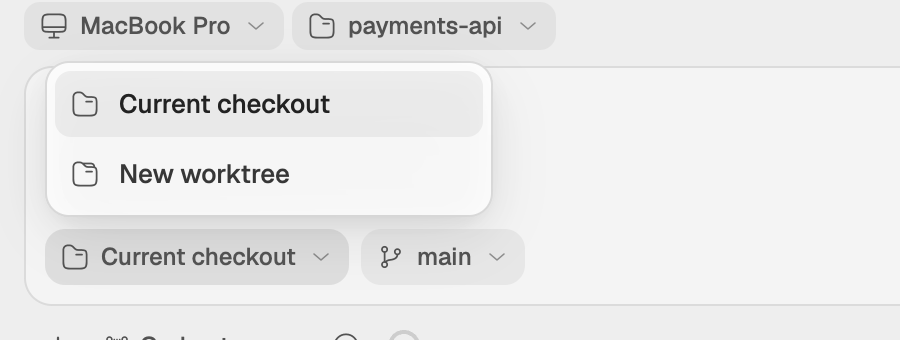
A chat keeps its checkout. Its composer shows Local checkout or Worktree for the rest of the chat.
When to use a worktree
Chats in Current checkout share the same files with each other and with your editor. When two chats change the same folder, a commit from one of them can include the other's changes. Give a chat its own worktree when it should work on its own branch, or when several chats run at once in one repository. To see each chat's worktree in the sidebar, open the sidebar's view options and turn on Worktree name.
Manage a project
Hover over a project in the sidebar and choose •••, or right-click it in the Projects filter.
- Rename… changes the name Studio shows. The folder keeps its name.
- Pin moves the project to the top of the project lists. Unpin puts it back in alphabetical order.
- Information shows the folder path, the device, when it was added and whether Git was detected.
- Remove… removes the project from Studio and permanently deletes all its sessions on that device. This cannot be undone. Studio does not delete the folder.
If the folder was moved or deleted, the project reads Folder not found — Choose location…. Choose it and pick the folder's new place.
Projects on other devices
A project belongs to the device whose folder it is. On the new-chat canvas, the device chip decides which device's projects the project chip lists, and a chat in a server's project runs on that server. With projects on more than one device, the project lists group them under each device's name. Start sessions on a server covers working on a server.
Chats without a project
For conversations that need no code, switch the title bar from code to chats. Chats there are grouped into topics: choose New topic in the sidebar, name it and choose Create topic. Topics keep related chats, memory, files and MCP servers together.