Context and compaction
See how full the agent's context window is, compact a long chat by hand or at a limit you set, and when Studio asks before a long idle chat goes on.
Where in StudioComposer → Context usage
Updated View as markdown
On this page
The context window is what the agent holds in mind for its next turn: the instructions, its tools and the conversation so far. A long chat fills it. Compaction replaces the older part of the conversation with a summary, so the agent can keep going. The transcript you see in Studio stays whole; only what the agent carries shrinks.
See how full it is
The small ring in the row under the composer fills as the window does. Click it to open Context usage.
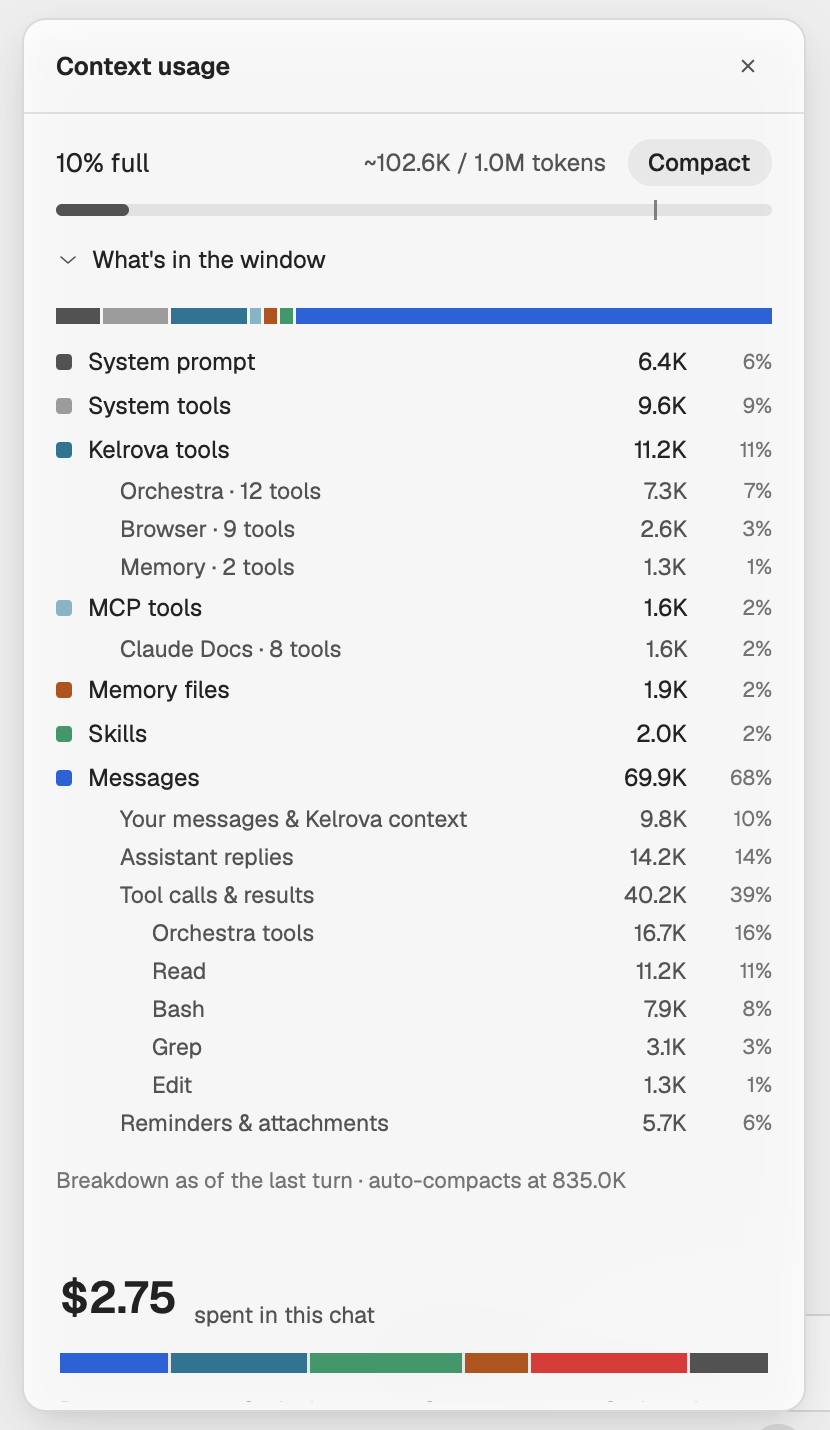
- N% full and ~used / max tokens come from the agent's last turn.
- A tick on the gauge marks where the agent compacts by itself, when it reports that point.
- What's in the window breaks the window down as of the last turn.
- After a compaction the panel says Compacted once or Compacted N times.
Until the agent reports its window, the panel says Context usage will appear after the active agent reports its context window. The lower half of the panel shows what the chat has spent; see Token usage.
Compact now
Where in StudioComposer → Context usage → Compact
For Claude Code and Codex chats, Compact sits at the end of the N% full row.
Wait for the agent to finish
Compact works only while the agent is idle. During a run it is disabled with Available when the agent is idle.
Compact
Choose Compact. It reads Compacting… while the agent works. The chat shows the compaction as a
/compactmessage, and the gauge drops when it is done.
If it cannot start, the panel says Couldn't start compaction. Try again.
Compaction frees room in the window. It does not lower what the chat has spent, and the agent keeps only the summary of what came before.
Compact automatically
Where in StudioSettings → Agents → Claude Code or Codex → Auto compact
Claude Code and Codex can compact on their own once the context reaches a limit you choose. The setting is synced across your devices.
Open the agent
Open Settings → Agents and select Claude Code or Codex in the list.
Turn on Auto compact
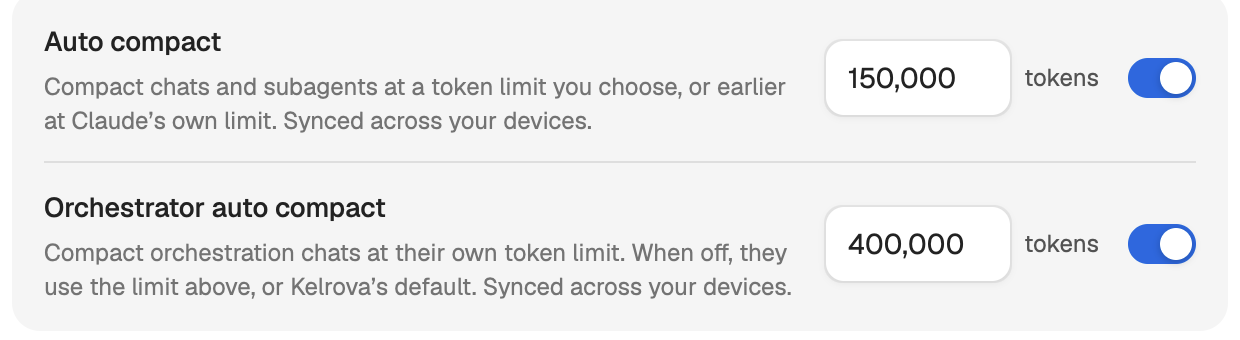
Switch on Auto compact. For Claude Code it reads "Compact chats and subagents at a token limit you choose, or earlier at Claude's own limit."
Set the limit
Enter a token limit from 50,000 to 1,000,000. The field starts at 150,000. A value outside the range shows Enter a limit from 50,000 to 1,000,000 tokens.
The limit applies to that agent's chats and subagents. Under it, Orchestrator auto compact gives Orchestra chats their own limit, starting at 250,000. When that row is off, Orchestra chats use the limit above, or Kelrova's default. See Limits and usage.
Continue a long chat after a pause
Providers keep a recent conversation in a cache that makes the next turn cheaper. After a long pause the whole history may be processed again. So when a chat with at least 100,000 tokens of context has been idle, Studio asks before your next message goes out:
| Agent | Asks after |
|---|---|
| Claude Code | 1 hour idle |
| Codex | 30 minutes idle |
The question Continue a long chat? names the context size. Choose:
- Continue to send in this chat. Studio does not ask again until the chat has been idle that long once more.
- New chat to move your draft, files and voice notes to a new chat in the same project. Nothing is sent and the old transcript does not come along, so you can review the message first.
- Cancel to keep the draft and do nothing.
The timings are a rule of thumb for when the cache may have expired, not a price. Other agents do not ask.
Keep the context small
- Start a new chat for a separate piece of work. A code chat can suggest this itself; see The composer.
- In an Orchestra, the orchestrator hands reading and testing to its agents, so their work does not fill its own window. See How Orchestra works.