Connect your agents
Install an agent's CLI, then add its account under Settings → Agents. Claude Code, Codex, Cursor and Devin sign in from Studio; Grok signs in through its CLI.
Where in StudioStudio → Settings → Agents
Updated View as markdown
On this page
Studio runs each agent through the agent's own command-line tool, with your own account for that provider. Install the CLI first, then add the account under Settings → Agents. Studio finds a CLI the same way your terminal does: if the command runs in your terminal, Studio finds it too.
| Agent | CLI Studio looks for | How you sign in |
|---|---|---|
| Claude Code | claude | Add account in Studio: a browser sign-in, then paste a code |
| Codex | codex | Add account in Studio: a browser sign-in to OpenAI |
| Cursor | cursor-agent | Add account in Studio: a browser sign-in to Cursor |
| Devin | devin | Add account in Studio: a browser sign-in, then paste a token |
| Grok | grok | In the grok CLI itself |
An agent whose CLI is missing reads Not installed in the list, and its page says which CLI to install. The list can also include other agents Studio supports, such as Hermes and Pi; like Grok, they sign in through their own CLI.
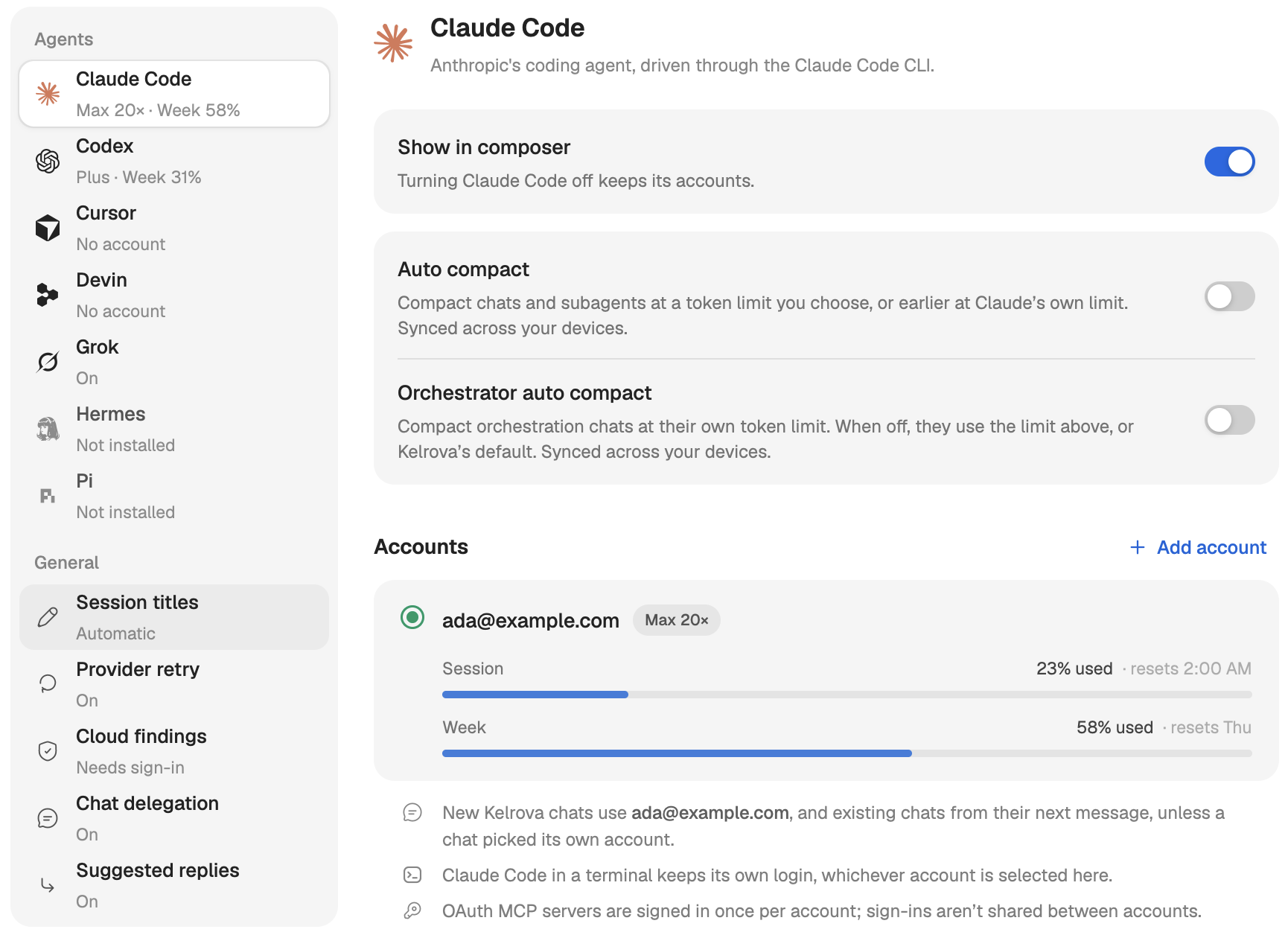
Add an account
Where in StudioStudio → Settings → Agents
Pick the agent
Open Settings → Agents and choose the agent in the list. Each row shows a one-line status, such as No account, Signed in, or the account's plan with its usage.
Choose Add account
Under Accounts, choose Add account. Your browser opens on the provider's sign-in page.
Finish the sign-in
What happens next depends on the agent:
- Claude Code: sign in to Claude and approve access, then paste the complete code into the dialog and choose Connect.
- Codex: finish signing in to OpenAI in the browser while the dialog shows Waiting for the browser…. The new login is kept separate, so your current one is untouched until you switch.
- Cursor: finish signing in to Cursor in the browser. Studio keeps this login apart from your
cursor-agentlogin. - Devin: sign in to Devin and approve access, then paste the complete token and choose Connect. The Devin CLI stores the login.
If the browser tab was closed, use Reopen the authorization page or Reopen the sign-in page in the dialog.
If you already signed in to Claude Code or Codex in a terminal, Studio detects that login and lists it under Accounts without any step here. No account detected on this device. means it found none.
Several accounts
Claude Code and Codex can each hold several accounts. The selected one is the default for new chats, and existing chats use it from their next message, unless a chat picked its own account. Choose Switch on another account's row to change the default. The agent in a terminal keeps its own login, whichever account is selected here. Models, reasoning and accounts covers picking an account for one chat.
When a provider rejects a login, the agent reads Sign in again in the list. Choose Renew login on the account to sign in once more. A saved account that is not selected has a trash button that removes it from Studio. For Cursor, Disconnect signs out its login.
Show or hide an agent
Show in composer decides whether the agent appears in the composer's model picker. Turning an agent off keeps its accounts. At least one agent must stay on.
Agents on another device
The device switcher at the top of the page picks which computer you are setting up, This device or one of your servers. The list, the accounts and Show in composer all apply to that device, because each device runs agents with its own logins.
Once an account is selected on this computer, Other devices can also set up a server for you:
- Copy login to another device sends the selected Codex login to the server you pick.
- Add an account on another device starts a Claude Code, Cursor or Devin sign-in on the server you pick. The login stays on that server.
Both need a server that is already connected; see Add a server.