When a chat proposes a schedule
A chat can only propose automations and scheduled chats. A card appears under its reply, and nothing changes until you approve it.
Where in StudioChat → transcript → schedule card
Updated View as markdown
On this page
Ask a chat to schedule something and it proposes the change instead of making it. A card appears under the chat's reply with what would change. Nothing changes until you choose Approve, and approving is your own action, made from your computer.
Ask for it
Say what you want in plain words, for example "Every weekday at 09:00, run the test suite and summarize what failed" or "Send this as a new chat tomorrow at 15:00". The chat first reads the schedules that already exist on its computer and that computer's clock, then proposes. It ends its reply by saying that the card below applies the change once you approve it.
A chat can propose these changes:
| Kind | Proposals |
|---|---|
| Automations | New automation, Automation change, Pause automation, Resume automation, Delete automation, Run automation now |
| Scheduled chats | New scheduled chat, Scheduled chat change, Cancel scheduled chat, Send scheduled chat now |
Read the card
The card names the proposal and its title, then what it would do: the schedule, where the work runs and with which model. A line under it says what runs without you, for example Runs unattended: every run starts a new chat that works without asking you.
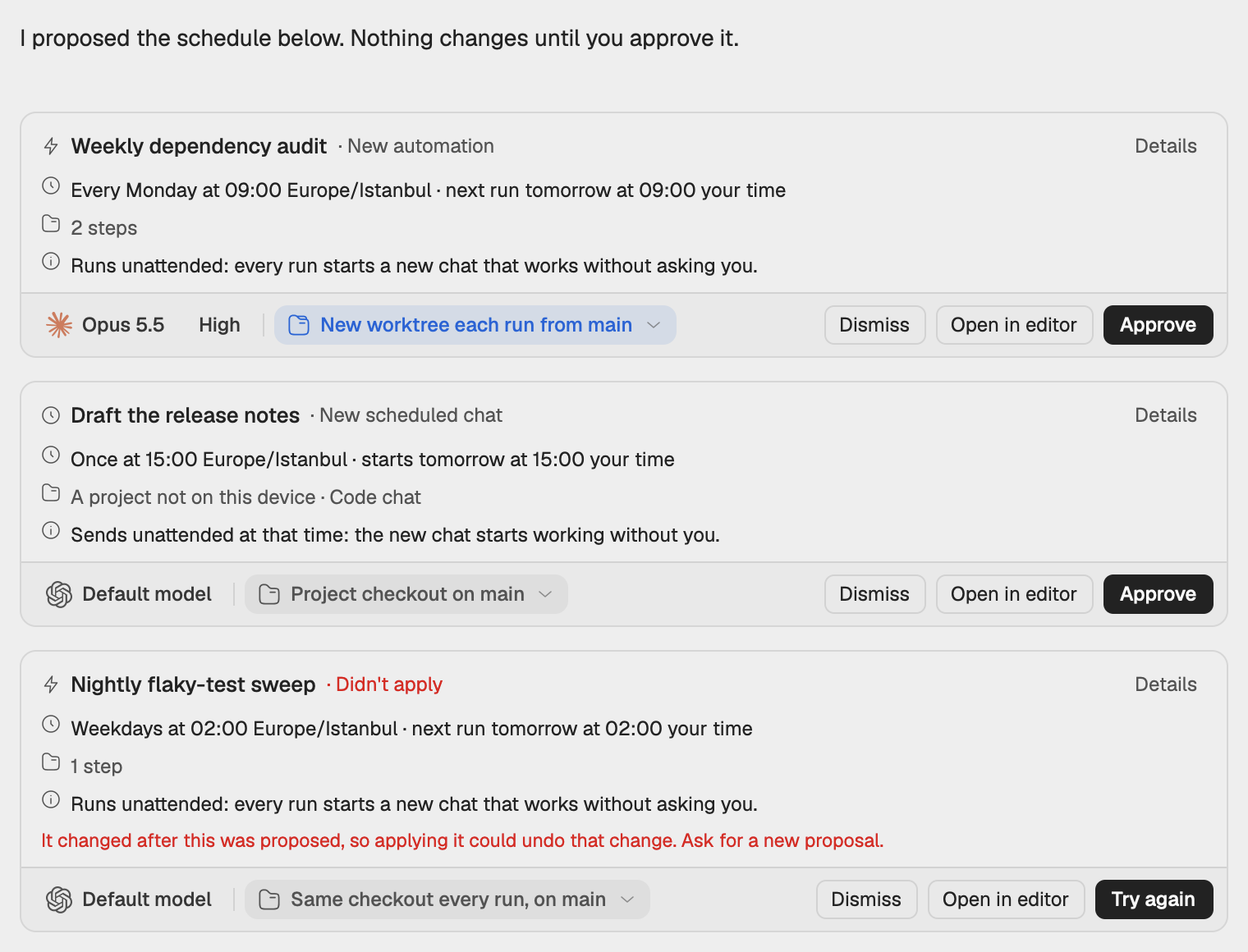
On a new automation or scheduled chat, and on a change, you can adjust two things on the card before you approve:
- The model. The card starts on the model the chat proposed.
- Where the work runs. For an automation, the same checkout every run or a new worktree each run. For a scheduled chat in a project, the project's own folder, an existing worktree or a new worktree.
Details opens the rest: the steps or the message and the settings. On a change, What changes lists each field before and after, and steps are tagged New, Changed or Removed. Reset puts your adjustments back to the proposal.
Approve, edit or dismiss
| Button | What it does |
|---|---|
| Approve | Applies the proposal as the card shows it, with your adjustments. |
| Open in editor | Opens the full form so you can change anything first. Saving applies your version. Offered for new items and changes. |
| Dismiss | Closes the card. The chat does not propose the exact same change again unless you ask. |
Open in editor opens the automation form on the Automated page, marked Proposed in a chat, or, for a scheduled chat, the Schedule this message dialog with the message and the time picker. Times there follow the target computer's clock, as in Scheduled chats.
After you decide
| The card reads | Meaning |
|---|---|
| Applying · … | The change is being made. |
| Automation created, Chat scheduled, Changes saved, Paused, Resumed, Run started, Sent now | Done. Open automation or Open chat takes you to it. · with your changes means you adjusted it first. |
| Didn't apply | The change failed. The card says why and offers Try again, Open in editor and Dismiss. |
| Dismissed | You dismissed it. |
| Replaced by a newer proposal | The chat revised its proposal. Use the newer card. |
| No longer available · you sent a new message | A message you sent ended the proposal. Ask again if you still want it. |
| Can't apply from here | This computer cannot apply it, for example because the chat's computer is not up to date. |
If the automation or scheduled chat changed after the proposal was made, approving is refused with It changed after this was proposed, so applying it could undo that change. Ask for a new proposal.
Rules
- Ordinary chats only. Automation runs, workflow runs and the agents Orchestra starts inside a chat do not get the schedule tools.
- The chat's own computer. A chat sees and changes only the schedules of the computer it runs on, and a new automation or scheduled chat is created there. To approve from another computer, the chat's computer must have approved yours; the card says Pair them in Settings → Devices & security when it has not.
- Access is capped. Work a chat proposes runs with at most Workspace write access, even when the chat itself has more. See Access levels.
- Intervals. A chat cannot propose a repeat shorter than 15 minutes.
- Limits. A chat makes at most 5 proposals in one reply and keeps at most 5 open at a time. A revised proposal replaces the earlier card and does not add to the count.
- Models. Automations run on Claude Code, Codex, Cursor or Devin. A proposal that uses Orchestra needs Claude Code or Codex.
The card is part of the transcript: it never blocks the composer, and you can keep chatting. Sending a new message ends the cards in that chat that are still waiting for you; one that is already applying finishes.