Install on macOS
Download the Apple Silicon .dmg from kelrova.com/studio, drag Kelrova to Applications and open it. Studio is free and needs macOS 12 or later.
Where in StudioStudio → Settings → About
Updated View as markdown
On this page
Studio for macOS is one .dmg for Macs with Apple Silicon. It is free, and it needs macOS 12 or later. The app is named Kelrova once installed.
Install
Download the installer
Open Studio and choose the macOS download. The file is named
kelrova-<version>-macos-arm64.dmg.Drag Kelrova to Applications
Open the
.dmg. Drag Kelrova onto the Applications folder in the same window, then eject the disk image.Open Kelrova
Open Kelrova from Applications. The first launch shows Welcome to Kelrova, where you log in, create an account or continue without one. Sign in and approve this computer walks through it.
Note: Intel Macs
There is no macOS build for Intel processors. The downloads are the Apple Silicon .dmg and two Linux builds.
Before your first chat
Studio drives the agents' own command-line tools, so install at least one of them before you start: the Claude Code CLI (claude), Codex (codex), Cursor (cursor-agent), Devin (devin) or Grok (grok). Studio finds a CLI the same way your terminal does: if the command runs in your terminal, Studio finds it too. Connect your agents covers accounts.
You also need Git on the Mac to use branches, worktrees and the Git menu in a project.
Updates
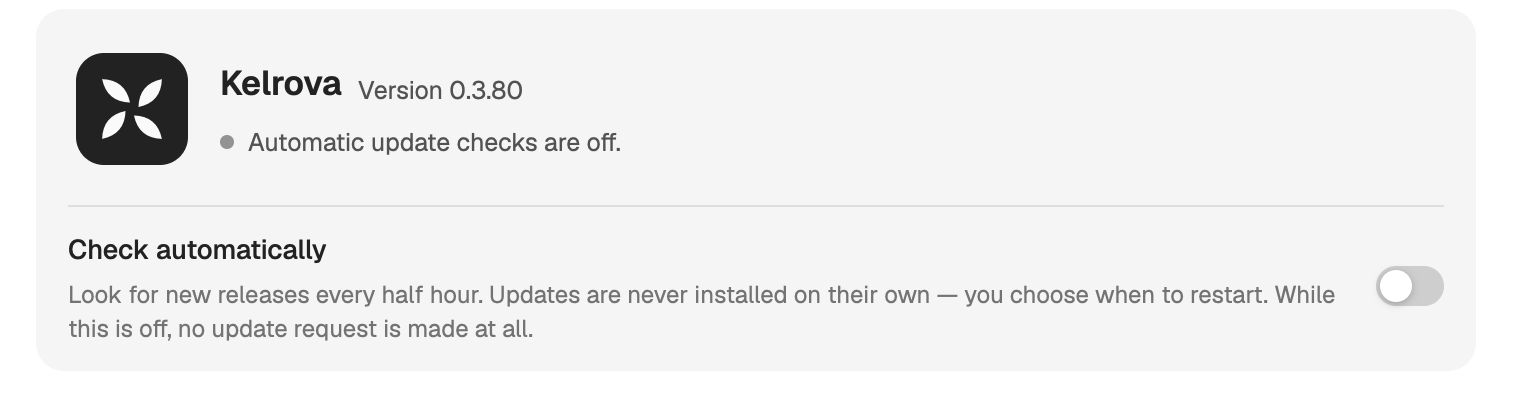
Studio checks for updates only when you allow it. The check is off on a new install.
Where in StudioStudio → Settings → About
- Turn on Check automatically to look for new releases every half hour. Updates are never installed on their own: you choose when to restart.
- Or choose Check for updates at any time.
When a release is available, the button reads Download, then Restart once it is ready. The same update also shows at the top of the account menu. Signed updates explains how an update is checked before it installs.