What Kelrova finds
The four kinds of finding, vulnerability, cost risk, hardening and Adversary attack path: what each looks like, how to filter by kind and how a fix works.
Where in the portalSecurity → Findings → Filter → Kind
Updated View as markdown
On this page
Every finding has a kind as well as a severity. The kind tells you what sort of problem you are looking at, and you can filter the Findings list by it.
The four kinds
| Kind | What you see | A sample title |
|---|---|---|
| Vulnerability | The default kind. The finding page does not name it. | Webhook receiver accepts unsigned payloads |
| Cost risk | Marked Cost risk in the list and in the finding's header, with its own icon. | Unbounded export can run up storage costs |
| Hardening | Marked Hardening in the list and in the finding's header, with its own icon. | Session cookie is missing SameSite |
| Adversary | A multi-step attack path: weaknesses that chain into one attack. | Any signed-in user can trigger refunds for another tenant |
Each kind has its own icon in the list and on the finding page. The finding page names the kind in its header line for every kind except Vulnerability.
Adversary attack paths
Adversary findings come from the Adversary scan, which looks at the whole project the way someone trying to break it would. A finding lists every step of its path in order, with the file and line where each step happens. It also says who it reaches: One user, One tenant or All users. The scan is available on Pro and above; see Pricing.
See What a finding page shows for where the steps and Affects appear.
Filter by kind
Open the Findings list
Choose Security, then Findings, and pick the project.
Open the filters
Press Filter. The Kind section lists All kinds, Vulnerability, Cost risk, Hardening and Adversary, each with the number of findings of that kind.
Pick one
The list follows your pick. The choice appears beside the Filter button as Kind and the name, and the small cross beside it removes it.
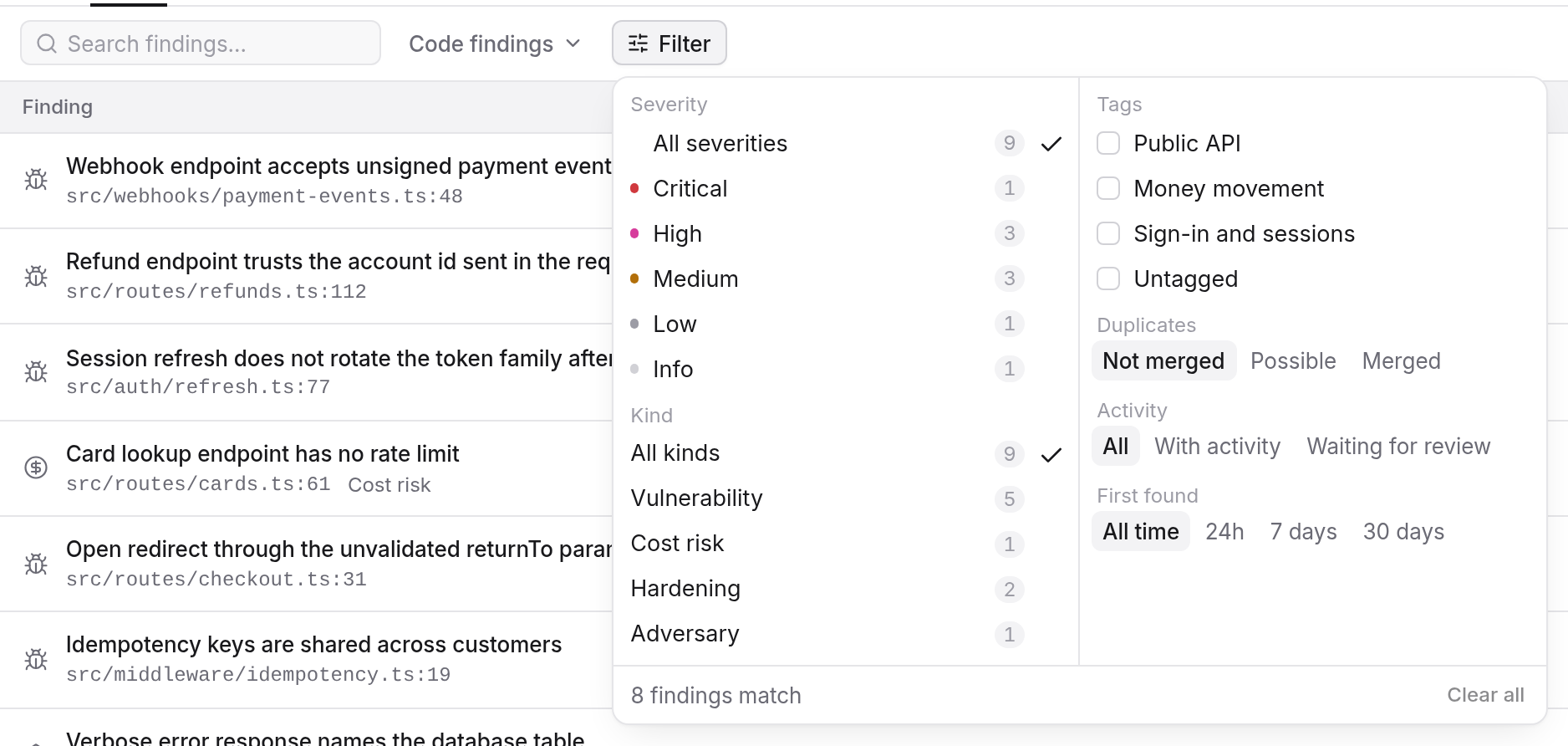
The kind filter combines with severity, tag, duplicates, activity and the other filters in the same panel. Your own agent can filter by kind too; see The six tools.
What a fix looks like
Go Fix is on every finding, whatever its kind. Fix it now opens a draft pull request with the change, Re-check this finding looks at it again with no pull request, and Ask about this finding answers your questions. For an Adversary finding, a re-check verifies the attack path against the code, and Go Fix and finding chats get the whole chain as context.
Each finding also says how to fix it and how to test the fix, so you can make the change by hand. See Go Fix: fix, re-check, ask.
Dependency advisories are listed in a view of their own; see Dependency advisories.