Models, reasoning and accounts
Pick the agent and model for a chat, set its reasoning effort and options, and choose which provider account it runs on.
Where in StudioComposer → model chip
Updated View as markdown
On this page
Three controls on the right of the row under the composer set who answers. The model chip picks the agent and its model. The chip beside it sets the reasoning effort and the model's other options. The chat settings button, when it shows, picks the provider account. The agent and model are fixed once the chat starts; effort, options and the account can change between messages.
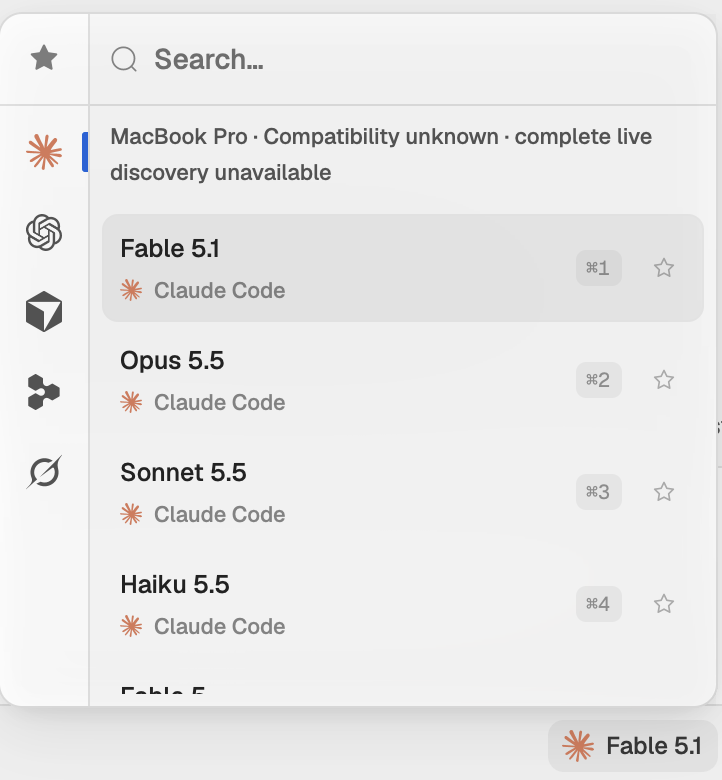
Pick the agent and model
Where in StudioComposer → model chip
Open the picker
Click the model chip, which shows the agent's icon and the model name.
Choose the agent
The rail on the left has one icon per agent shown in the composer, such as Claude Code, Codex, Cursor, Devin and Grok. The star at the top lists your starred models from every agent.
Choose the model
Click a model, or press ⌘1 to ⌘9 for the first nine rows. Each row names the model over its agent. Use the star on a row to keep it at the top of the list.
Type in Search models… to search every agent at once. The rail hides while you search.
A new chat remembers your last agent, model, effort and options for the next new chat. Each model keeps its own effort and options, so going back to a model brings back what you last used with it.
Which agents appear is set in Settings → Agents with Show in composer. See Connect your agents. If an agent's command-line tool is missing on the computer that runs the chat, the picker says Install the provider CLI on that device before using its models.
Auto
While you are signed in, a new chat's model list starts with Auto, described as Kelrova picks for you. Kelrova then picks a model of that agent for your first message. The chip reads Auto · choosing… until the pick is made, then Auto → and the model it chose.
After the chat starts
The chat keeps the agent and model it started on. The picker still opens so you can see the list, but its rows cannot be picked: This chat keeps the model it started on — start a new chat to switch.
Set reasoning and options
The chip beside the model names the current settings, for example High · 1M · Fast. It is brighter when a setting differs from the model's default. Click it to see one row per setting, then a row to see its choices. The model's default carries a Default badge.
| Setting | What it changes |
|---|---|
| Effort | How hard the model reasons before it answers: from Minimal or Low up to High, X-High, Max and beyond, as the model offers. |
| Model options | Whatever else the model offers, such as a larger Context window or a faster speed. The names come from the agent. |
A model with no effort levels and no options has no chip. In an existing chat a change applies from the next message.
Plan and other modes
Some agents offer a mode next to the model chip, shown as a colored badge such as Plan or Agent. Click the badge to move to the next mode. In Plan the agent reads and proposes without changing files. The mode is not remembered for the next new chat. See Access levels.
Choose the account
When an agent has two or more accounts on the computer that runs the chat, a settings button appears right of the effort chip. Its tooltip names the account the chat runs on, for example Chat settings · name (device default).
Open the account menu
Click the settings button. The menu is headed with the agent's name, for example Claude Code account.
Pick an account
Choose Device default to follow the account selected in Settings → Agents, or pick one of the listed accounts to pin this chat to it. Each row shows the account's plan and its fullest usage window, such as Week 58%.
A pin belongs to this chat only. A new chat starts on Device default. Manage accounts in Settings at the foot of the menu opens the agent's accounts. See Mix providers and accounts for accounts in an Orchestra.
When the pinned account cannot run
A warning dot appears on the settings button and the menu explains why:
- This chat's account was removed from this device.
- Kelrova can't read the login for the account.
- The sign-in for the account expired.
Pick another account, return to Device default, or renew the login in Settings → Agents.
Warm-up
On a new chat Studio can start a session with the selected model while you type, so the first reply begins at once. A badge beside the branch chip shows Warming up, Session ready or Warm-up failed. You can send at any time: during warm-up the message waits for it, and after a failed warm-up the session starts when you send.