Automated and Workflows
Automations run saved prompts on a schedule; workflows replay them when you choose. Each run opens a fresh chat on the computer that owns it.
Where in StudioNavigation rail → Automated or Workflows
Updated View as markdown
On this page
An automation runs saved prompts on a schedule. A workflow holds saved prompts that you start by hand, in one click. Both live on their own page in the navigation rail, Automated and Workflows, and every run opens a fresh chat that works through the steps in order.
| Automated | Workflows | Scheduled chat | |
|---|---|---|---|
| Starts | On its schedule, or Run now | When you choose Run now | Once, at its time |
| What it runs | One or more saved steps | One or more saved steps | One first message |
| Each run | A fresh chat | A fresh chat | The chat itself |
For a single message at a set time, see Scheduled chats.
Note: Which agents can run them
Workflows and automations currently support Claude Code, Codex, Cursor and Devin only. The editor hides the other agents, and a definition saved on one of them must be given a supported agent before it can run.
Create an automation
Where in StudioAutomated → New automation
Open the form
On the Automated page choose New automation, or + at the top of the sidebar.
Name it and add steps
Give it a name and type each step, pressing Enter to add it. Each run sends the steps to the agent in order, in the same fresh chat. Nothing is sent while you edit. Write each step so it stands on its own: a run cannot see the chat you wrote it in.
Choose what it runs with
Under Runs with, pick the Project and the Agent and model. Under Checkout, choose Project folder to work in the project's folder every run, or New worktree each run to give every run its own worktree and branch. Leave Base branch blank to start from the project's current branch.
Set the schedule
Pick a Repeat: Once, Every minute, Hourly, Daily, Weekly, Custom (every few days) or Days of week. Set Starts at as
YYYY-MM-DD HH:MM. For Days of week, choose the days, the time and a Time zone; the automation then runs at that local time in that zone, also when the clocks change. The Upcoming list shows the next runs.Choose notifications and save
Pick when you hear about a run under Notifications, then choose Create automation.
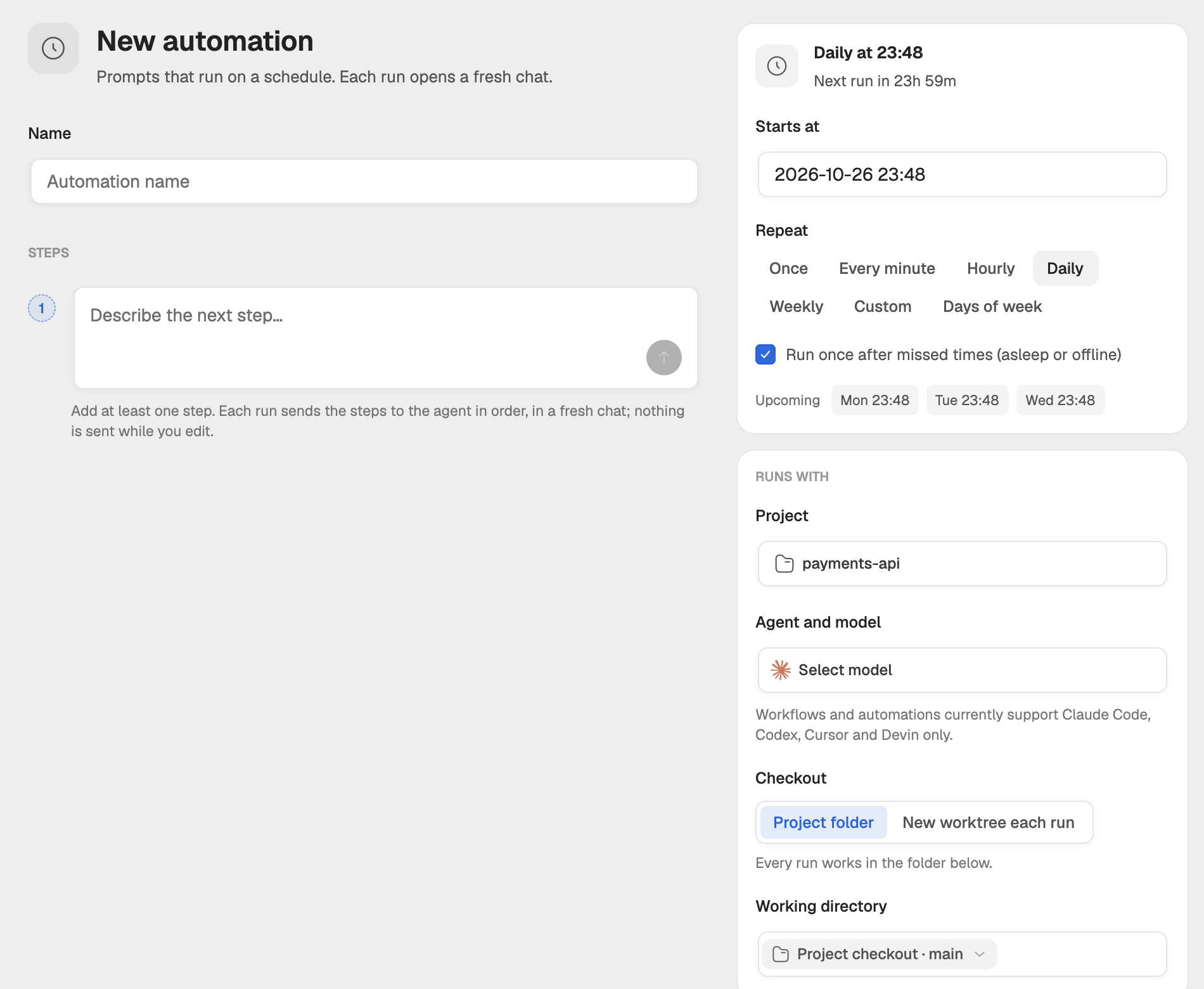
Run once after missed times (asleep or offline) decides what happens when the computer was asleep or a run was still going when a time came: on, it runs once instead of once per missed time.
Create a workflow
On the Workflows page choose New workflow. A workflow has a name, steps and Runs with, but no schedule. Choose Create workflow to save it.
Save a chat as an automation or workflow
In a chat, open Actions in the row under the message box:
- Create automation saves that chat's own messages as the steps and asks for the schedule. Each scheduled run opens a new chat.
- Create workflow saves them as a workflow under a name you give.
- Run workflow starts one of your saved workflows in a fresh chat.
A chat can also propose an automation for you. See When a chat proposes a schedule.
The Automated and Workflows pages
The sidebar lists your automations or workflows in cards, one per project and computer, with a search field. Select one and the page shows it the way a chat looks:
- the run in progress, if any, with its step, for example Running step 2 of 4;
- the runs so far, each with its outcome and Open chat;
- a bar at the bottom with Run now, or Answer or Open run while a run is open;
- beside it, cards for the Schedule (the next run and a switch to pause it), the Health (how long a run usually takes and the last failure) and the Setup (agent, access, folder, the steps and Edit).
How a run ends
The agent reports how its last step ended. A run reads:
| Outcome | Meaning |
|---|---|
| Running | A step is in progress. |
| Needs input | The agent asked you something and waits for your reply. Choose Answer to reply in the run's chat. |
| Completed | The work is done. |
| Failed | The work could not be completed. |
| Stopped | You stopped the run. |
| No status | The last step finished without reporting how it went. Read the run's chat to see. |
Notifications
An automation notifies once per run, not once per step:
| Setting | What you get |
|---|---|
| Default | A banner on your computers when a run ends or needs you. |
| Every run | A banner and a push notification when a run ends or needs you. |
| Failures | A banner and a push notification only when a run fails. |
| Off | No notifications. Runs still appear on the page. |
Each computer's own notification settings still apply.
Worktrees for each run
With New worktree each run, every run starts in its own new worktree and branch, so runs never touch your checkout. The 5 newest are kept. Older ones are removed only when they have no changes: no uncommitted files and no commits beyond their base, and no chat working in them.
Pause, edit and delete
- Pause. Use the switch on the Schedule card, or in the edit form. No new runs start until you resume; the card shows the next run If resumed.
- Edit. Choose Edit on the Setup card. Changes apply from the next run.
- Delete. Choose Delete in the edit form and confirm. The definition is deleted for good; the chats of earlier runs stay.
Where it runs
An automation or workflow belongs to one computer and runs there, in that computer's project folder. The Setup card names the computer. One that came from another computer shows This came from another device. Save or resume it here to let it run on this device. If the project folder moved, the bar offers Fix & run to point it at the new place and start.