Questions and suggested replies
Answer an agent's question in the panel that replaces the composer, and send a suggested reply with one click.
Where in StudioChat → question panel
Updated View as markdown
On this page
An agent can stop and ask you something before it goes on. The question opens in a panel in place of the composer, and the run waits for your answer. Separately, an agent can end a reply with two or three ready-made answers, called suggested replies, that you send with one click.
Answer a question
When the agent asks, the transcript shows a Question chip that reads Awaiting your answer…, the chat's row in the sidebar shows Input, and the question panel takes the composer's place.
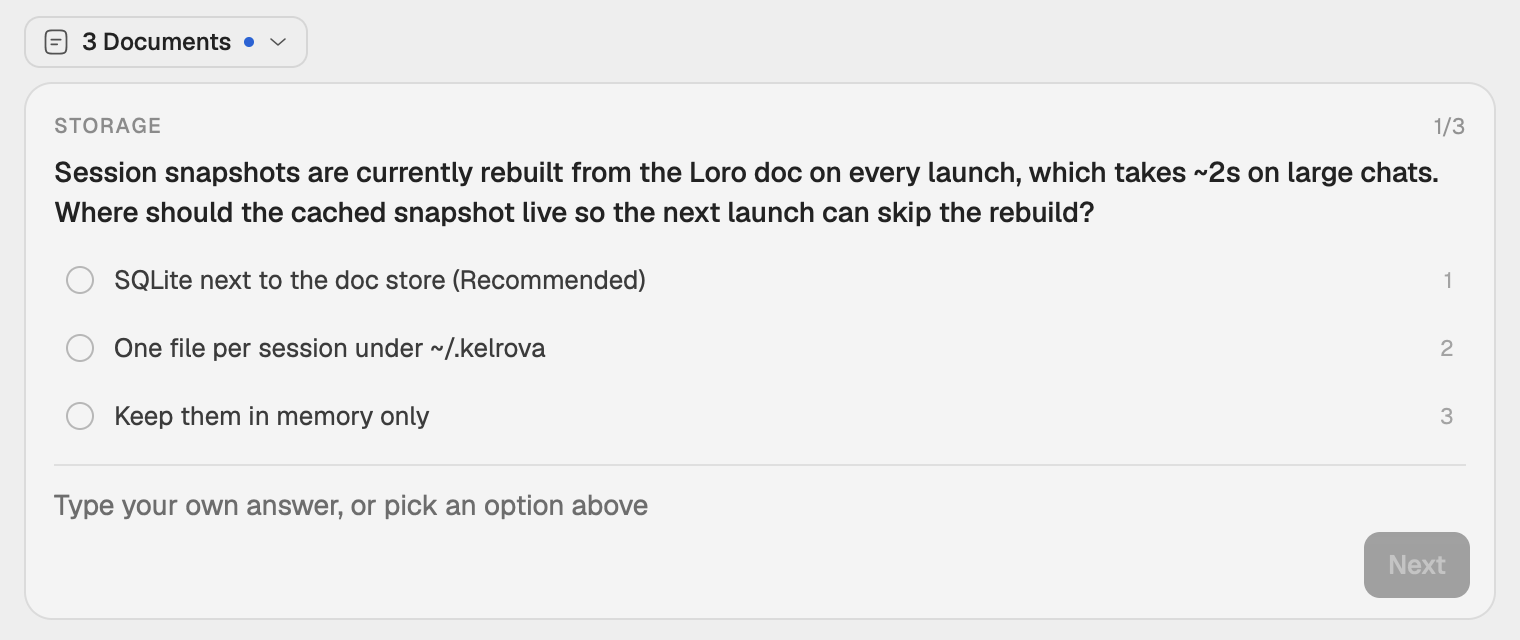
Read the question
The panel shows a short header, the question, and the options the agent offered. When the agent asks several questions at once, a counter such as 1/3 shows where you are.
Pick or type an answer
Click an option, or press its number, 1 to 9. A question that takes one answer moves on by itself after you pick. When the panel says Select one or more., pick every option that applies.
To answer in your own words, type in the field under the options. Typed text is used instead of the picked option.
Go on
Choose Next, or Submit on the last question. Back returns to the previous one. ↩ moves on as well.
Once you submit, the agent receives your answers and carries on. The chip in the transcript then shows the question's header.
The question stays open until you answer it, even if you leave the chat or the run stops in the meantime. When you answer a question whose run has ended, the agent picks up from your answer in a new turn.
Keys in the panel
| Keys | What it does |
|---|---|
| 1 to 9 | Pick that option, while the answer field is empty or not focused. |
| ↩ | Next question, or submit on the last one. |
| Escape | Back one question, while the answer field is empty or not focused. |
Be told when an agent asks
Settings → Notifications has Sounds, a chime when a run finishes or an agent asks a question, and Desktop notifications.
In an Orchestra, a subagent's question goes to the orchestrator first, and reaches you only when the orchestrator passes it on. See The agent map and records.
Suggested replies
When a reply ends with a choice for you, the agent can offer two or three answers in a box under its last message: a one-line question over a button per answer. The solid button is the one the agent recommends.
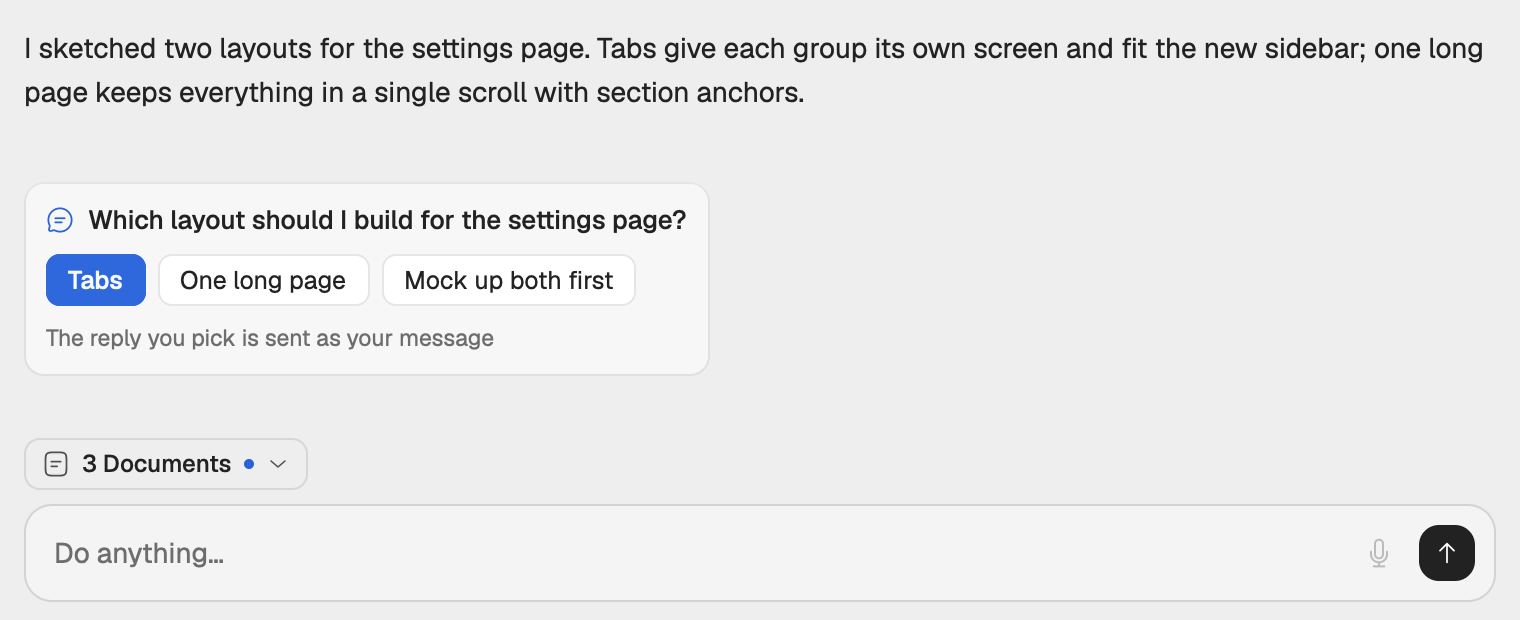
- Send one. Click a button. Its full text goes as your next message, with the chat's model and settings, exactly as if you had typed it. Hover a button to read the text first.
- Ignore them. Type your own message instead.
Once you send any message, the box leaves the transcript. A chat has one open box at a time. A box that cannot be used shows a one-line record instead:
| Record | Meaning |
|---|---|
| No longer available | A newer box replaced it. |
| Expired | The computer that runs the chat restarted, and the box was no longer the chat's last entry. |
| Can't reply from here | This view cannot send to the chat, for example a subagent's transcript or a window without a connection. |
A run that is stopped or fails offers no replies. Subagents, automations, workflows and finding chats never offer them.
Turn suggested replies off
Where in StudioSettings → Agents → Suggested replies
Open Settings → Agents, choose Suggested replies in the list, and switch off Offer suggested replies. The setting is on by default and synced across your devices. Boxes already in a transcript stay as they are.