Proposals you confirm
When you approve a large piece of work, the agent can propose an Orchestra. Review the brief, model and checkout in the box, then Start or Dismiss.
Where in StudioChat → Orchestra proposal
Updated View as markdown
On this page
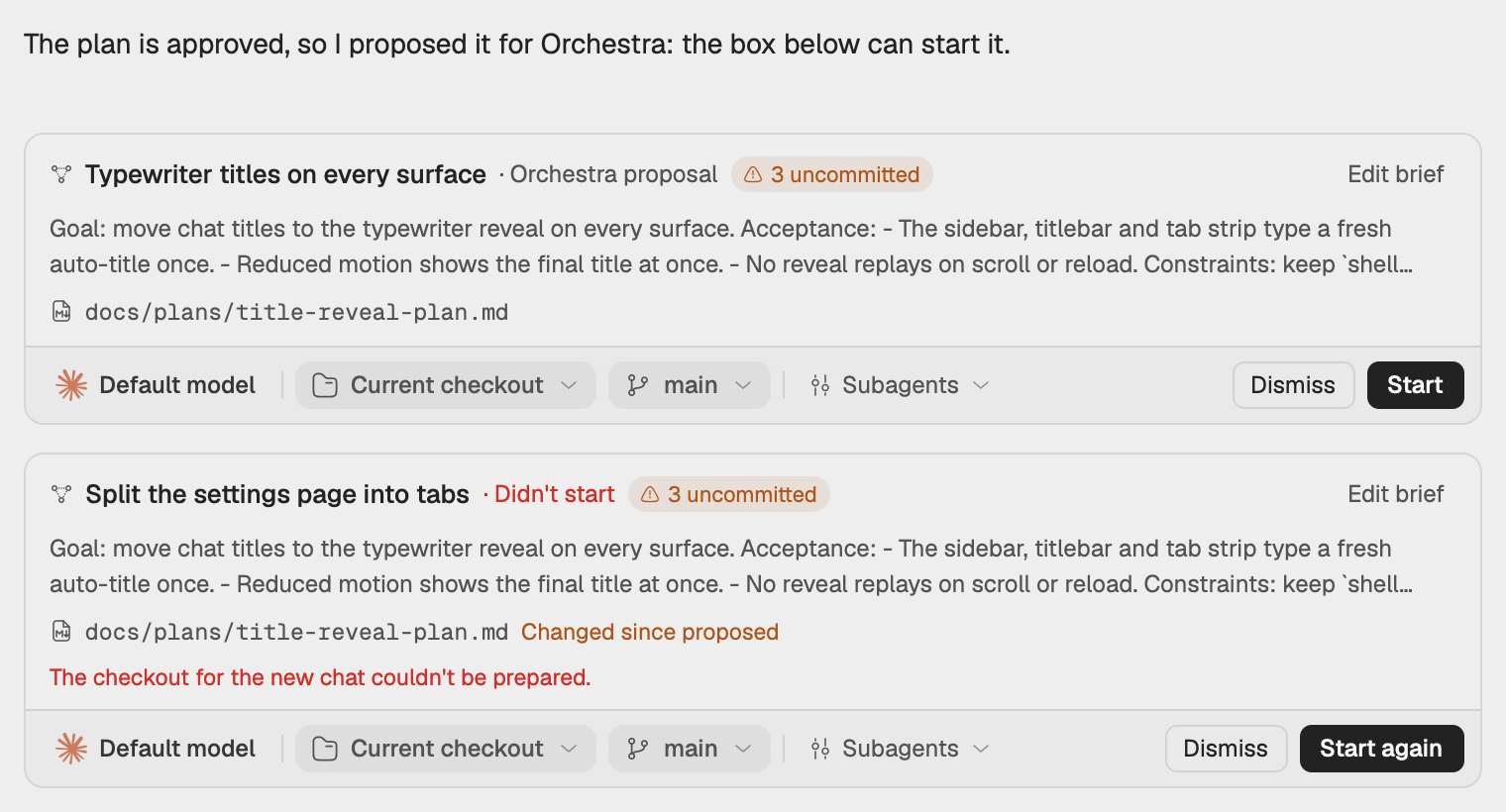
A chat can offer to run approved work as an Orchestra, but it cannot start one. It writes a brief and puts an Orchestra proposal box under its reply. Nothing happens until you choose Start, and the work then runs in a new chat with Orchestra on.
When an agent proposes
An agent proposes only work that is settled and large enough for Orchestra: you approved the plan or said to go ahead, and the work has several independent parts or runs long. It does not propose for questions, options or small edits. Its message ends by saying the box below can start the work, and the transcript shows Orchestra Work Proposed with the title.
If you ask for changes, the agent makes a new proposal that replaces the old one. A brief you dismissed is not proposed again in that chat.
What the box shows
- The title line: Orchestra proposal (or Didn't start after a failed start), and a badge with the number of uncommitted files in the chat's checkout.
- The brief: the first two lines of what the new chat will be told. Click it, or Edit brief, to read it in full and change it. While you edit, a counter shows its length (at most 4,000 characters); Reset brings back the agent's text and Done closes the editor. An edited box says "brief edited".
- The plan file, when the agent wrote one. Open shows it. If the file changed after the proposal, the box says Changed since proposed; Start then uses the plan as it is now.
- The controls: the agent and model the new chat runs on, where it runs, Subagents, then Dismiss and Start.
Start the work
Read the brief
The new chat sees nothing of this conversation, only the brief and the plan file. Open the brief and check that it says everything the work needs.
Pick the agent and model
Choose the orchestrator's agent and model for the new chat. A proposal starts on Claude Code or Codex.
Pick where it runs
Choose Current checkout to run here, on the chat's branch and with its uncommitted files, or New worktree for a fresh worktree from the last commit, without them. The branch chip picks the branch: another branch starts a new worktree from it. A folder that is not a git checkout has no choice.
Adjust the subagents (optional)
Subagents opens the same model panel as the composer's Session models, for this start only. The button shows how many roles you customized. This chat's own session models stay as they are.
Start
Choose Start. The box shows Starting, then Started in a new chat with the new chat's status, and Open chat takes you there.
The new chat opens in the same project with Orchestra on and the proposal's title. Its first message is the title, the brief and the plan file's path. It gets the same access as the chat that proposed it. With New worktree, the plan file is copied into the new worktree.
After you start work on the current checkout, the proposing chat leaves the files that work covers alone unless you ask.
Dismiss, replace and expire
- Dismiss closes the box. The agent does not propose the same brief again in this chat.
- A box goes away when you send your next message in the chat, whatever its state. A message from another chat does not remove it.
- A replaced box says "No longer available · replaced by a newer message or proposal".
When a start fails
The box says Didn't start with the reason, and Start again tries again. Common reasons:
| Message | What to do |
|---|---|
| The brief no longer matches what was proposed. | Open the brief to confirm the text, or dismiss. |
| Orchestra runs on Claude Code or Codex only. | Pick Claude Code or Codex for the new chat. |
| That model isn't available on the chat's device. | Pick another model. |
| The checkout for the new chat couldn't be prepared. | Check the branch, or start on the current checkout. |
| The plan file can't be read on the chat's device. | The plan file was moved or removed. Ask the agent for a new proposal. |
| The chat's device hasn't approved this device. | Approve this computer on the chat's device, then try again. See Approved devices and signatures. |
Limits
An agent can make at most 5 proposals in one turn, and a chat holds at most 5 open proposals. Starting a proposal does not count toward the limits on chats a chat starts. See Access ceiling and limits.