Remove a device
Remove an offline device from your account, or move its projects and chats to this Mac first. Removal deletes its synced chats; its files stay put.
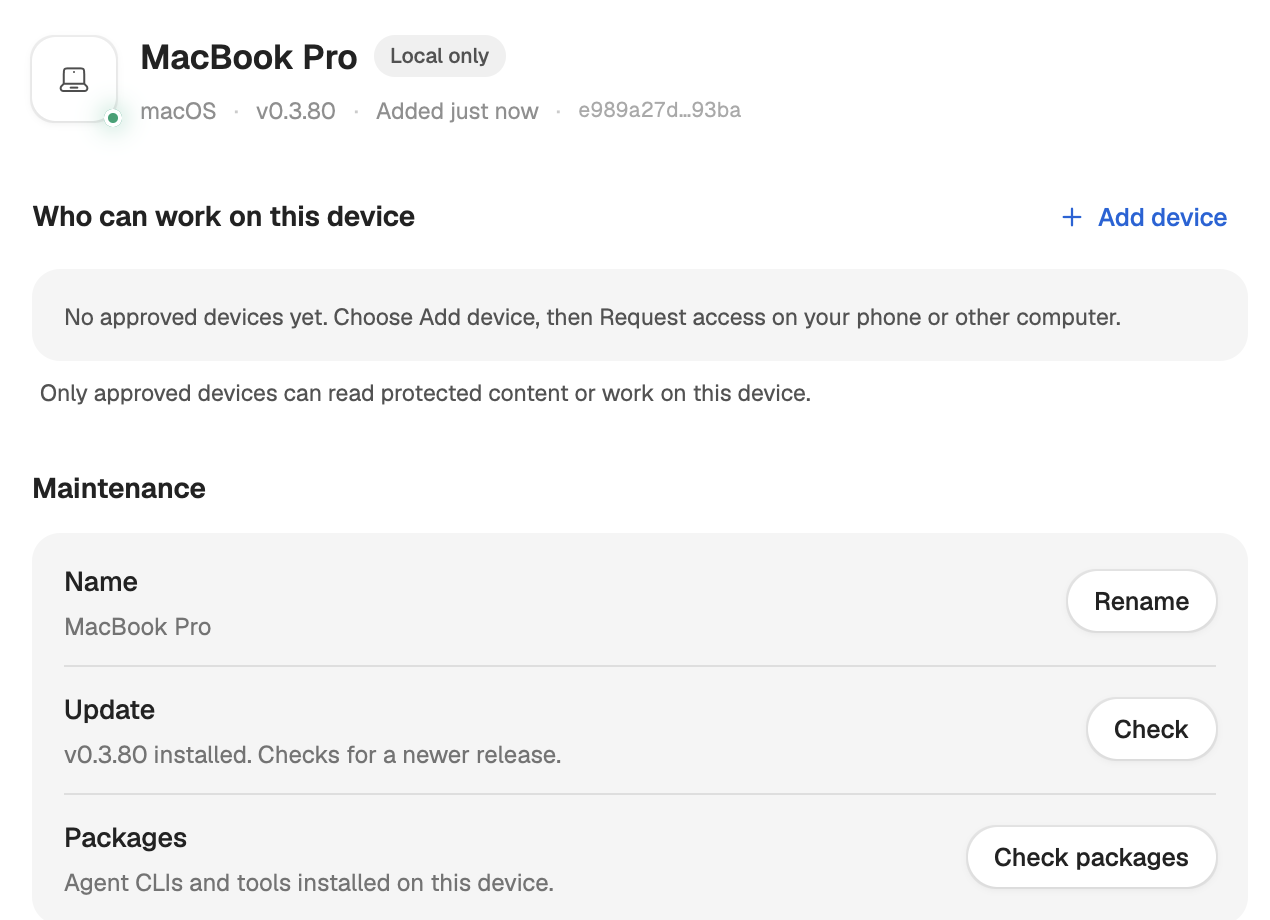
Where in StudioStudio → Settings → Devices & security → a device → Maintenance
Updated View as markdown
On this page
Removing a device takes it off your account: its synced projects and chats are deleted, and its files stay on the machine. Studio offers Remove only for another device that has been offline for a few minutes, so a device that is merely between check-ins can never be removed by mistake. If you want to keep the device's projects and chats, take them over first.
Before you start: stop the server
A server that is still running checks in and comes back online, and a device that signs in again can reappear in your list. To retire a server for good, on the server:
kelrova daemon uninstall   # stop the service and remove it
kelrova logout             # forget the saved sign-in
Studio's files stay in ~/.kelrova. Delete that folder only if you no longer need anything on the server: it holds the server's chats and its encryption keys, and a Linux server keeps no other copy of those keys (Encryption of synced content).
Move its work to this Mac
Take over moves the device's projects, chats, automations, workflows and schedules to this Mac, for example after you reinstalled a computer and it came back as a new device.
Open the device
Select the offline device on Devices & security. Take over appears under Maintenance once the device has been offline for a few minutes.
Confirm
Choose Take over…. The dialog counts the projects, chats, automations and workflows that will move. Choose Take over.
Point projects at their folders
The files themselves do not move. A project whose folder is not on this Mac shows Folder not found — Choose location… in the sidebar; choose it and pick the folder.
Remove the device
Open the device
Select the offline device on Devices & security. Under Maintenance, the Remove row reads Available once it has been offline for a few minutes. until it can be removed.
Read the confirmation
Choose Remove…. Remove offline device? names how many projects and chats will be deleted from sync. If the device has scheduled chats that have not run, the dialog says so: removing the device does not cancel them, and they can still start if the device comes back online.
Remove
Choose Remove. This cannot be undone. Files and worktrees remain on the device.
Remove is offered only while Studio is signed in, and never for this Mac itself.
Removing a device is not the same as revoking its access
The device list and the approvals are separate:
- Removing a device takes its row, projects and chats off your account.
- Removing an approval stops a device from working on this Mac. Do it under This device → Who can work on this device → Remove. To stop this Mac from working on a server, use Remove my access on the server's page.
When you retire a device that was approved to work on this Mac, do both. Approved devices and signatures covers approvals.
Orphaned chats
After a clean reinstall, your account can still list chats whose device no longer exists. Nobody can run them, and unless this Mac kept a key for them, nobody can read them. When there are any, This device → Maintenance shows Orphaned chats with Clean up…, which deletes them on every device after you confirm. Chats this Mac can still read are kept unless you turn on the option to delete them too, and scheduled chats are never deleted this way.