Your first chat
Choose New chat, check the device and project, pick an agent and model, type what you want and press Enter. The agent works in that project's folder.
Where in StudioStudio → New chat
Updated View as markdown
On this page
A chat is one conversation with one agent, working in one project on one device. Start it from the new-chat canvas: pick where it runs and which agent to use, then send your first message. The agent reads and edits files in that project's folder, and you follow along in the chat.
You need a project first. With none yet, the window shows Add a project to get started; see Projects and checkouts.
Open a new chat
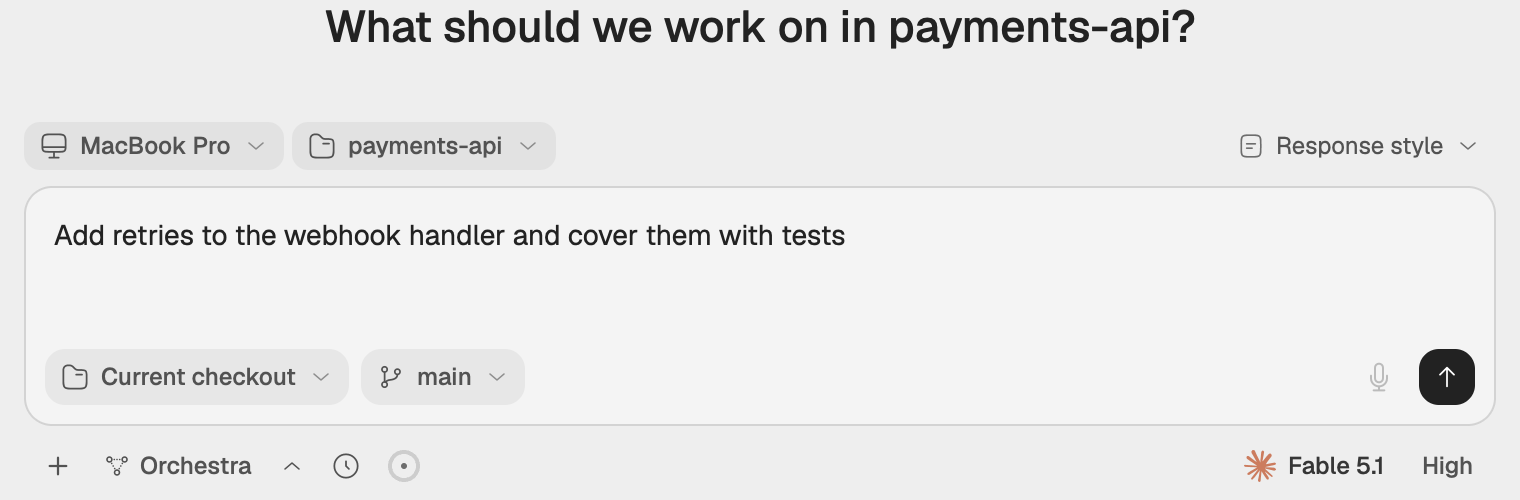
Choose New chat at the top of the navigation rail, press ⌘N, or choose File → New Chat. The composer sits in the middle of the window, with your recent chats below it.
Check where it runs
Above the message box, the device chip names the computer, This device or one of your servers, and the project chip names the project. Choose either chip to change it. The project list shows only the projects on the selected device.
Pick the checkout
For a project with Git, the chips under the message box choose the checkout: Current checkout works in the project folder, and New worktree makes a separate copy on a new branch. Keep Current checkout for a first chat. Projects and checkouts explains the difference.
Pick the agent and model
Open the model picker under the message box. The column of icons on its left lists your agents; choose one, then a model from its list. An agent that is not installed on the selected device says so and links to Agent settings.
Write and send
Type what you want in the box that reads Do anything… and press Enter to send. Shift+Enter starts a new line.
While the agent works
The chat opens on your message and fills in as the agent replies, runs commands and edits files. In the sidebar, the chat's row reads Working, then Done when the turn ends, Input when the agent waits for you, or Failed if the run stopped with an error. You can keep typing while it works; Steer, interrupt and stop explains what happens to a message sent mid-turn.
To see what changed, press ⌘B: it shows or hides the right sidebar, where the chat's changes are. The new chat gets a title on its own after the first message.
Good to know
- A chat keeps the agent and model it started with. To use another, start a new chat.
- By default the agent may edit files in the chat's checkout. Access levels covers what it may do and how to change it.
- The chat runs on the device it was started on, even when you look at it from another computer.
Next
- The composer covers every control under the message box.
- Changes, branches and pull requests covers committing what the agent changed.