The browser panel
Watch the agent's browser live, open your own tabs and dev servers, and take control of a page to sign in or click through it yourself.
Where in StudioChat → right panel → Browser
Updated View as markdown
On this page
An agent can open web pages in a browser of its own: it reads them, clicks, types and takes screenshots, for example to check the app it is building. The Browser panel shows that browser live and lets you use it too. It is a separate Chrome with a temporary profile; it never touches your own Chrome, its cookies or its saved logins.
Open the panel
Where in StudioChat → right panel → Browser
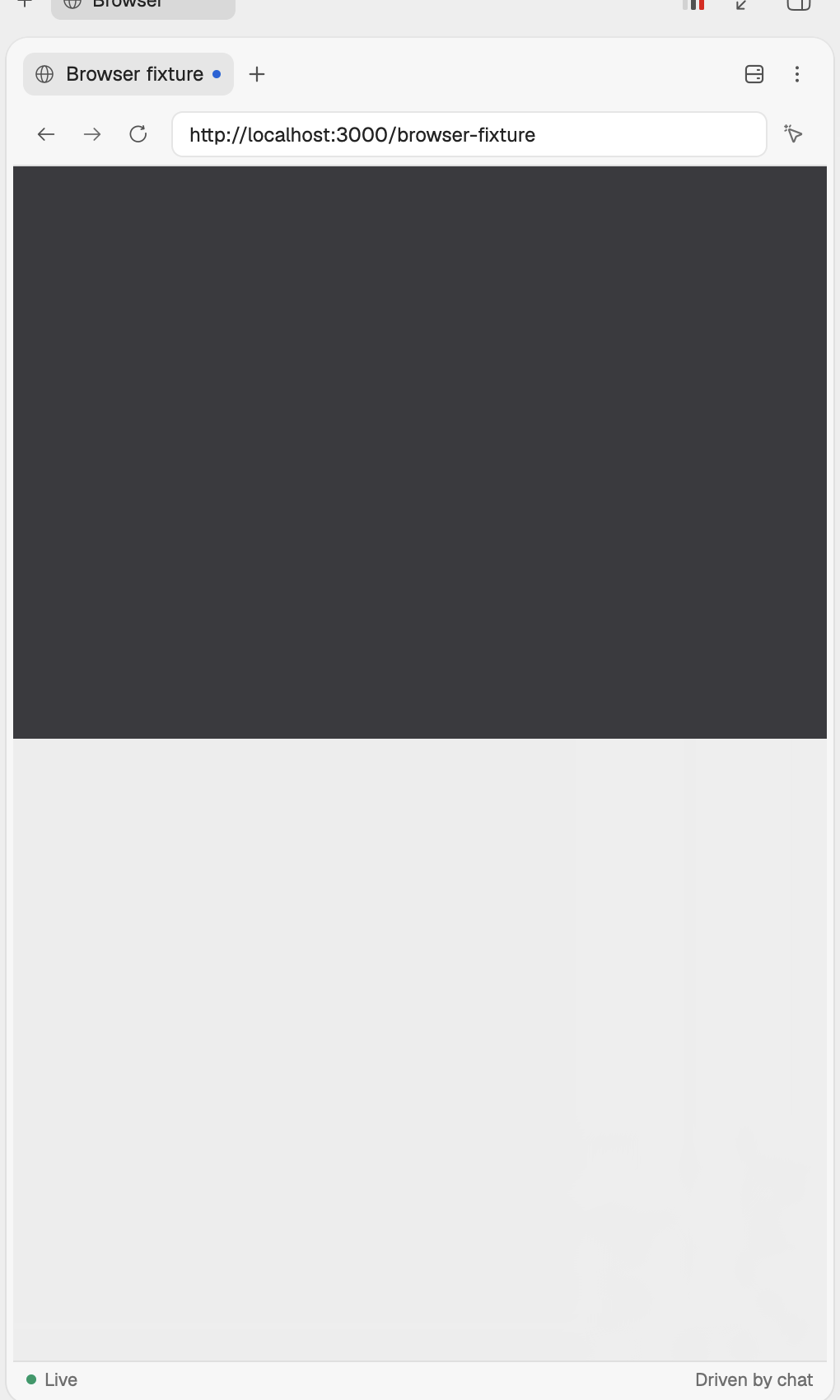
Open the right panel and choose Browser, from Open a surface or the + at the end of the panel's tabs. When the agent opens a page, the live view appears there by itself. Before that the panel says When the model opens a page, the live view appears here.
The browser runs on the computer that owns the chat. That computer needs Google Chrome or Chromium. For a chat on a server, add Chrome when you install Studio there; see Server requirements. The panel still shows a server's browser on your Mac.
Tabs and the address bar
Each page of the chat's browser is a tab in the panel.
- + (New tab) opens a blank tab and puts the cursor in the address bar.
- ✕ or a middle click closes a tab.
- An accent dot marks the page the agent is working on. Looking at another tab never moves the agent; it sees tabs you open but keeps to its own page until it picks another.
- Type a URL in Type a URL and press ↩. Escape puts back the last address. An address without
http://orhttps://uses HTTPS, exceptlocalhostand loopback addresses, which use HTTP. - Back, Forward, Reload and Stop loading act on the page you are looking at.
Tabs belong to the chat. Other chats have browsers of their own and cannot see these.
Dev servers
A blank tab lists the dev servers running in this project, with Servers started in this project appear here automatically. Play opens one in the tab. While a page is open, Dev servers in the tab strip lists them. With none running, the tab says Run a dev server to preview your app, or enter a URL.
Take control of a page
You can click, type and scroll on the live page yourself, for example to sign in.
Take control
Click or scroll on the page, or use the control button, Take control to click, type and scroll this page. It turns into Release while you hold control.
Use the page
Click, select, type, paste text and use the keyboard as in any browser. Hover effects show as you move the pointer.
Hand it back
Choose Release (Release control of this page). The agent carries on.
While you hold control, the agent can still look at the page but cannot change it. An action the agent already started finishes first. Control also ends when you switch page or chat, hide the panel, pause the live view or the page stops responding.
When a page needs you
A page that asks for a sign-in, a CAPTCHA or another challenge shows Needs user action: "This page needs you — take control to sign in or finish the challenge." Take control, finish it, then release the page and ask the agent to continue. Passkeys, security keys and system dialogs cannot be completed in the panel.
The panel's menu
More browser actions (⋮) holds:
- Sessions, to switch between the chat's browser sessions, including those of its subagents.
- Pause live view and Resume live view. Pausing stops the picture only; the agent and the page keep going.
- Close browser session, which ends that browser and deletes its temporary profile.
Closing only the panel leaves the browser open until you close the session or it sits idle long enough to close by itself.
Privacy
- The live picture is not saved and is not written to the chat.
- A screenshot is saved only when the agent takes one, and it is stored with the chat's uploads on the computer that owns the chat.
- The browser does not copy cookies from your own browser, keep a profile between sessions, upload or download files, or record video or audio.
When it does not work
| Message | What to do |
|---|---|
| Chrome not found | Install Google Chrome or Chromium on the computer that owns the chat. If it is installed somewhere unusual, set KELROVA_CHROME_EXECUTABLE to its path before starting Studio. |
| Too many browser sessions | Close another browser session and try again. |
| Live view unavailable or Reconnecting | Keep the panel open a moment. The agent may keep working while the view reconnects. Close and reopen the panel if it stays. |
| Another viewer is in control | Someone else is using the page from another window or computer. Wait for them to release it. |