Keep servers up to date
Servers set up with the installer update themselves when nothing is running. You can also update one from Devices & security or with kelrova update.
Where in StudioStudio → Settings → Devices & security → a server → Update
Updated View as markdown
On this page
A server installed with the installer keeps itself up to date: it looks for a new release every half hour and installs it when no chat and no terminal job is running there. You can also update a server from your Mac at any time, or from the server's own terminal. Every update is checked against Kelrova's release signature first (Signed updates).
Automatic updates on a server
The installer turns automatic updates on by writing KELROVA_AUTO_UPDATE=1 to ~/.kelrova/env. With it on, the server:
- checks for a new release every 30 minutes, and again 15 minutes after a failed check;
- downloads the new release ahead of time, then waits until nothing would be cut off: no chat running and no terminal busy on the server;
- restarts into the new version and reconnects on its own.
Recent activity from another device, such as your Mac reading a chat on the server, can delay the restart for at most two hours. Running chats and busy terminals delay it for as long as they run, so an automatic update never stops work in progress.
While the server restarts, Studio on your Mac shows that it is updating and queues the messages you send; they run once it is back.
To turn automatic updates off, change the line to KELROVA_AUTO_UPDATE=0 and restart the service with systemctl --user restart kelrova. Deleting the line turns them off too, but the installer adds it back the next time it runs.
Update a server from your Mac
Where in StudioStudio → Settings → Devices & security
Open the server
Select the server in the device list. Under Maintenance, the Update row shows the installed version. It is available while the server is online.
Check
Choose Check. The dialog shows the Installed and Latest versions. If they match, it reads that the server is up to date.
Update
Choose Update to and the new version. The server downloads and installs it, restarts, and the dialog waits until the server reports the new version.
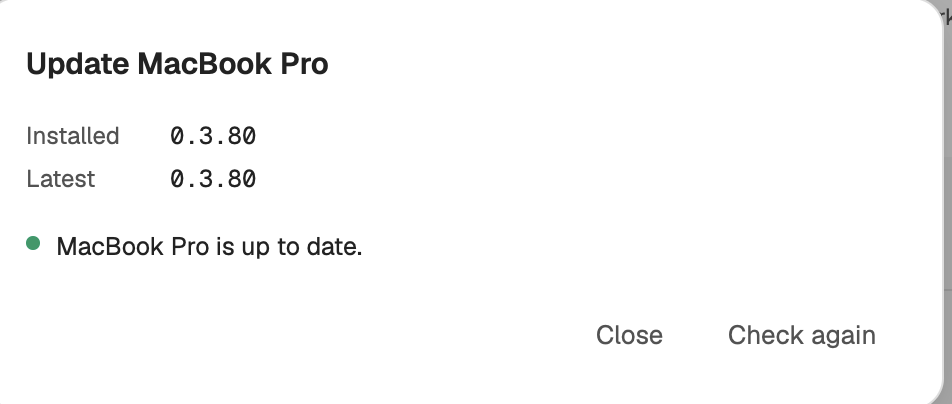
The button stays off while work is running on the server, and the dialog says how many chats or terminal jobs would stop. Wait for them to finish, then choose Check again. The server also refuses on its own if work started after your check.
| The dialog says | What to do |
|---|---|
| This install isn't update-managed | Studio on that machine was not set up with the installer, for example a build from source. Update it the way you installed it. |
| server runs an older Kelrova that can't be updated from here | Run the installer on the server once over SSH. Later updates work from here. |
| The device reconnected on another version, or could not reconnect | Choose Check again before you retry. |
Your Mac's own app is not updated from this dialog. It updates itself from the account menu in the sidebar; see Signed updates.
Update from the server's terminal
On the server:
kelrova update --check   # only report; exits with 1 when an update is available
kelrova update           # download, check, install and restart the service
Running the installer again also upgrades Studio in place and keeps ~/.kelrova. The installer installs the release it was published with.
Warning: These restart right away
kelrova update and the installer restart the service the moment the new version is in place. Unlike an automatic update or the Update dialog, they do not wait for running chats or terminal jobs.
Check the agent CLIs
The Packages row under Maintenance lists the agent CLIs and tools on the server. Check packages shows each one as Installed, with its path, or Missing. Tick the missing ones to get a command you run over SSH on the server to reinstall them.