Attachments and voice
Send files, screenshots and voice notes with a message: how to add them, the size and count limits, and where each one goes.
Where in StudioComposer → + and microphone
Updated View as markdown
On this page
Add files with +, by dragging them onto the chat, or by pasting. Record voice notes with the microphone beside the send button. Files go to the computer that runs the chat, where the agent opens them. Voice notes are turned into text before the message is sent.
Attach files
Where in StudioComposer → +
You can attach any regular file of up to 24 MB. There are three ways:
- + under the composer opens the file picker. Select one or more files and choose Attach.
- Drag files from Finder onto the conversation.
- Paste. A copied image, such as a screenshot, is attached as an image. Copied files are attached as files.
Each file appears above the message box before you send. Images show a thumbnail; other files show a chip with the name. Click a thumbnail to see it full size, with zoom and arrows for the previous and next image. Use the × on a file to remove it.
A file over the limit is refused with name is too large (24 MB max).
What the agent receives
When you send, Studio uploads each file to the computer that runs the chat and adds its path there to your message. The agent opens the file with its own tools, so any file type works if the agent can read it. Images in PNG, JPEG, GIF, WebP, SVG, BMP or TIFF also show as pictures in the transcript.
A message can be files alone. If an upload fails, the composer says The attachment couldn't be uploaded to the session device. Please try again.
To point the agent at a file that is already in the project, mention it with @ instead. See The composer.
Record a voice note
Voice notes work in the macOS app and need you to be signed in to Kelrova.
Where in StudioComposer → microphone
Start recording
Click the microphone, Record a voice note. The first time, macOS asks for microphone access.
Record
A card shows Recording and the time. Use Pause and Resume as you need. Discard throws the recording away.
Finish
Choose Done. The note joins the message as a card you can play or remove.
Send
Add text if you like and send. The composer shows Transcribing… while each note becomes text.
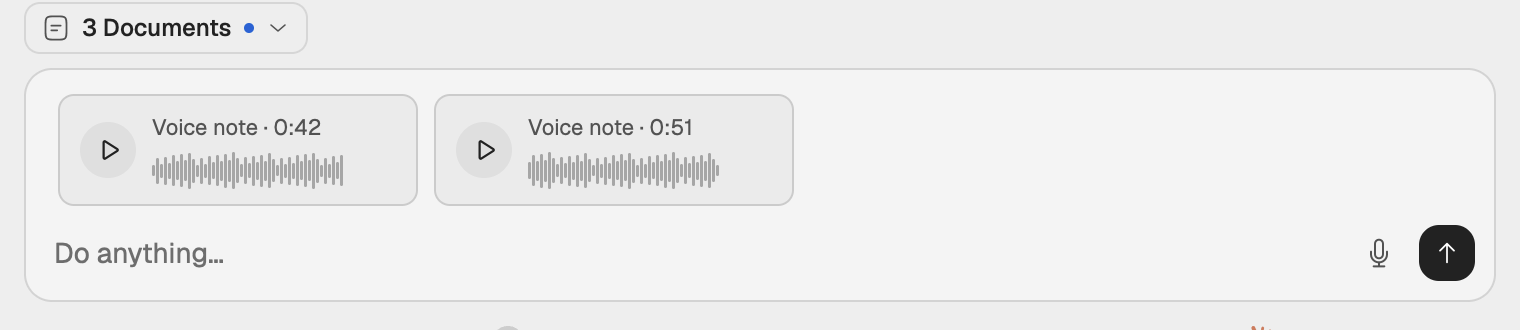
Limits
- Up to 5 voice notes per message.
- Up to 10 minutes per note. A note that reaches the limit stops recording on its own.
- You cannot send while a recording is open: Finish the recording to send.
- Kelrova limits voice notes per day and per month. When you reach a limit, the composer says so.
Where the audio goes
Kelrova turns each note into text. The agent receives the text with your typed message, never the audio, and the audio does not go to the computer that runs the chat. In the transcript your message shows a card per note. Click one to read its text and copy it.
The message is sent only when every note has been transcribed. If one fails, nothing is sent and the notes stay in the composer. If you change the draft while the notes are transcribed, Studio does not send: Your draft changed. Send again when you're ready.
When recording does not work
| Message | What to do |
|---|---|
| Sign in to record voice notes | Sign in to Kelrova. See Sign in and approve this computer. |
| Microphone access is off. Allow it in System Settings › Privacy & Security. | Allow Kelrova under Microphone in System Settings. |
| Recording stopped because the microphone disconnected. | Reconnect the microphone. What was recorded is kept. |
| No speech was detected in a voice note. | Record it again closer to the microphone, or remove it. |
| Voice notes aren't available on this platform | Voice notes need the macOS app. |