Organization settings for MCP
Owners and administrators manage the MCP switch, the access policy, connections, machine clients, the identity provider and the activity log.
Where in the portalOrganization → MCP server
Updated View as markdown
On this page
Owners and administrators manage MCP under Organization → MCP server. Other members see the status and how to connect, but not the management pages. Every member sees their own connections under Settings → Connected apps. Changes to the switch, the access policy, machine clients and the identity provider ask you to confirm your sign-in again.
The status card
The page opens with a status card and the switch MCP server on for this organization.
| Status | Meaning |
|---|---|
| On | Members can connect apps and work with findings. |
| Off | Turned off for this organization. Existing connections cannot be used until it is turned on again. |
| Not included | Your plan does not include the MCP server. The card links to See plans and the page shows nothing else. |
| Not available yet | The MCP server is not yet available to this organization. Your settings are kept and apply once it is. |
MCP is on for every plan by default, and its availability does not depend on the plan's payment state. Re-checks keep their own plan and usage rules.
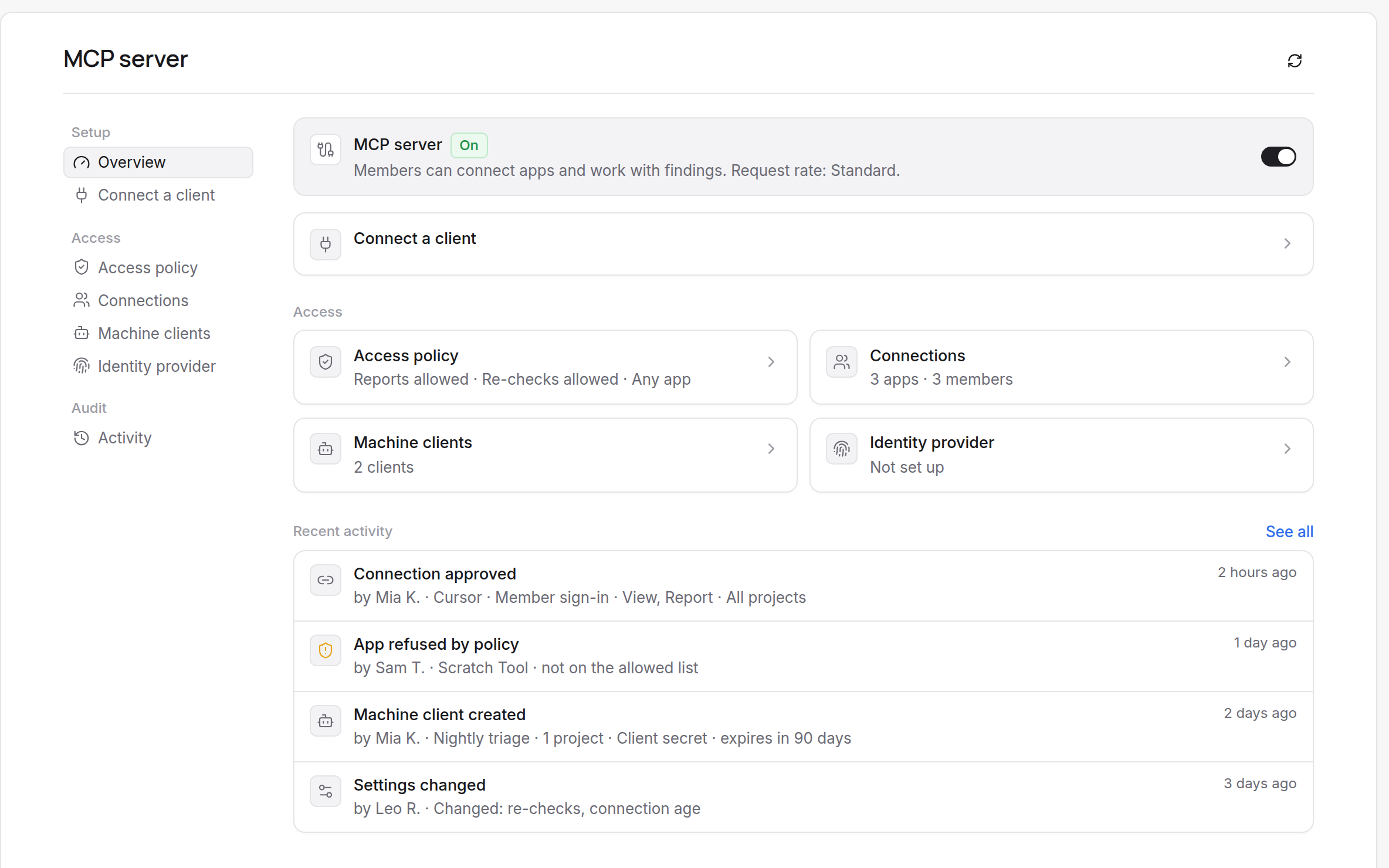
The pages are Overview, Connect a client, Access policy, Connections, Machine clients, Identity provider and Activity.
Access policy
The Access policy page is a form with Save changes, Discard and an Unsaved changes note.
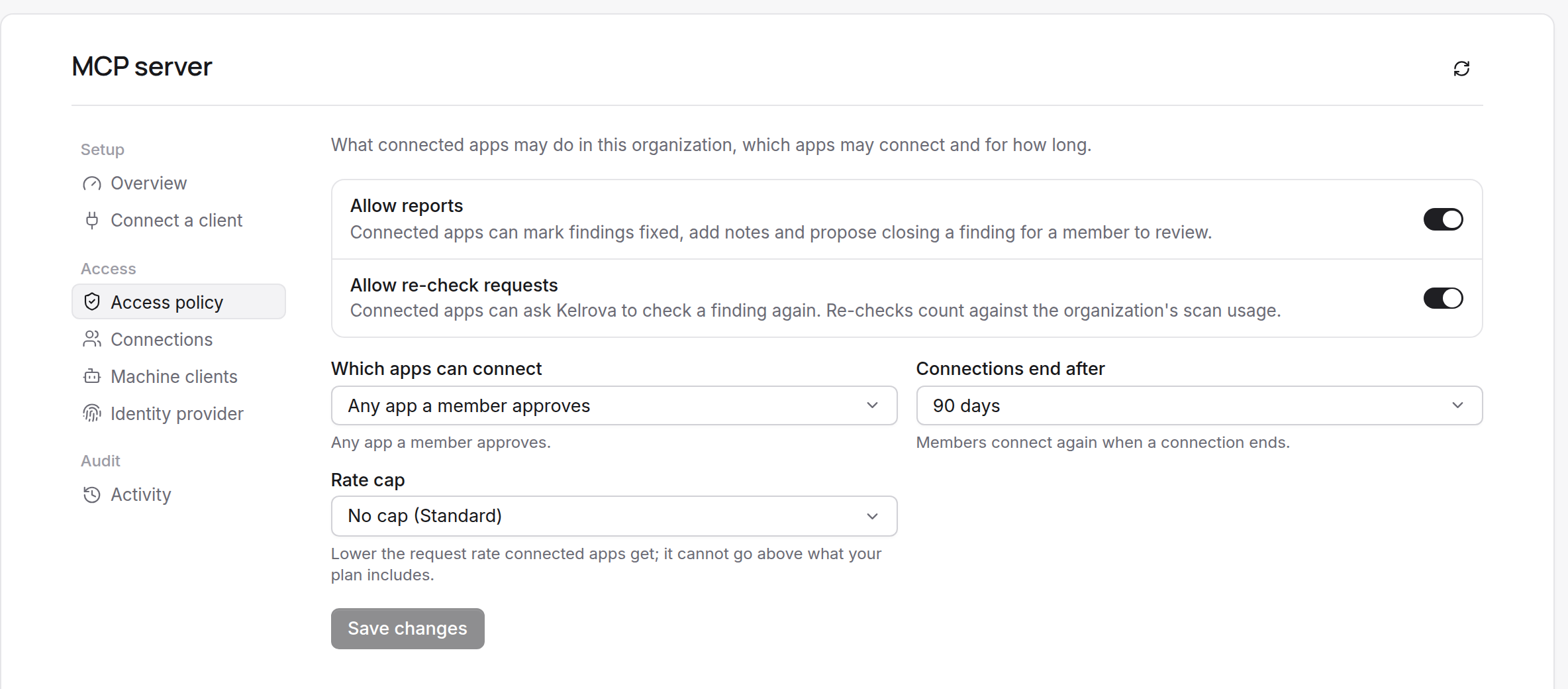
| Setting | Meaning |
|---|---|
| MCP server on for this organization | Master switch. Off: every connection stops on its next call and nobody can create one. Default on. |
| Allow reports | Whether agents may call report_finding_action. Off: the tool answers write_disabled. Default on. |
| Allow re-check requests | Whether agents may call request_recheck. Off: recheck_disabled. Re-checks count against the organization's scan usage. Default on. |
| Which apps can connect | Any app a member approves (default) or Listed apps only. |
| Allowed apps | Shown for Listed apps only: one entry per line. |
| Connections end after | Never, 30, 90 or 180 days. A connection created while this is set expires after that long and its member signs in again. |
| Rate cap | No cap, or a tier at or below the one your plan gives you. It lowers the request limits of the whole organization. Tiers above your plan are disabled with the hint Above your plan. You can lower the tier, never raise it. |
Settings are saved together with a version number. If someone else saved first, you see "These settings were changed elsewhere and have been reloaded." and review the form again.
Which apps can connect
- Any app a member approves lets every client that follows the standard registration rules connect.
- Listed apps only permits only the entries in Allowed apps, up to 100, one per line: the domain an app publishes its details at (for example
claude.ai), or an exact app ID. A client that registered itself automatically is never allowed under a list. Machine clients you create yourself are always allowed. With an empty list, members cannot connect new apps. - The policy is checked on the consent screen, when you approve, whenever a token is issued and on every call. Narrowing it stops a connection from a client you removed on its next call.
Connections
Connections lists every member's active connections, grouped by application.
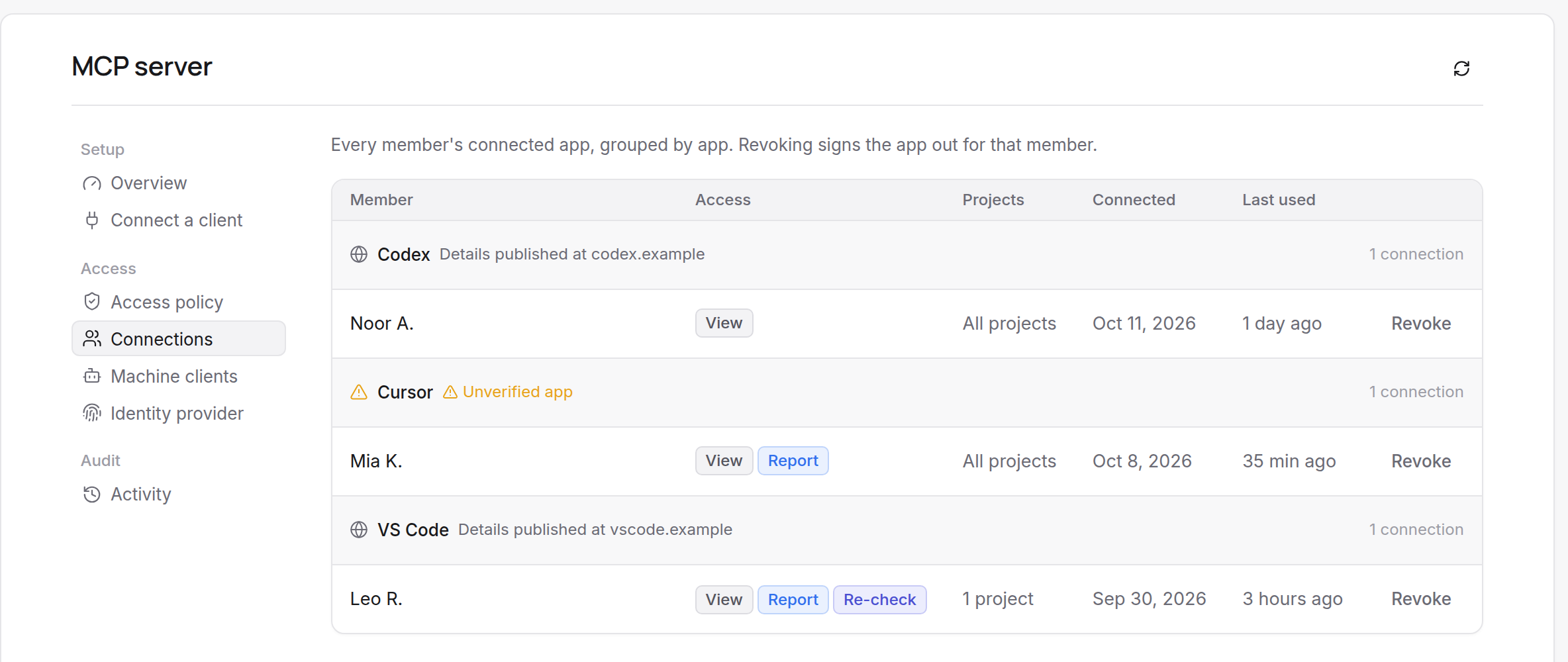
Each application's heading shows its name, its identity line (Details published at a host, Unverified app, Registered with Kelrova or Machine client) and how many connections it has. Each row shows the member, the access (View, Report, Re-check), the projects, when it was connected and when it was last used. A Member sign-in, Machine client or Enterprise sign-in label marks connections that are not a member's own.
Revoke ends a connection immediately: its next call fails with an authentication error and its access tokens stop working. A member leaving the organization ends their connections without anyone doing anything.
Machine clients
For CI jobs and other unattended systems. See Machine clients for CI.
Enterprise identity provider
An organization with an enterprise identity provider (for example Okta Cross App Access) can let its members' agents connect without a consent screen, using Enterprise-Managed Authorization. This path is not yet verified against a live identity provider, and its clients differ in how they authenticate, so check your client's documentation.
Set up (or Edit) asks for:
- Issuer: Kelrova reads its signing keys from the issuer's published metadata.
- Allowed app IDs that may use it.
- Allowed email domains it may map.
- Whether it is Enabled.
The first time a person signs in, they are matched only through a verified Kelrova email address of an existing member of your organization within the allowed domains. The match is pinned to the provider's subject, and later requests must match it even if the email changes. These connections are listed and revocable like any other and last one hour, with no refresh token. Turning the provider off, or Remove, ends all of them.
Activity
Activity records connection and client changes: connections approved and revoked (including Connection revoked automatically after a refresh token was used twice), machine clients created, rotated and deleted, identity provider changes, settings changes and apps refused by policy.
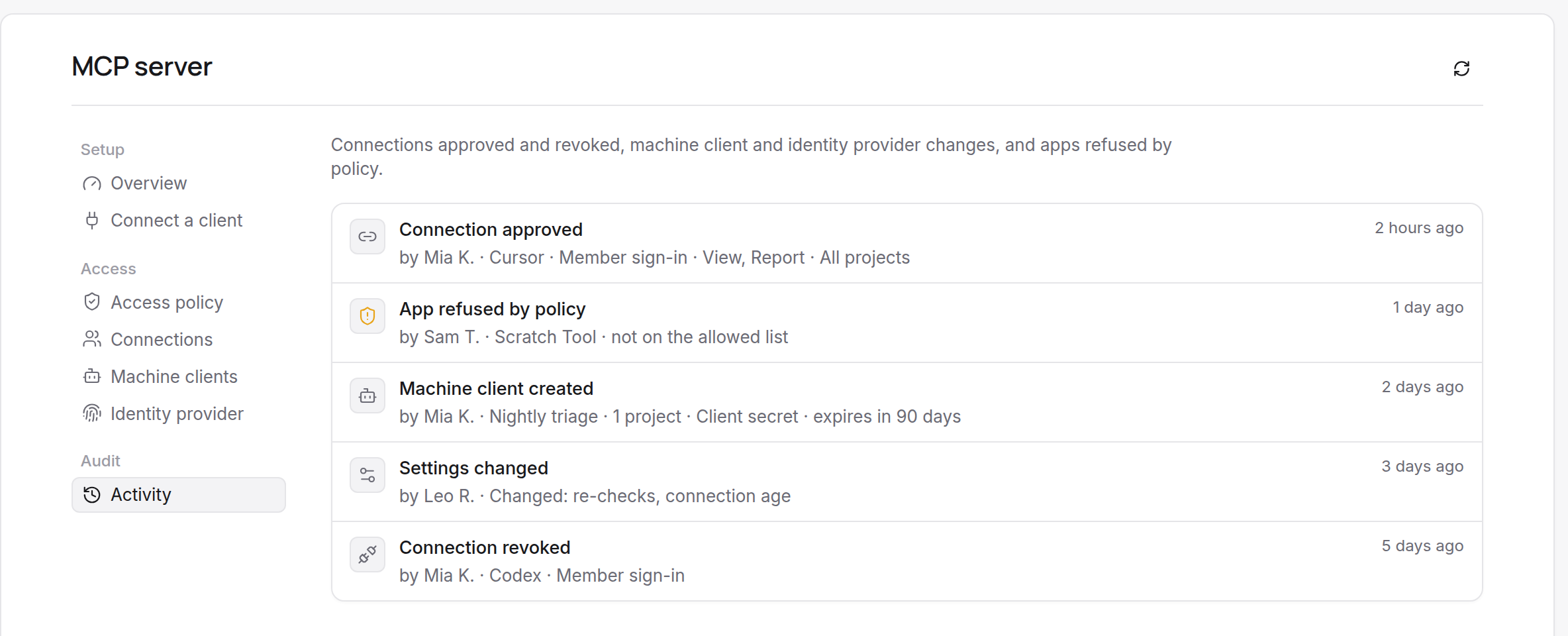
Entries hold the app name and fixed facts such as the kind and reason. They never hold tokens, URLs, finding text or free text.