Backup and archived chats
Export your settings, guidelines and project memories to a JSON file and import them later. Archive hides chats without deleting them.
Where in StudioStudio → Settings → Backup & restore, Archive
Updated View as markdown
On this page
Backup & restore saves your app data to a JSON file and brings it back later; chats are never included. Archive hides chats from the sidebar without deleting them, and can archive or delete inactive chats for you.
Back up and restore app data
Where in StudioStudio → Settings → Backup & restore
| Included | Not included |
|---|---|
| Appearance, notifications, shortcuts and lifecycle preferences | Chats, transcripts, run history and attachments |
| Project instructions, guidelines and subagent profiles | Accounts, login sessions, API keys, OAuth tokens and MCP credentials |
| Enabled agent providers and project memory | Device identity, repositories, worktrees and local file paths |
Export
Choose Export JSON and pick where to save the file. Studio writes a readable, versioned JSON file and changes nothing in your current data.
Import
Choose Import JSON and pick a backup file. Studio applies the preferences and merges the project memories. Agent and guideline configuration replaces what this computer has now.
Restart
When the import finishes, Studio says how many memory records it imported. Restart Studio to load all agent and guideline settings.
A backup file is at most 16 MB, and Studio accepts only its own backup format.
Warning: The file is not encrypted
The backup is plain JSON. It holds your project memories, instructions and guidelines in readable form. Store it like any other private file.
Archive chats
Where in StudioStudio → Settings → Archive
To archive a chat, right-click it in the sidebar. An archived chat is hidden from the sidebar and never deleted. Archived sessions lists archived chats from all your devices, with a search box; Unarchive puts a chat back on its device. The sidebar's Archived shelf shows them too.
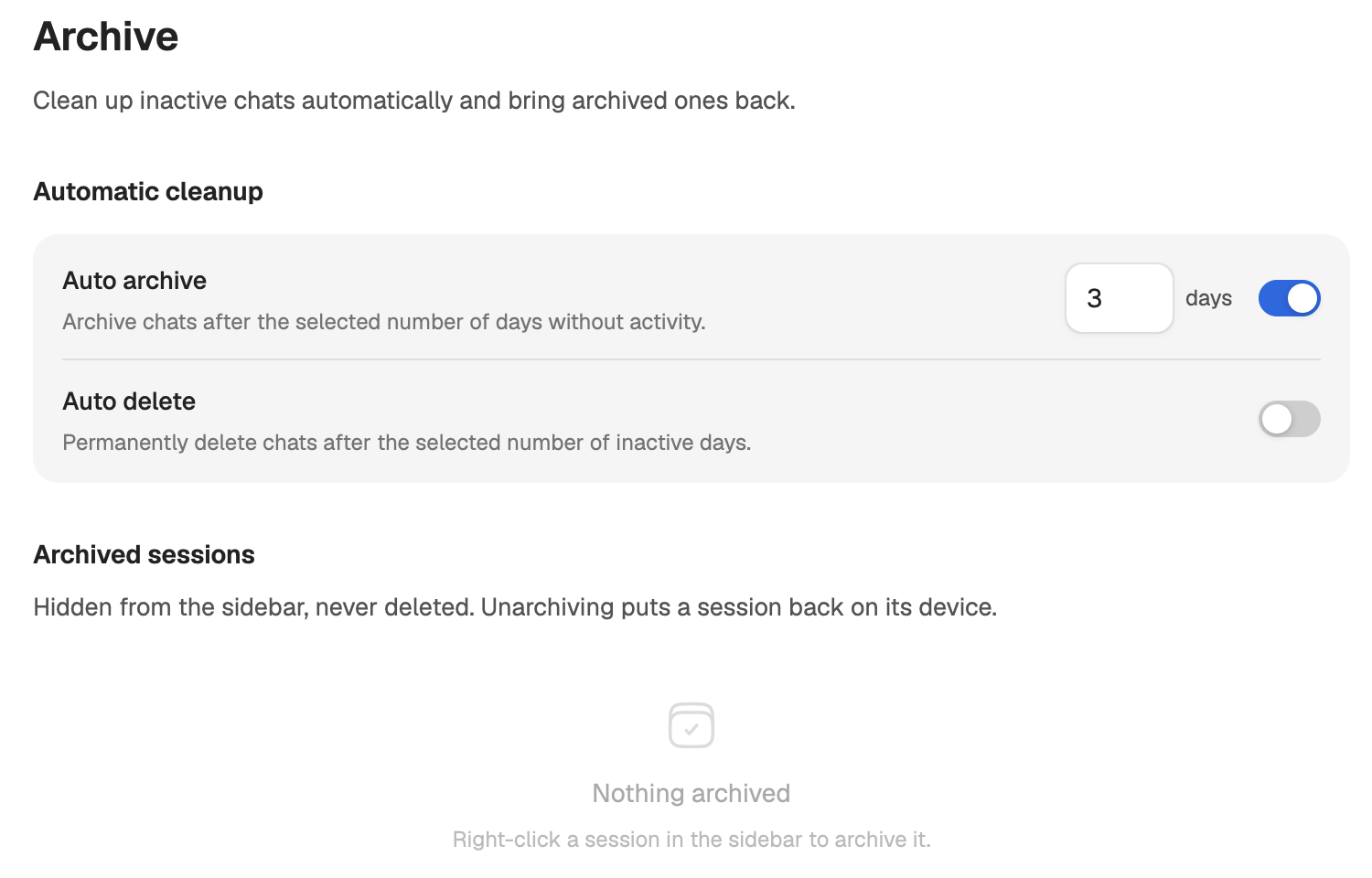
Automatic cleanup
Under Automatic cleanup, two rules act on chats with no activity for a number of days you set:
| Rule | Default | What it does |
|---|---|---|
| Auto archive | On, 3 days | Archives chats after that many days without activity. |
| Auto delete | Off, 15 days | Permanently deletes chats after that many inactive days. |
- The rules are settings of this computer. Studio applies them while it is open, at most once an hour.
- They apply to the chats Studio lists for your account, including chats hosted on your other devices.
- A chat that is running or waiting for your answer is never archived or deleted. Runs of automations and workflows are left alone too.
- When both thresholds have passed, deleting wins.
Warning: Auto delete cannot be undone
Auto delete removes chats for good, archived or not. Turn it on only if you do not need old transcripts.