Device status
Online, Waiting, Offline or no status: what each one means, where Studio shows it, and what to check when a server stays offline.
Where in StudioStudio → Settings → Devices & security
Updated View as markdown
On this page
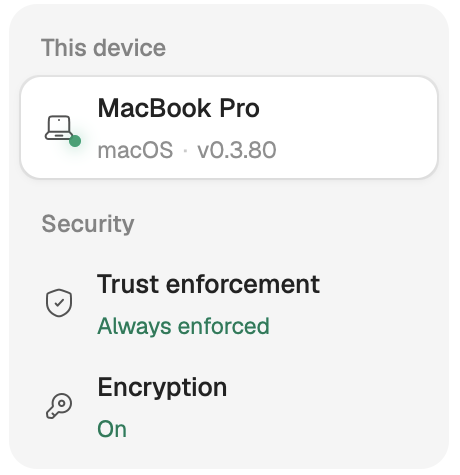
Every device checks in with your account about once a minute. Studio turns the time since its last check-in into one of four states and shows the same state everywhere: a green dot is Online in the sidebar and in Settings alike.
| State | Dot | Word | Meaning |
|---|---|---|---|
| Online | Green | Online | The device checked in within the last minute and a half, or it is this Mac. |
| Waiting | Dim amber | Waiting | The last check-in is late, but less than three minutes old. The device is probably between check-ins, not down. |
| Offline | Red | Offline | No check-in for more than three minutes. |
| No status | Grey | none | Studio has no record of the device yet, for example right after start, before the device list has synced. It is not treated as offline. |
Waiting is not a softer offline: Studio does not warn you about a waiting device, and it does not offer to remove it.
Where you see it
- Devices & security. Each device in the list has a dot on its icon. An offline device reads Seen and how long ago, or Never seen. A computer that is not offline shows your access to it instead: Approved, Pairing required, Identity changed, Unreachable or Checking…. The selected device's header shows the dot and the word, then its system, version, Last seen when it is not online, Added, and a short device ID you can click to copy.
- The new-chat canvas. The device chip turns amber with a red dot when the picked device is offline, and a notice above the composer says a message sent now starts once it reconnects.
- The device picker. A soft dot marks a waiting device and a crossed-out Wi-Fi mark an offline one.
- The sidebar and the session title bar. A project or session on another device shows that device's name with its dot. In the sidebar, the name turns red while the device is offline.
Refresh at the top of Devices & security checks every device's state again, and re-reads your access to each one.
When a server stays offline
A server goes offline when Studio on it stops, the machine is down, or it cannot reach Kelrova. On the server:
systemctl --user status kelrova     # is the service running?
journalctl --user -u kelrova        # why did it stop?
kelrova status                      # sign-in and engine state
- If the service is stopped, start it with
systemctl --user start kelrova. - If it stops each time you log out, the installer could not enable lingering. Run
sudo loginctl enable-lingerfollowed by your user name. - If it runs but still shows offline, check that the server can reach Kelrova over HTTPS.
Repair a connection
When a server has been offline for a few minutes, its page on Devices & security offers Repair connection → Repair…. It reconnects the same server without removing its projects, chats or device settings:
- SSH into the server as the Linux user that connected it.
- Run the command the dialog shows. It reinstalls Studio in place and signs it in again, like the install command. It stops before installing anything if
~/.kelrova/device-idon that account belongs to another device. - Wait for the dialog to show the server online again. It can then copy your Codex login to the server again.
If the server is gone for good, remove it instead.