Scheduled chats
Write a chat's first message now and have it start once at a time you pick, on the computer that runs it, by that computer's clock.
Where in StudioNew chat → composer → Schedule first message
Updated View as markdown
On this page
A scheduled chat is a new chat whose first message waits for a time you choose. It starts once, at that time on the target computer's clock, with the message and settings you saved. After it starts it is an ordinary chat. To run something again and again, use an automation instead.
Schedule a new chat
Where in StudioNew chat → composer → Schedule first message
Set up the chat
Open a new chat, choose the project and write the first message. Pick the model, the checkout and Orchestra as you would for a chat you send now: they are saved with the schedule. Attachments are saved too.
Open the time picker
Choose the clock button in the row under the message box, beside + and Orchestra. Its tooltip reads Schedule first message. The dialog of the same name opens.
Pick the time
Type the start in Start at as
YYYY-MM-DD HH:MM, on the target computer's clock, and choose Check. Or use a quick pick: In 1 hour, tomorrow at 09:00 or next Monday at 09:00. The dialog confirms the start, for example "Starts Tomorrow at 09:00", with its UTC offset.Confirm the time
Choose Use this time. The clock button widens into a chip that names the start, and the send button turns into Schedule. To drop the time before you schedule, use the × on the chip or Remove time in the dialog.
Schedule it
Choose Schedule. The chat moves to the Scheduled card in the sidebar.
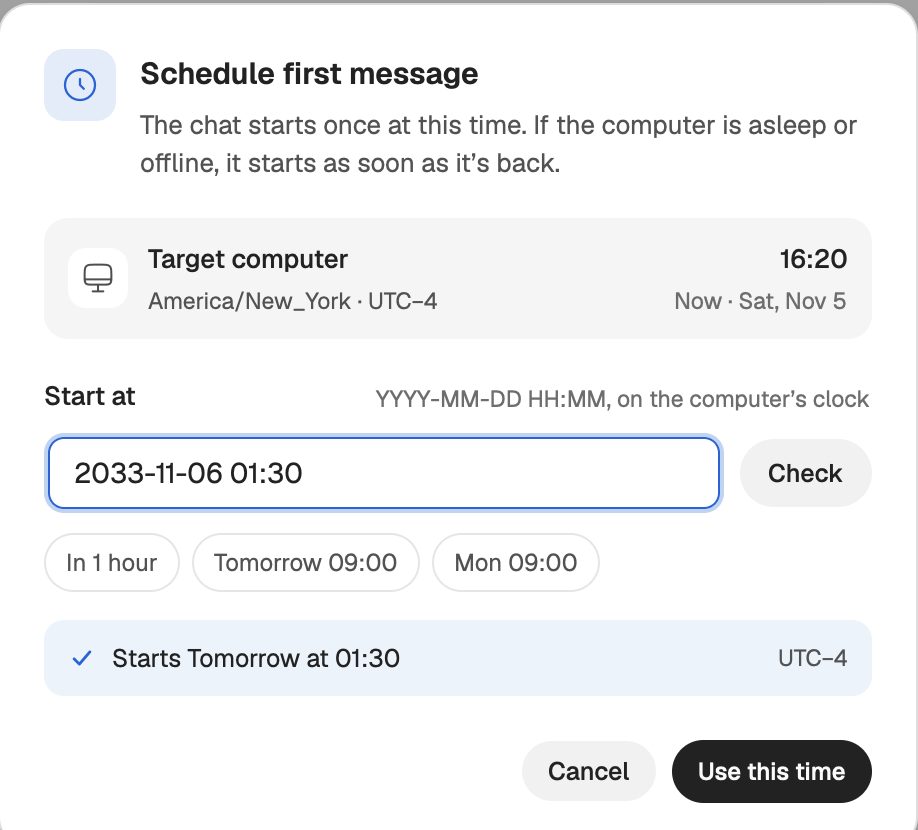
The chat starts once at that time. If the computer is asleep or offline then, it starts when it is back.
Whose clock counts
The time belongs to the computer that will run the chat, not to the one you are typing on. The dialog shows that computer's name, its time zone with the UTC offset, and its current time as Now. The quick picks count from that clock too. This matters when you schedule a chat on another computer in another time zone.
When the clocks change:
- A time that does not exist, because the clocks skip forward over it, is refused: This time is past or does not exist. Choose another time.
- A time that happens twice, because the clocks go back, asks you to pick First occurrence (before the clocks change) or Second occurrence (after).
Find and edit a scheduled chat
Scheduled chats sit on the Scheduled card at the top of the sidebar, below any running chats, with a count, soonest first. Each row says when it starts, for example Scheduled · Tomorrow 09:00.
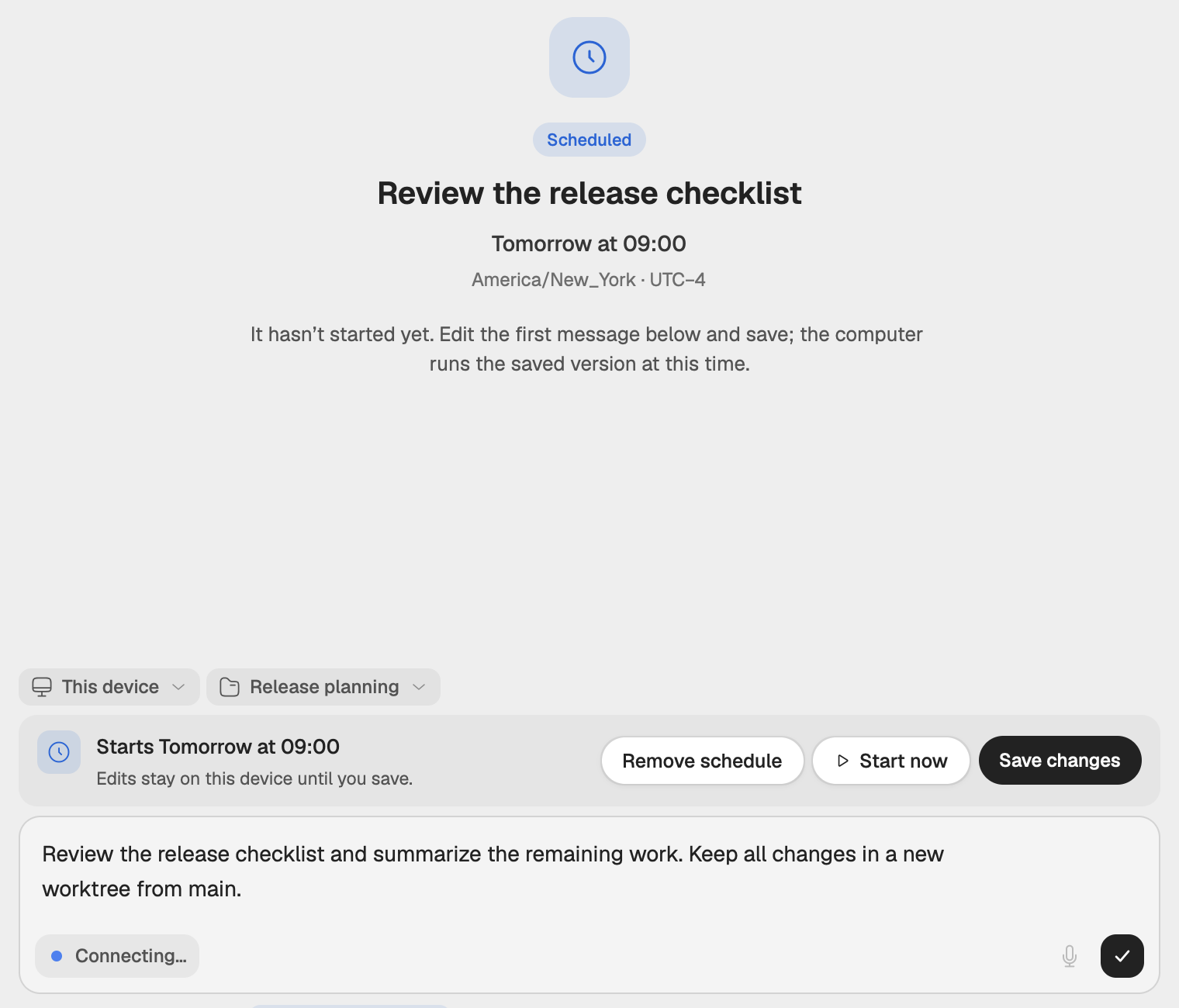
Select one to open it. In place of a transcript you see what will start, when, and on which computer. The bar over the composer names the start and offers three actions:
| Action | What it does |
|---|---|
| Save changes | Saves your edits to the message, settings and time. Edits stay on this computer until you save. |
| Start now | Starts the last saved version now. |
| Remove schedule | Takes the time away. The chat and its message stay, marked Not scheduled. Pick a time and save, or start it now. |
To change the time, open the clock button again and pick a new one, then save. Under Saved attachments you can remove a file the plan carries.
States
| State | What it means |
|---|---|
| Scheduled | Waiting for its time. You can still edit it. |
| Starting | The computer is starting the chat with the saved first message. It can no longer be edited. |
| Not scheduled | No start time. Pick one and save, or start it now. |
| Blocked | The computer could not start the chat at its time. Fix the cause shown, then save or start it now. |
| Couldn’t start | The chat could not start. Review its settings and schedule it again. |
Once it has started, the chat leaves the Scheduled card and behaves like any other chat.
Changed on another computer
If someone saves the same plan from another computer while you edit it, the bar says A newer version was saved on another device. Your draft is kept. It shows the latest saved message and its revision. Choose Keep my changes to put your draft on top of that version, then Save changes.
Schedule on another computer
You can schedule a chat on any computer you can start chats on. The chat starts there, so that computer must be up to date and must have approved the computer you schedule from. Otherwise the clock button's tooltip or the dialog says what is missing, for example Update the target computer to use scheduled chats. or Approve this device on the target computer before scheduling.
Note: Removing a computer
Removing a computer from sync does not cancel the scheduled chats it holds. They can still start if that computer comes back online.
Messages you may see
| Message | What to do |
|---|---|
| Choose a project or topic before scheduling. | Pick where the chat runs first. |
| Choose a model first. | Pick a model in the composer. |
| The saved model is unavailable on the target. Choose another model. | Pick a model that the target computer can run. |
| The selected checkout is unavailable. Choose a branch or worktree again. | Pick the checkout again. |
| Wait for attachments to finish uploading to the target. | Save again once the files are on the target. |
| The target did not confirm this change. Your draft is kept. Retry to check the same request. | Choose Retry on the bar. |
| This chat is already starting. The last saved version will run. | Wait for it to start, then follow up in the chat. |
A chat can also suggest a scheduled chat for you, which you approve on a card. See When a chat proposes a schedule.