Start an Orchestra
Turn on the roles you want in Settings → Subagents, pick a project, switch on Orchestra in the composer and send your request.
Where in StudioComposer → Orchestra
Updated View as markdown
On this page
Orchestra needs a project and at least one role turned on. Then it is one click in the composer: Orchestra sits under the message box, left of the model picker.
Turn on the roles you want
Open Settings → Subagents. Under Built-in roles, switch on the roles the orchestrator may use. UI Design starts on; the others start off. Each row shows the role's model, and Edit changes it (see Mix providers and accounts).
Open a chat in a project
Start a new chat with a project selected, or open a chat that already has one. Orchestra is not available in a chat without a project.
Pick the orchestrator's model
The chat's model is the orchestrator. Pick it with the model picker as for any chat. Orchestra is not available with Cursor as the chat's agent.
Switch on Orchestra
Click Orchestra under the message box. It turns accent-colored while on, and the transcript notes Orchestra mode enabled.
Send your request
Describe the outcome you want, as you would to one agent. The orchestrator plans the steps and starts its agents. When the window is wide enough, the agent map appears beside the chat; see The agent map and records.
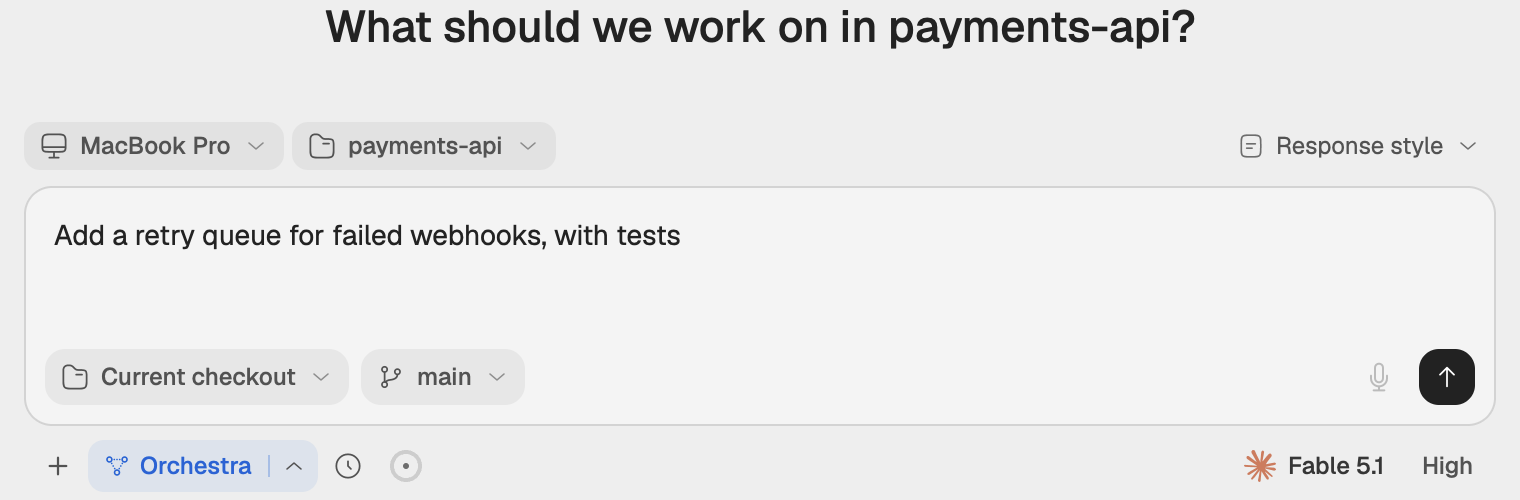
When the button is dimmed
Hover Orchestra to see why it cannot be switched on:
| Tooltip | What to do |
|---|---|
| Choose a project to use subagents | Pick a project for the chat. |
| Subagents are not available with Cursor | Pick another agent for the chat. |
| No available subagent profiles for this project | Turn on a role. The tooltip's Manage subagents link opens the project's Subagent Profiles. |
| Can't be changed while this chat is running | Wait for the turn to finish, or stop it. |
| Checking available subagents… | Wait a moment; Studio is reading the roles on the chat's computer. |
Roles for one project
Settings → Subagents sets the defaults for every project. To change them for one project, open Subagent Profiles from the + menu of the side panel. Each role has its own switch there; a role you changed carries a Reset link that brings back the global setting. Add subagent profile adds a role only that project has.
Add your own role
In Settings → Subagents, choose Add subagent profile under Custom profiles:
- Visible name, Parent-safe description (tells the orchestrator when to pick it) and Private instructions (the role's own instructions, which the orchestrator never sees).
- Execution models: a primary model and up to two fallbacks.
- How it runs: Execution mode, Maximum timeout (seconds), Maximum tasks per parent run and Enabled.
Choose Add profile to save. A custom profile is available in every project unless a project overrides it.
Note: Changes during a run
If an Orchestra run is in progress, settings you save apply from your next message in that chat. Agents already running, and any the orchestrator starts before then, keep their current settings.
Turn Orchestra off
Click Orchestra again while the chat is idle. The chat goes back to a single agent from the next message.