Run your first scan
Start a scan from Scans → New scan: pick the project and a level, Standard or Focused for a first look, and preview Quick.
Where in the portalSecurity → Scans → New scan
Updated View as markdown
On this page
Choose New scan, pick the project and the level. The scan runs in Kelrova Cloud, so there is nothing to install, and findings appear on the scan as soon as they are confirmed. A scan you start this way runs once.
Open the dialog
In Scans, choose New scan.
Pick the project
Choose the project made in Create a project.
Pick the level
Keep Standard, the default, for a first look: a complete review of every entry point and the files that handle it. During the Basic trial Standard is locked and the Default badge sits on Focused, so keep Focused.
Choose models and add guidance
The next steps pick a model tier and set the report language, instructions and a threat model, all optional. The New scan dialog walks through them.
Start the scan
Choose Start scan.
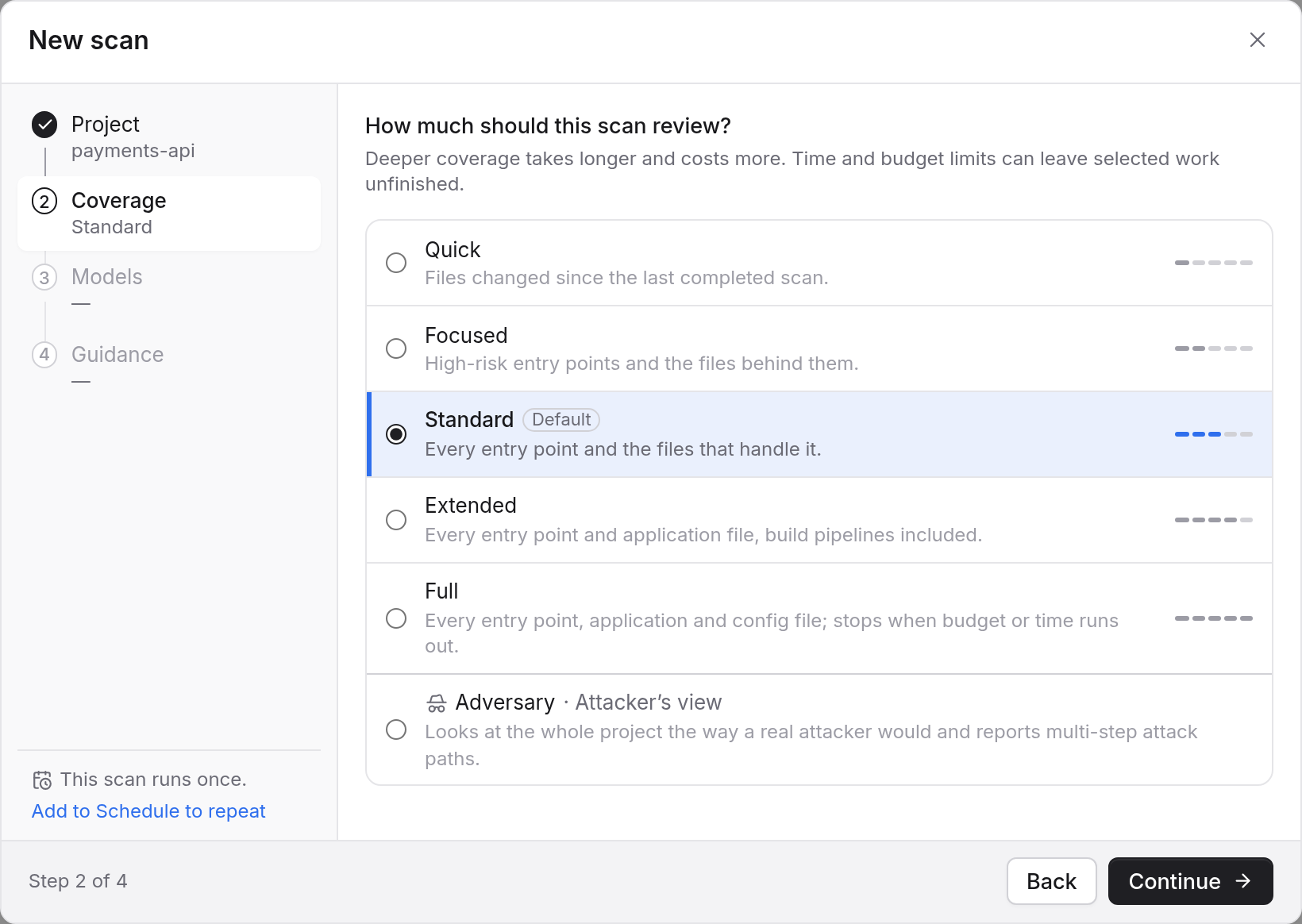
Choosing the level
| Level | What it reviews |
|---|---|
| Quick | Files changed since the last completed scan. |
| Focused | High-risk entry points and the files behind them. |
| Standard | Every entry point and the files that handle it. Default. |
| Extended | Every entry point and application file, build pipelines included. |
| Full | Every entry point, application and config file; stops when budget or time runs out. |
| Adversary | The whole project the way an attacker would look at it. Pro and above. |
Deeper levels take longer and use more of your plan's usage. Scan levels says when to pick each one.
Note: During the Basic trial
Scans run at Quick and Focused. Quick needs an earlier completed scan, so Focused is the level for the first one.
The Quick preview
Choosing Quick shows the number of files changed since the last completed scan before you start. The preview creates no scan and no charge.
- Quick needs an earlier completed scan to compare against. Without one, the preview says so and Quick cannot start.
- Above 150 changed files, Standard is recommended. The count is taken after your excluded paths.
- When the changes cannot be counted, or there are too many to compare, Quick cannot start.
- The count is a preview. The scan looks at the current heads again when it starts and works out its scope then.
When Quick applies covers the cases in full.