The composer
The message box at the foot of every chat: what each control does, how to mention files and commands, and what happens when you send.
Where in StudioChat → composer
Updated View as markdown
On this page
The composer is the card at the bottom of a chat where you write to the agent. Type, press ↩ to send, and use the rows around the card to choose where the work runs, which model answers and what goes with the message. Each chat keeps its own draft while you move between chats.
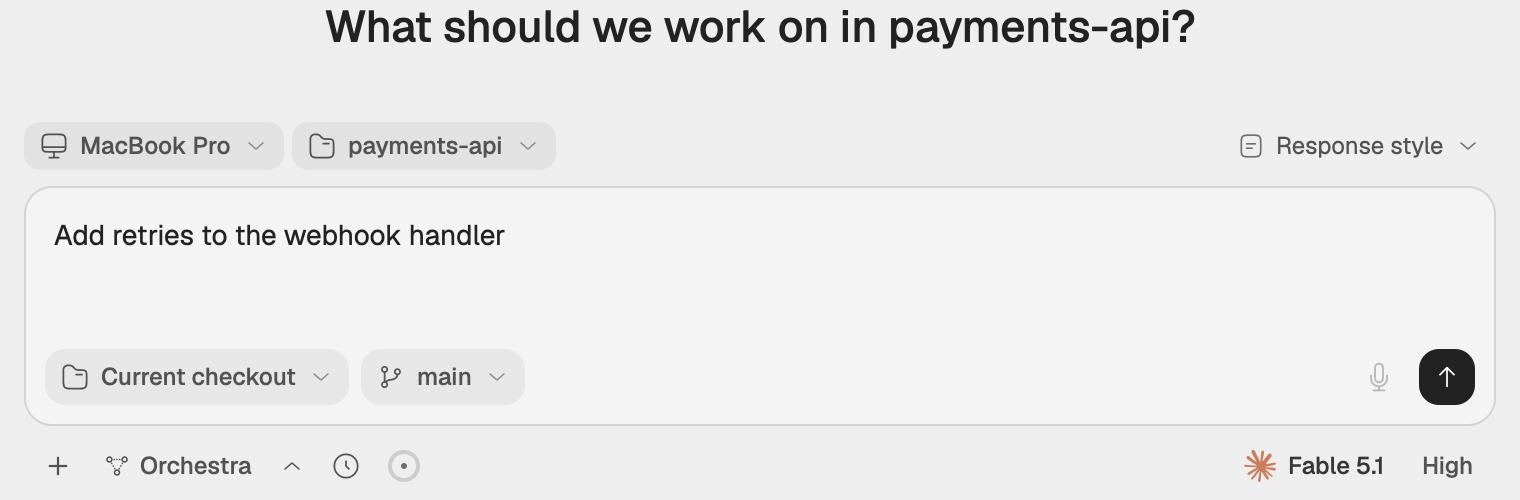
The parts of the composer
| Part | Where | What it holds |
|---|---|---|
| Target row | Above the card, new chats only | The computer and the project the chat runs in. See Projects and checkouts. |
| Message box | The card | Your text, with staged files, voice notes and review comments shown above it. |
| Footer | Inside the card, bottom left | The checkout and branch chips, then the chat's work strip. See Changes, branches and pull requests. |
| Send button | Inside the card, bottom right | Send, or Stop while the agent works. The microphone for voice notes sits beside it. |
| Left of the controls row | Under the card | + to attach files, Orchestra, the schedule clock, Actions on an existing chat, and the ring that opens Context usage. |
| Right of the controls row | Under the card | The model chip, the reasoning chip and, when there is a choice, the chat settings button for the account. |
The placeholder reads Do anything…. While a second model applies a plan, it reads Reply to … with the name of the one that is listening.
Send a message
Pick where it runs
On a new chat, choose the computer and the project in the target row, then the checkout and branch in the card's footer. In a code chat the send button stays dimmed until a project is picked.
Pick the model
Choose the agent and model with the model chip, and the reasoning level with the chip beside it. See Models, reasoning and accounts.
Write and send
Type the message. ⇧↩ starts a new line. Press ↩ or choose the send button.
The first send creates the chat. Its harness and model are then fixed for the life of the chat; the reasoning level can still change between messages.
Mention files with @
Type @ and part of a file name to search the chat's project. Pick a row with ↩ or Tab, or close the list with Escape. The file goes into the message as an @name chip, and the agent receives its path inside the project. You can also drag a file or folder from the file tree into the composer to add the same chip.
Run an agent's command with /
Type / at the start of the message to list the commands the chat's agent offers, such as its built-in commands and skills. Keep typing to filter the list. If the agent cannot list them, the composer says Couldn't load this agent's commands.
Controls under the card
- + opens the file picker. See Attachments and voice.
- Orchestra turns on Orchestra for the chat, so the agent hands parts of the work to project subagents. See How Orchestra works.
- The clock schedules the first message of a new chat. See Scheduled chats.
- Actions, on an existing chat, offers Create automation and Create workflow, which start from this chat, and Run workflow. See Automated and Workflows.
- The ring shows how full the agent's context window is. See Context and compaction.
When a message is not delivered
The message appears in the transcript as you send it. If it does not reach the computer that runs the chat, a line under it says so:
- Waiting for the host device — sends when it's back online: the message is held and goes out when that computer reconnects.
- Not delivered: choose Retry to send it again, Edit to put the text and files back in the composer, or Delete to drop it.
Problems that stop a send, such as Engine not connected, show in a notice above the card. Click the notice to dismiss it.
When a follow-up looks like separate work
In a code chat, the agent can hold a follow-up message that looks unrelated to the chat so far. A notice above the card reads "This looks like a separate piece of work" and shows the message it held. Choose one:
| Choice | What happens |
|---|---|
| Start a new chat | Opens a new chat for the message, so this chat's context stays on its own work. |
| Continue here | Sends the held message in this chat. |
| Continue and stop asking | Sends it here and turns the check off for this chat. |
If the agent's computer is busy or away
- On a new chat whose computer is offline, a notice reads "name is offline. A message sent now starts once it reconnects." You can still send.
- While that computer installs an update, a notice says it is updating and that messages you send now are queued. A queued message shows Waiting for name to finish updating until it goes out.