Start sessions on a server
Pick the server in the device chip on the new-chat canvas, pick one of its projects and send. The session runs on the server.
Where in StudioStudio → New chat → Device and project chips
Updated View as markdown
On this page
On the new-chat canvas, choose the device chip, pick the server, then pick one of the server's projects in the project chip and send. The agent runs on the server, in the server's folder, with the server's agent logins. You read and steer it from your Mac as you would a local chat.
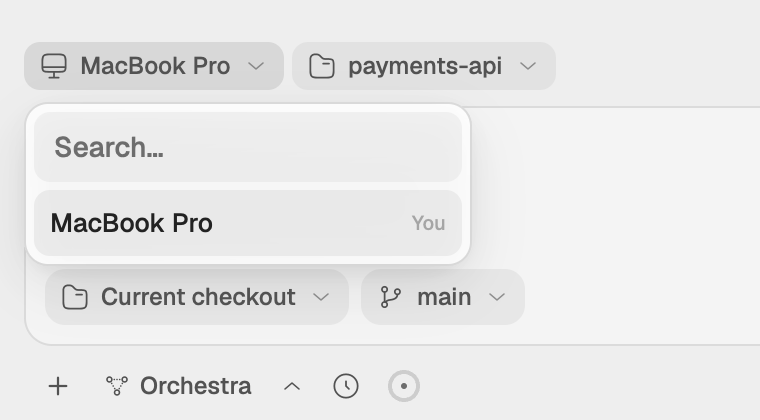
Pick the device and project
Choose the device
The device chip shows This device or the name of the device you picked last. Open it and pick the server. The list holds the computers on your account; your Mac is marked You. A soft dot means the device is between check-ins, and a crossed-out Wi-Fi mark means it is offline (Device status).
Choose a project on it
The project chip beside it lists the projects on the picked device. No projects on this device. means the server has none yet: add one as below.
Send
Write the message and send. The session's title bar names the server, with its status dot.
Add a project on the server
Choose Add a project on the empty canvas, or + in the project chip. The folder browser opens with a Devices list beside it. Pick the server there and browse to the folder: the path starts at the server's home folder, and Enter opens the highlighted folder. Press ⌘ Enter to add the folder you are in. In the sidebar, the project shows the server's name and status dot.
Projects and checkouts covers projects in general.
What runs where
- The agent, its commands, its terminal and the files it changes are all on the server.
- A session on a server keeps running while your Mac sleeps or Studio is closed, because it runs on the server. Open Studio again to read what it did and to answer any questions it asked.
- The agent uses the logins stored on the server. To add one, see the last step of Add a server.
- With Chrome on the server, the agent browses there, and the Browser panel on your Mac shows that page (The browser panel).
Messages Studio shows
| Message | What it means |
|---|---|
| Pairing required, with Pair in Settings | The server has not approved your Mac. Pair in Settings opens the server on Devices & security; follow the approval step in Add a server. |
| server is offline. A message sent now starts once it reconnects. | The device chip turns amber with a red dot. You can still send: the server picks the message up when it comes back. |
| server is updating to vversion — back in ~Ns. Messages you send now are queued. | The server is restarting into a new version. Your messages wait and run after it reconnects. |
Note: Work needs approval
Starting a session, sending, steering, answering a question, stopping, and opening a terminal on the server all need your Mac's approval on the server. Signing in to the same account is not enough. Approved devices and signatures explains the rule.