Signed updates
Every Studio release is signed. Before it installs an update, Studio checks the signature and each file's checksum, and installs nothing if either fails.
Where in StudioStudio → Settings → About
Updated View as markdown
On this page
Kelrova signs every Studio release with a release key that is kept offline. Studio carries the matching public key, and before it installs an update, on a Mac or on a server, it checks two things: that the release list is signed with that key, and that each downloaded file matches the checksum in that signed list. If either check fails, Studio installs nothing and your current version keeps running.
How an update is checked
- Studio downloads the release list and its signature, and checks the signature (Ed25519). A missing, malformed or wrong signature stops the update.
- The signed list names each release file with its SHA-256 checksum. Studio downloads the file for your system and compares the checksum. A mismatch deletes the download and stops the update.
- Only then does Studio install the new version: on a Mac it replaces the app and restarts, on a server it switches to the new version and restarts the service.
Because the check uses a key built into Studio, it does not depend on trusting the server the files come from.
Updates on your Mac
Where in StudioStudio → Settings → About
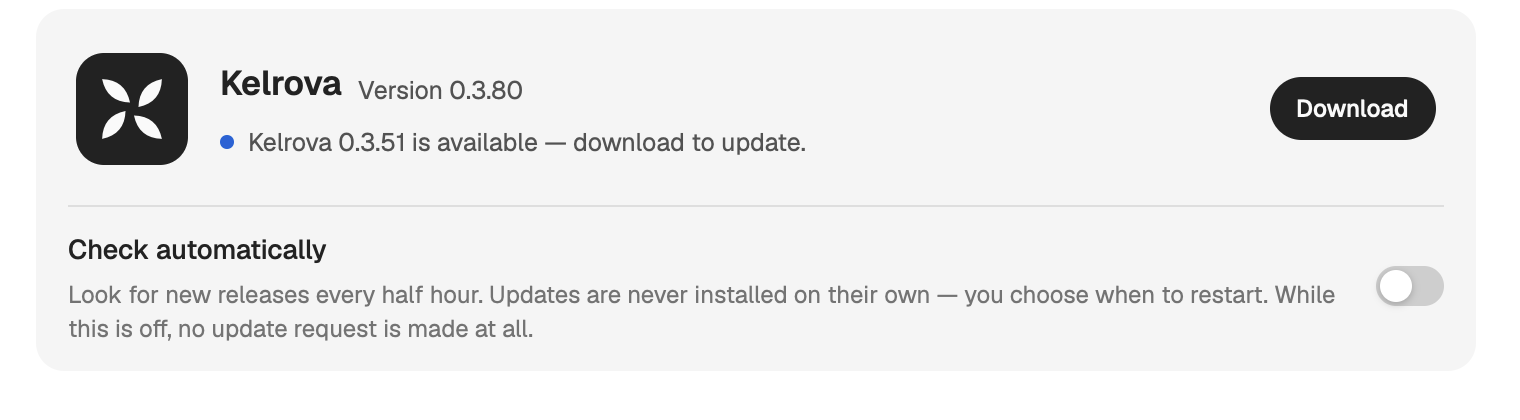
- Check automatically looks for new releases every half hour. It is off until you turn it on, and while it is off Studio makes no update request at all. With it on, Check for updates in Settings → About or in the app menu checks right away.
- Updates are never installed on their own: you choose when to restart. When a release is out, the account menu at the bottom of the navigation rail shows Update available. Choose Download, and when it reads Ready to install, choose Restart.
- If the download or the checks fail, Studio shows Update Failed: the update could not be downloaded or prepared, and your current version is still installed.
- Studio can update itself only from a folder it can write to. If it runs from a temporary, read-only location, such as straight from the disk image, it asks you to move Kelrova.app to your Applications folder and reopen it.
Updates on a server
A server set up with the installer runs the same checks and installs updates itself when nothing is running there. You can also update it from your Mac or its terminal. See Keep servers up to date.
The first install
The first download cannot be checked against a key you do not have yet.
- On a Mac, the app comes over HTTPS from the download link. Every later update is checked as above.
- On a server, the installer script itself comes over HTTPS and runs straight away; no key on the server can check it first. Inside, it pins the SHA-256 checksum of the Studio package and of the Codex, Claude Code and Devin CLIs it downloads, and stops before installing a file that does not match. The Node.js download is checked against its pinned checksum when
sha256sumis available, and the Cursor SDK comes from the npm registry at a fixed version.
If you would rather read the installer before running it, download it first, read it, then run it:
curl -fsSL https://studio.kelrova.com/install.sh -o install.sh
less install.sh
sh install.sh --login