Changes, branches and pull requests
Review what the agent changed, comment on lines, then commit, switch branches, push and open a pull request from the chat.
Where in StudioComposer → work strip
Updated View as markdown
On this page
Everything about the chat's checkout sits in the work strip at the bottom left of the composer card: the branch or pull request, how much changed, and the one Git step that comes next. The Changes panel on the right shows the diff, where you can leave comments for the agent. Git runs on the computer that owns the chat, with that computer's Git and its existing SSH or HTTPS credentials. No Git hosting connection is needed for commits, branches, pull and push.
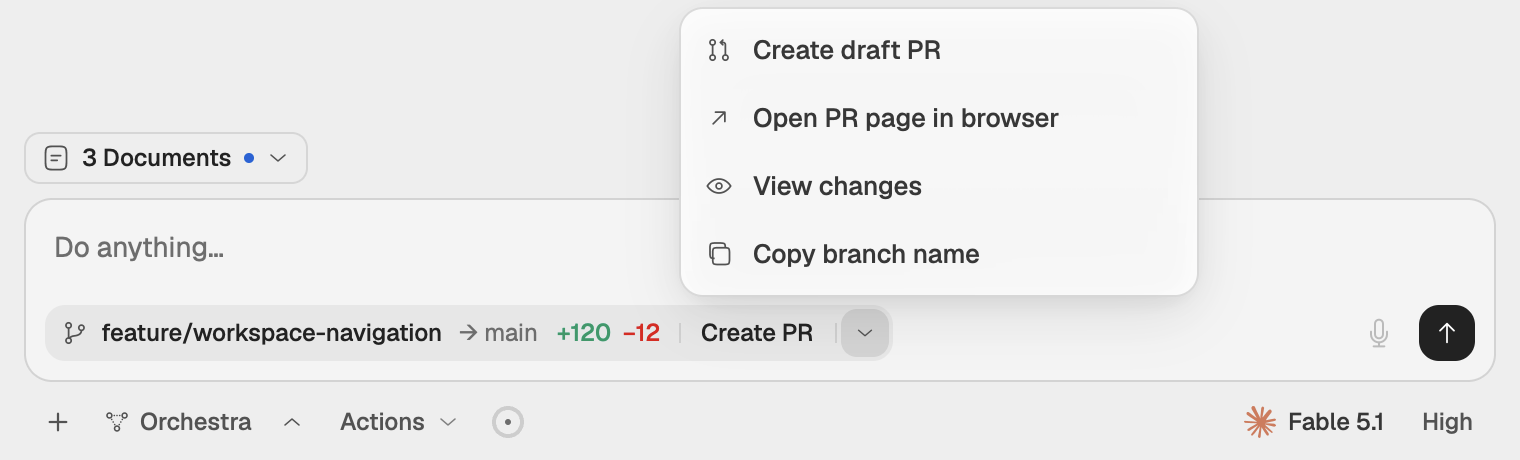
The work strip
| Part | What it shows |
|---|---|
| Branch or pull request | The branch name, or # and the pull request's number with its state: Open, Draft, Merged or Closed, and a checks mark while CI reports. Detached HEAD when no branch is checked out. Click a pull request to open it. |
| Base | → and the base branch, such as → main, when you are on another branch. |
| Diff pill | Files changed with lines added and removed. Click it for the list of files changed since this chat started; click a file to open its diff. |
| Next step | One button for the step that comes next, and a chevron, More git actions, for the rest. |
The strip appears for chats whose checkout is a Git repository.
The next step
The button follows the state of the checkout:
| State | Button |
|---|---|
| Uncommitted changes | Commit… |
| The remote has commits you do not have | Pull, or Sync when you also have commits to push |
| You are on the base branch | Push, disabled with Create a branch first |
| Commits to push, or a branch not yet on the remote | Push |
| Pushed, no pull request yet | Create PR, or Create PR ↗ to open the provider's page |
| A pull request is open | Open pull request, or CI while checks report |
| The pull request is merged or closed | View PR |
The chevron holds the other actions that apply: Create branch…, Create draft PR, Open PR page in browser, Open pull request, Fetch, Switch branch…, Copy branch name and View changes.
Commit
Open the commit card
Choose Commit…. The Commit changes card opens with every changed file selected. Each file carries a letter for its change, such as added, modified, deleted, renamed or untracked.
Check the selection
Clear the files you do not want. All changes selects or clears them all, and the count shows how many are selected. The checkout can hold changes from other chats or from your editor, so review the list. The eye button, Review changes, opens the diff.
Write the message
Type it in Commit message (⌘↵ to commit).
Commit
Choose Commit N files, or press ⌘↵. Commit & Push pushes once the commit lands, when the branch can be pushed.
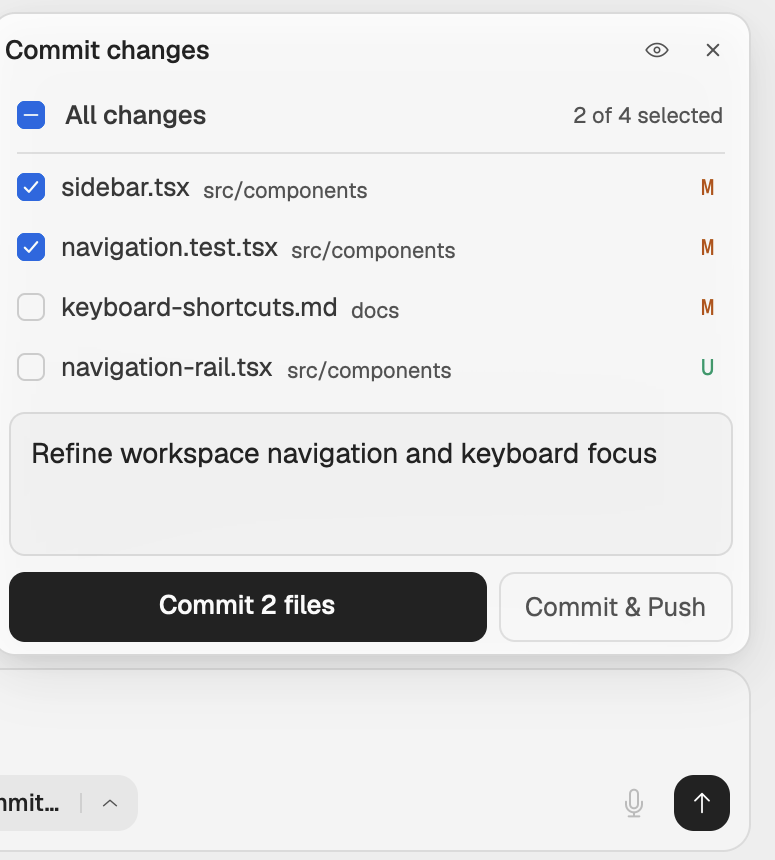
A commit takes whole files, from 1 to 500 per commit, with a message of up to 16,384 bytes. It does not stage parts of a file.
Switch or create a branch
Choose Switch branch… or Create branch… in the chevron menu. The Switch branch card lists local and remote branches; type in Switch to or create a branch… to filter.
- Pick a local branch to switch to it, or a remote one to check it out as a new tracking branch.
- Type a new name and choose Create branch to start a branch from the current commit.
Uncommitted changes come along. The switch is refused when the target branch changes a file you have edited, or when the branch is checked out In another worktree.
Pull, sync, push and fetch
- Pull only fast-forwards. Your local changes stay in place, unless an incoming commit touches a file you have edited; then the pull is refused before anything changes.
- Sync needs a clean checkout. It fetches, replays your commits on top of the remote branch and pushes.
- Push sends the branch to its remote, and publishes a branch that is not there yet.
- Fetch updates what Studio knows about the remote. The counts in the strip come from the last fetch.
Studio never force-pushes, stashes your files or resolves conflicts. When branches have diverged, or a merge or rebase is in progress, it tells you to resolve it on the computer that hosts the checkout. You can do that in the terminal.
Pull requests
Create PR opens the pull request through the GitHub CLI (gh) or the GitLab CLI (glab), signed in on the computer that owns the chat. The title is the first commit's subject and the description lists the commit subjects. Create draft PR opens it as a draft.
Without a signed-in CLI, Create PR ↗ opens the provider's new pull request page in your browser instead. CI opens the checks of a GitHub pull request or the pipelines of a GitLab merge request.
The GitHub page
Where in StudioNavigation rail → More → GitHub
The GitHub page lists pull requests and issues for your repositories, with search and filters by state and repository. Open an item to see its description, activity, checks and files. Start chat starts a chat from it. Requests use the gh login of the computer picked as GitHub desktop.
Review the changes
Open the Changes panel from the diff pill, from View changes, or with ⌘B. Its menu picks what to compare:
| Scope | Shows |
|---|---|
| Working tree | Uncommitted changes in the checkout. |
| Branch changes | Everything on this branch against a base branch, the default branch unless you pick another. |
| Latest turn | What changed since the chat's last turn started. |
| This session | Everything changed since this chat's first turn, the numbers the strip shows. |
| History | The repository's commits. Click a commit to open its own changes in a new tab. |
Large and generated files start folded. Load diff loads a file that was too large to send with the rest, and Show diff opens a generated file such as a lock file. A file too large to show reads Too large to view here — open it on the device.
Comment on a line
Pick the line
Hover a line in the diff and click the + that appears beside it.
Write the comment
Type in Request a change… and choose Comment.
Send
The comments gather in the composer. They go with your next message, each with its file and line, so the agent can act on them. Sending comments alone asks the agent to Address the review comments below.