Settings map
Every pane in Studio's Settings, grouped as the app groups them, with what each one holds and the page that explains it.
Where in StudioStudio → Settings
Updated View as markdown
On this page
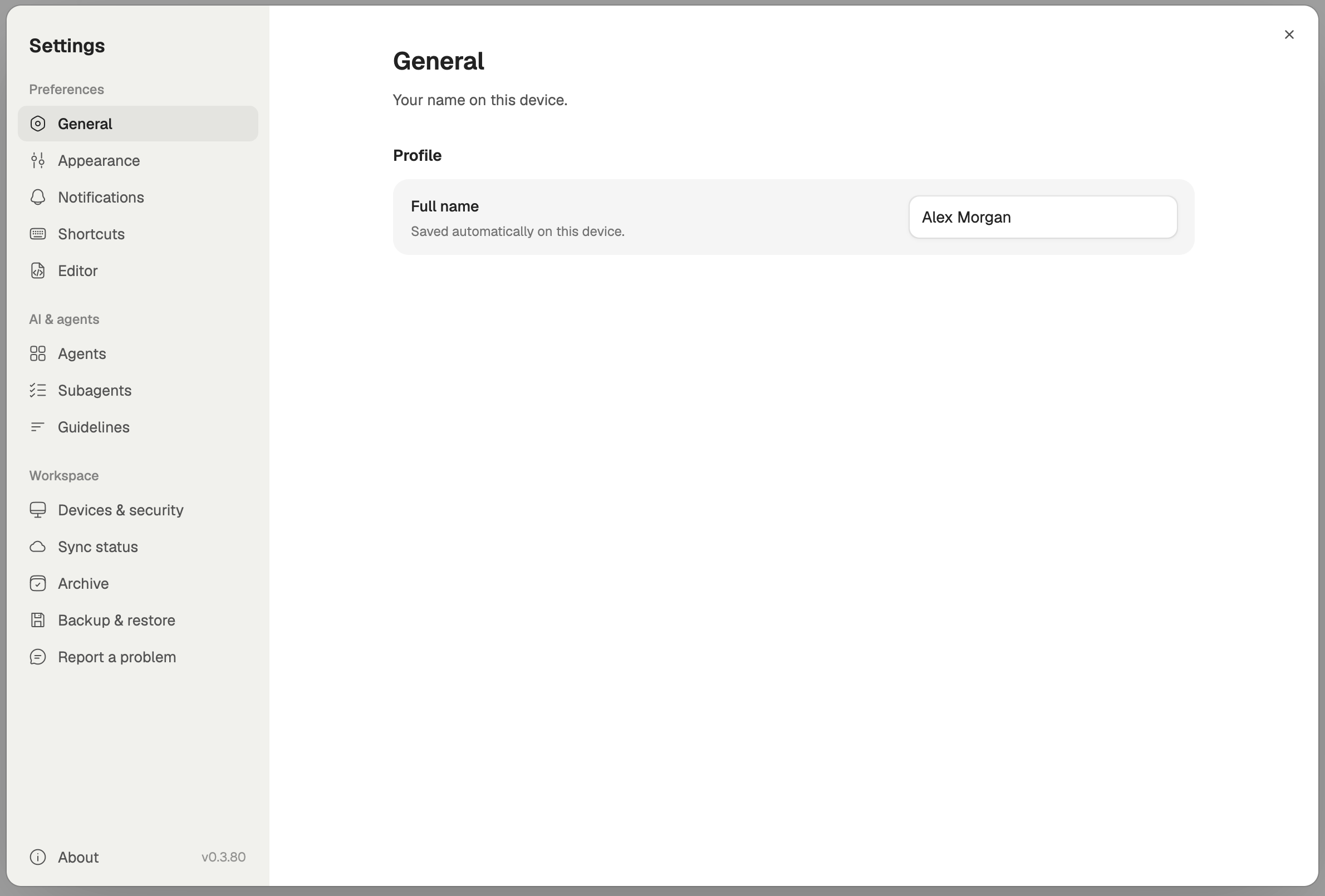
Open Settings with ⌘,, from Kelrova → Settings… in the menu bar, or from Settings in the account menu under your avatar at the bottom of the navigation rail. Settings opens as a window over your chats. The panes sit in three groups in the left column, and About sits at the foot of that column beside the version.
Preferences
| Pane | What it holds | More |
|---|---|---|
| General | Signed in: your Kelrova account (Open goes to your account and billing), your email, Profile photo, First name and Last name. Without an account: your Full name, saved on this device. | Sign in and approve this computer |
| Appearance | Theme (System, Light or Dark), Window (Opaque window background) and Chat transcript (Font and Text size, which change only the transcript). Follows your account to your other devices. | |
| Notifications | Sounds (a chime when a run finishes or an agent asks a question), Desktop notifications and Only when in the background. | |
| Shortcuts | The five shortcuts you can change, each with its binding, Reset and Restore defaults. | Keyboard shortcuts |
| Editor | How workspace files show and save while you edit: Autosave, Autosave delay, Editor font size, Word wrap and Show all files. |
AI & agents
Agents is a list beside a detail pane. A device menu at the top right picks the device the pane changes: changes apply to the selected device.
| Pane | What it holds | More |
|---|---|---|
| Agents, under Agents | One row per agent, such as Claude Code, Codex, Cursor, Devin and Grok. Each agent has Show in composer, its Accounts with Add account, Switch and Renew login, and Other devices for adding an account on another device. Claude Code and Codex also have Auto compact. | Connect your agents, Context and compaction |
| Session titles, under General | Which agent and model name new chats (Title model). Only Claude Code and Codex can generate titles. | |
| Provider retry | Whether Studio retries a turn the provider cut short and waits out usage limits, with the attempts and delays. | Troubleshooting |
| Cloud findings | Use Cloud findings in chats: lets chats work on your Kelrova Cloud findings. Needs sign-in. | Kelrova findings in Studio |
| Chat delegation | Delegate long tasks to a new chat: lets an agent start a separate chat for long work. | Chat delegation settings |
| Suggested replies | Offer suggested replies: ready-made answers under an agent's reply. | Questions and suggested replies |
| Subagents | Built-in roles and Custom profiles: the roles an Orchestra run can hand work to. These defaults apply to every project, and a project's own settings can override them. | Mix providers and accounts |
| Guidelines | Standing instructions added to agent sessions on this device. A project's own settings can override them. |
Workspace
| Pane | What it holds | More |
|---|---|---|
| Devices & security | A list of This device and your other Computers, with Connect a server. Each device has its access and Maintenance (Rename, Update, Check packages). Under Security: Trust enforcement and Encryption. | Run Studio on your own server, Approved devices and signatures, Encryption of synced content |
| Sync status | The account sync queue: the workspace first, then open conversations, each Up to date, Syncing, Queued or Needs attention. Signed out, it says Account sync is off. | What stays on your computer and what syncs |
| Archive | Automatic cleanup (Auto archive and Auto delete after a number of inactive days) and Archived sessions, which you can search and Unarchive. | Backup and archived chats |
| Backup & restore | Export JSON and Import JSON for preferences, guidelines, subagent profiles, enabled agents and project memory. Chats and credentials are never included. | Backup and archived chats |
| Report a problem | A support ticket with optional diagnostics you read before sending. | Report a problem |
About
About shows the version, the update state with Check for updates, and Check automatically, which looks for a new release every half hour. Updates never install on their own: you choose when to restart. While Check automatically is off, no update request is made at all. The pane also holds the License and Third-party notices.
See Signed updates and, for servers, Keep servers up to date.