Troubleshooting
Fixes for the common problems: an install that stops, an agent that will not start, provider errors and retries, and a device that shows offline.
Where in StudioStudio → Settings
Updated View as markdown
On this page
Find the message you see below and follow the fix. If nothing here helps, report the problem from Studio with diagnostics attached.
Installing
The install command on a Mac
The one-line installer is for Linux only. On a Mac it stops with on macOS, download the desktop app instead. Download the macOS app (Apple Silicon) instead; see Install on macOS.
Linux install messages
The installer prints what went wrong and the command that fixes it. The common ones:
| Message | Fix |
|---|---|
unsupported architecture | Studio runs on Linux x86_64 and ARM64 only. |
could not install runtime libraries | Run the sudo apt-get install command it prints, then run the installer again. |
kelrova not found after the install | Open a new SSH session, or run export PATH="$HOME/.local/bin:$PATH". |
systemd user session not available | You are probably root through sudo su. Log in as a regular user and run the installer again, or start the engine by hand with kelrova headless. |
could not enable linger | Without it the engine stops when you log out. Run the sudo loginctl enable-linger command it prints. |
the kelrova service failed to restart | Check systemctl --user status kelrova and journalctl --user -u kelrova. |
--login needs an interactive terminal | Connect with ssh -t, then run the sign-in command again. |
sign-in did not finish, so the engine runs local-only | Run the sign-in command it prints again. |
could not install the codex CLI, Claude Code or Devin | The installer prints the vendor's own install command. Run it, then check the device's packages in Studio. |
chrome not found — browser tools unavailable | Run the installer again with --with-chrome. Google's Chrome repository is x86_64 only; on ARM64 install chromium yourself and run the installer again. |
git not found | Install git (sudo apt-get install -y git) to work with repositories. |
The sign-in command is the installer with --login:
curl -fsSL https://studio.kelrova.com/install.sh | sh -s -- --login
See Install on Linux and Add a server.
Agents
An agent is missing from the composer
Open Settings → Agents and pick the device in the menu at the top right, because each device has its own agents. Then read the agent's row:
- Not installed: install the agent's command-line tool on that device. The pane says which one.
- Off: turn on Show in composer. At least one agent must stay on.
- No account or No active account: choose Add account, or Switch to an account you added.
See Connect your agents.
Sign in again
The provider rejected the account's login, so the agent cannot run. Choose Renew login on the account in Settings → Agents.
Model unavailable
The provider could not verify or use the selected model. Open Settings → Devices & security, select the device that runs the chat and choose Check packages under Maintenance. It lists every agent tool the device should have, with installed or missing status. Fix what is missing, then retry the message.
Provider errors and retries
When a provider cuts a turn short, an error row appears in the chat. It names the reason and the agent, for example Session limit reached · Claude Code, and Details unfolds the provider's own message.
| Row | What Studio does |
|---|---|
| Provider at capacity, Rate limited, Connection lost | Retries automatically after a delay that doubles each time. |
| Session limit reached, Weekly limit reached, Usage limit reached | Waits for the limit to reset, then retries, if the reset falls within the longest wait. |
| Authentication unavailable, Model unavailable, Adapter crashed, Startup failed, Invalid request, Refusal, Provider error | Not retried automatically. Fix the cause and choose Retry. |
While a retry waits, the row says Retrying in … with Attempt N of M, or Resets … for a limit, and the chat's row in the sidebar says Retry in …. Choose Retry now to go at once or Cancel to stop waiting. When nothing is scheduled the row says why: Automatic retry is off, Automatic retries used up or Too far off to retry automatically, the last for a limit that resets later than the longest wait, typically a weekly one. In an Orchestra run, a subagent waiting on its provider keeps its place and the run waits for it.
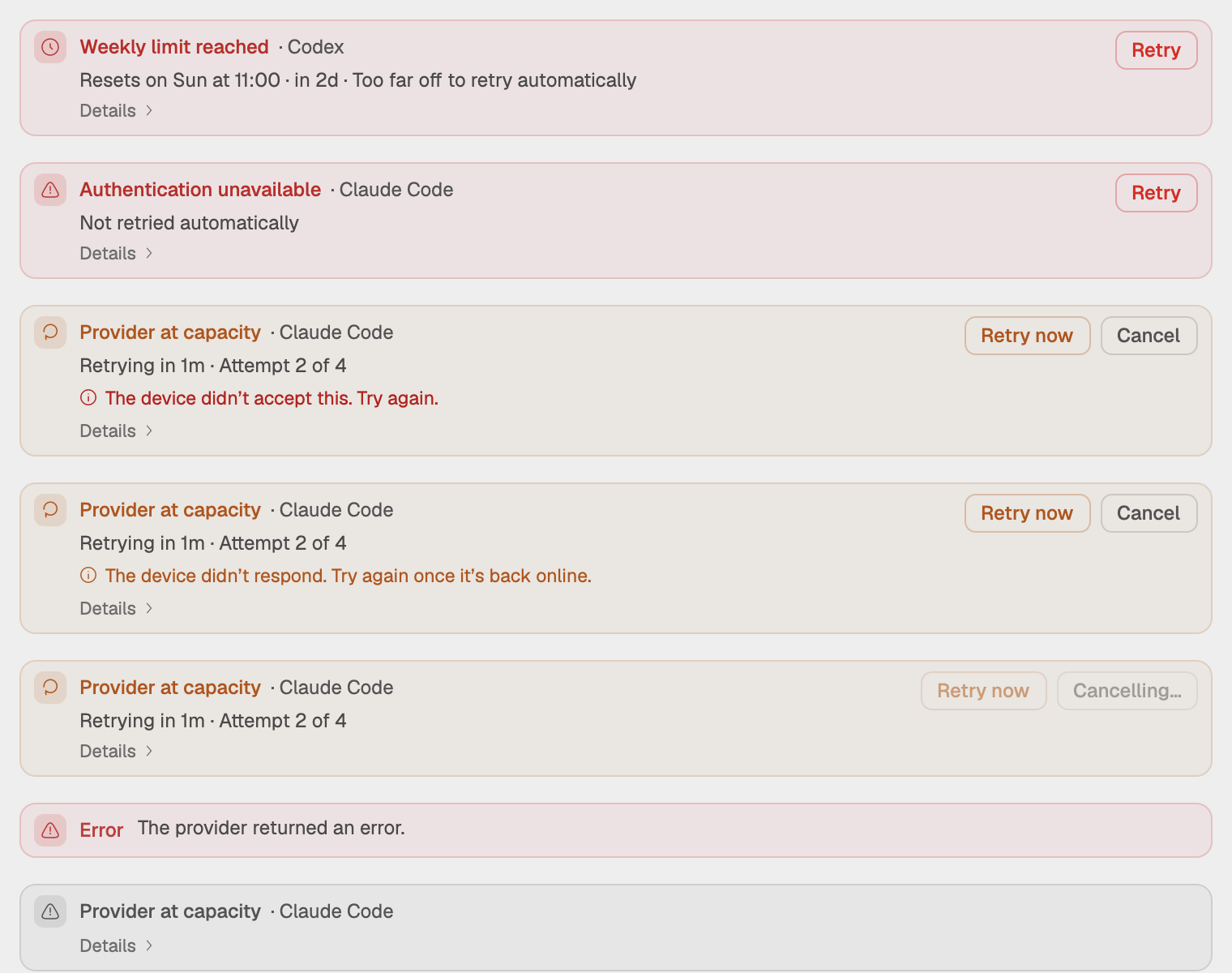
Change how Studio retries
Open Settings → Agents → Provider retry. The setting is synced across your devices.
| Setting | Default | Range |
|---|---|---|
| Retry automatically | On | |
| Chats and Subagents | On | |
| Attempts | 4 | 1 to 10 |
| First delay (doubles after each retry) | 30 seconds | 5 to 600 seconds |
| Longest delay | 600 seconds | 30 to 3,600 seconds |
| Wait for the limit to reset | On | |
| Longest wait | 300 minutes | 15 to 1,380 minutes |
With Retry automatically off, failed turns and subagents stop until you retry them.
Devices
A device shows Waiting or Offline
Each device reports in about once a minute.
- Online: it reported recently.
- Waiting: a report is late, but the device is probably between reports. Nothing is wrong yet.
- Offline: no report for a few minutes. The device is asleep, powered off or cut off from the network.
You can still send to an offline device. The composer says so first, for example build-server is offline. A message sent now starts once it reconnects., and the work starts when the device is back. On a server, check the engine with systemctl --user status kelrova. See Device status.
Pair to run chats on a device
From another computer, only approved devices can run chats, commands and terminals. If a device's pane in Settings → Devices & security says Pair to run chats, commands and terminals on that device, choose Request access: a six-digit code appears, and you type it on the other device. If it says the device answered with a different key than the one you paired, pair again before working on it. If it didn't answer the access check, make sure it is online and try again. See Approved devices and signatures.
A server that stays offline
Once a server has been offline for a few minutes, its pane offers to reconnect it without losing its projects and chats. To take it out of your account, see Remove a device.
Sync and updates
- Settings → Sync status shows each queue item as Up to date, Syncing, Queued or Needs attention. Signed out, sync is off and your work stays on this device. See What stays on your computer and what syncs.
- Settings → About shows the update state. Update failed — view details to retry. opens the reason with Details. See Signed updates.
Context usage is empty
Context usage will appear after the active agent reports its context window. The numbers appear after the agent's first turn. See Token usage.