Keyboard shortcuts
Studio's keyboard shortcuts on macOS: the five you can change in Settings, the fixed menu shortcuts, and the keys in the composer and the question panel.
Where in StudioStudio → Settings → Shortcuts
Updated View as markdown
On this page
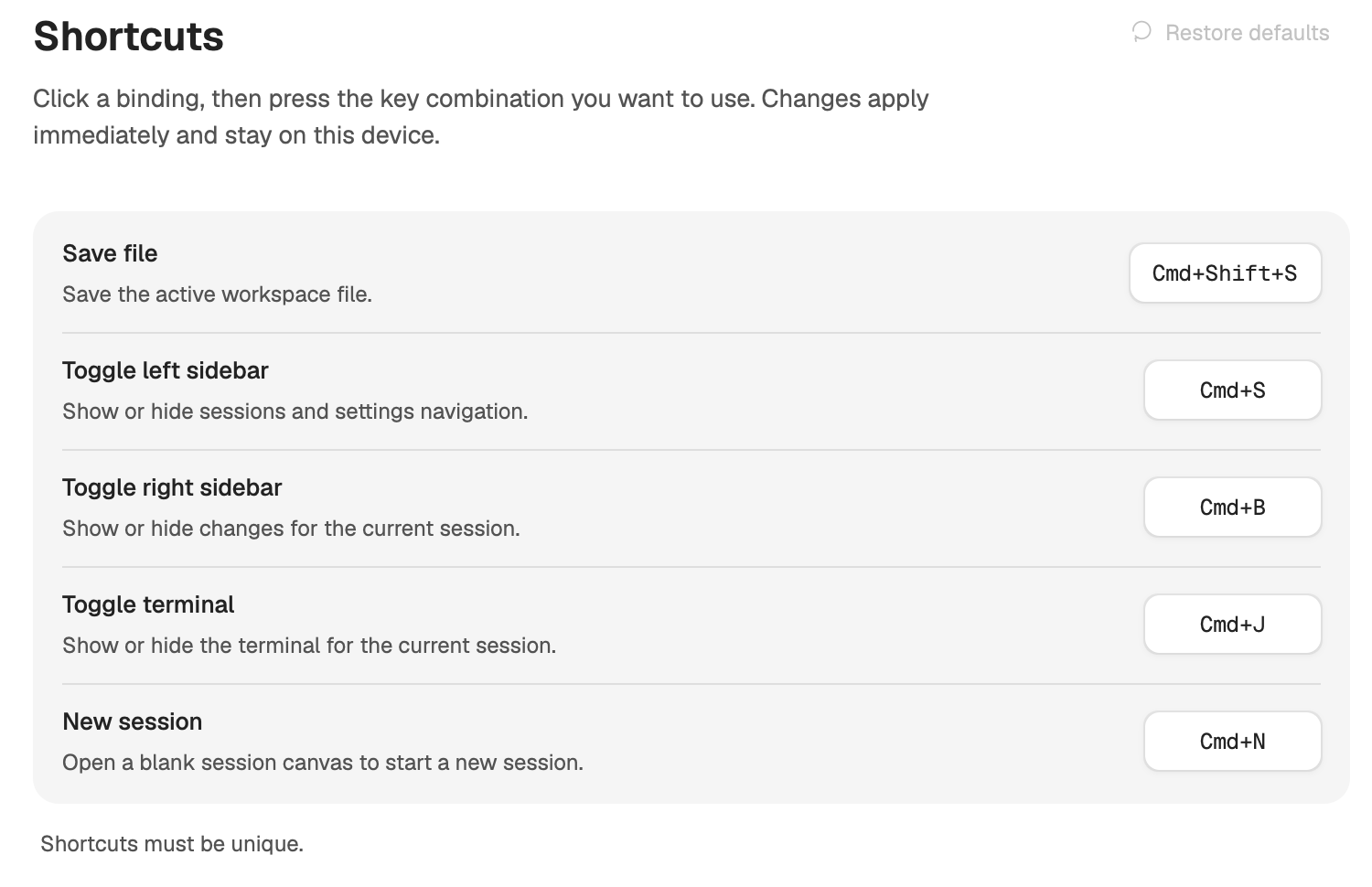
Five shortcuts can be changed in Settings → Shortcuts. The menu shortcuts and the keys inside the composer are fixed. Keys are shown here in macOS notation: ⌘ Command, ⌥ Option, ⇧ Shift, ↩ Return, ⌫ Delete. The Shortcuts pane writes the same keys as Cmd+S.
Shortcuts you can change
| Shortcut | Default | What it does |
|---|---|---|
| Save file | ⇧⌘S | Save the active workspace file. |
| Toggle left sidebar | ⌘S | Show or hide sessions and settings navigation. |
| Toggle right sidebar | ⌘B | Show or hide changes for the current session. |
| Toggle terminal | ⌘J | Show or hide the terminal for the current session. |
| New session | ⌘N | Open a blank session canvas to start a new session. |
Open the pane
Open Settings → Shortcuts.
Record a new binding
Click a binding, then press the key combination you want. Press Escape to cancel. Changes apply immediately.
Undo a change
Choose Reset on a row to bring back its default, or Restore defaults for all five.
Shortcuts must be unique. A combination another shortcut already uses is refused, and the pane names the shortcut that has it.
Fixed shortcuts
| Keys | What it does | Menu |
|---|---|---|
| ⌘K | Open the folder picker to add a project. Press it again to close it. | |
| ⌘O | Open Folder…: the same picker as a new project. It leaves Settings, so the project you pick is what you see next. | File |
| ⌘, | Settings… | Kelrova |
| ⌘H | Hide Kelrova | Kelrova |
| ⌥⌘H | Hide Others | Kelrova |
| ⌘Q | Quit Kelrova | Kelrova |
| ⌘M | Minimize | Window |
| ⌘W | Close Window | Window |
File → New Chat uses the New session shortcut. The View menu switches the theme with Appearance: System, Appearance: Light and Appearance: Dark. The Edit menu holds Undo, Redo, Cut, Copy, Paste and Select All for the field you are typing in.
In the composer
| Keys | What it does |
|---|---|
| ↩ | Send the message. While the agent is working, ↩ with text steers the run, and ↩ in an empty composer stops it. |
| ⇧↩ | New line. |
| Tab or ↩ | Pick the highlighted entry in the @ mention list. |
| Escape | Close the @ mention list. |
| ⌘Z, ⇧⌘Z | Undo, redo. |
| ⌘A, ⌘C, ⌘X, ⌘V | Select all, copy, cut, paste. |
| ⌘← and ⌘→ | Start and end of the line. |
| ⌘↑ and ⌘↓ | Start and end of the message. |
| ⌥← and ⌥→ | Previous and next word. Add ⇧ to select. |
| ⌥⌫ | Delete the word before the cursor. |
| ⌘⌫ | Delete to the start of the line. |
In a chat with Orchestra on, stopping asks first, because it stops the whole orchestration, including its running subagents. See Steer, interrupt and stop.
In the question panel
When an agent asks you a question, the panel takes the composer's place. See Questions and suggested replies.
| Keys | What it does |
|---|---|
| 1 to 9 | Pick that option, while the text field is empty or not focused. |
| ↩ | Go to the next question, or submit on the last one. |
| Escape | Go back one question, while the text field is empty or not focused. |
Elsewhere
- In the commit message field, ⌘↩ commits. See Changes, branches and pull requests.
- While you edit an Orchestra proposal, ⌘↩ finishes editing, like Done. See Proposals you confirm.
- Escape closes the agent drawer of an Orchestra run.
On Linux
Ctrl takes the place of ⌘ for the five shortcuts you can change and for ⌘K. In the composer, Ctrl+Z, Ctrl+C and the other editing keys work, Home and End move to the edges of the line, and word moves use Ctrl instead of ⌥. The other shortcuts in the fixed table are macOS only.