Approved devices and signatures
A device works on another only after you approve its key there with a six-digit code. Every remote action is signed and checked. This cannot be turned off.
Where in StudioStudio → Settings → Devices & security → This device
Updated View as markdown
On this page
A device can run chats, commands or terminals on another device, or read its protected content, only after that other device has approved it. Each device has its own signing key, and approval means the target stores that key in its own list. From then on the target checks every remote request against the list before it acts. Being signed in to the same account does not count as approval, and Kelrova's servers cannot grant it.
The rule, always on
Where in StudioStudio → Settings → Devices & security → Trust enforcement
Trust enforcement reads Always enforced, with the badge Required: protected reads and actions require an approved device's signature, and unpaired or unsigned requests are rejected. There is no setting to relax it, on new installs or on upgraded ones. If the pane reads Update required, that copy of Studio is too old to enforce the policy; update it.
What needs a signature from an approved device when it comes from another device:
- starting a session, sending a message, steering, answering an agent's question, interrupting, compacting and retrying;
- opening a terminal, typing into it and watching it;
- reading protected content: transcripts, files, changes and other data of the device.
Only an unpaired device's first steps get through: the requests it needs to pair and to learn why it was refused.
Your own Mac can always stop its own chats. A stop sent from another device needs that device's approval like any other action.
Who can work on this device
Where in StudioStudio → Settings → Devices & security → This device
Who can work on this device lists the devices this Mac has approved. Each row shows the device's name with the badge unverified, its key type, a short key ID, the approval date, and when it was last used. The name is a label the other device chose; the six-digit code is what proved it. Use Rename to give it a name you recognize, and Remove to take its access away.
Approve a device on this Mac
Open the pairing window
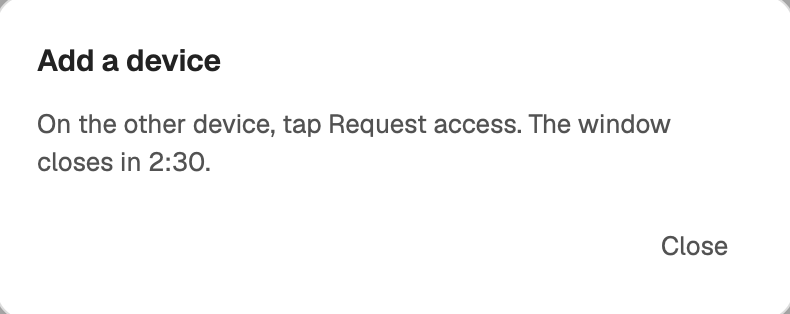
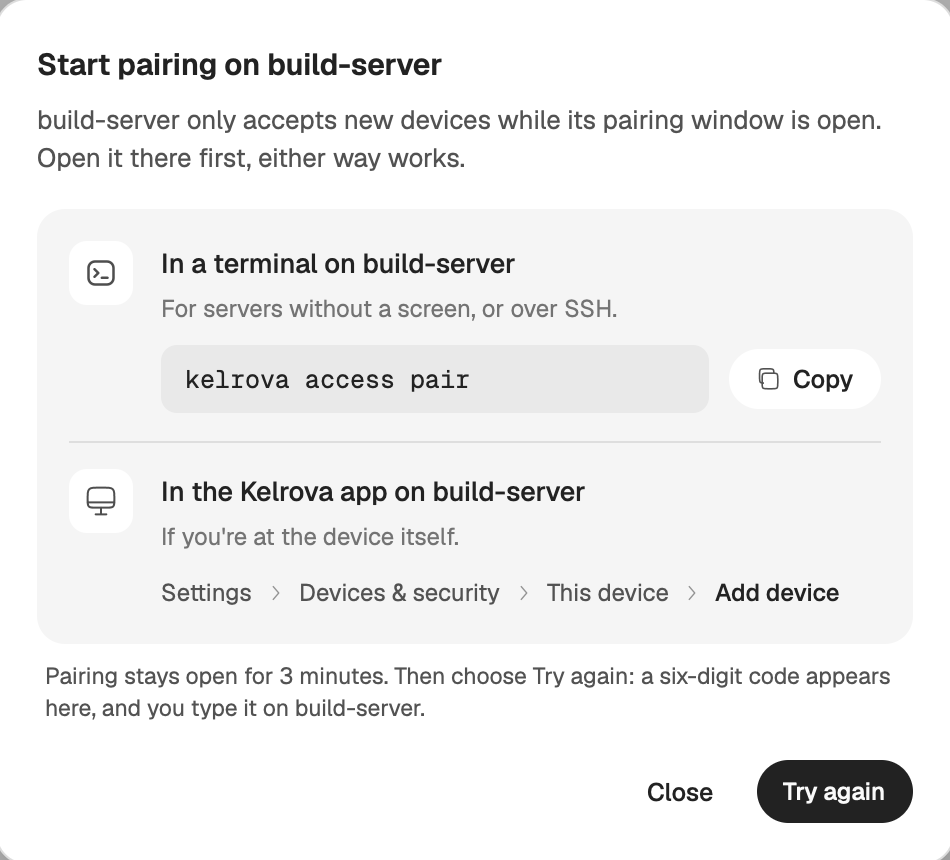
Under Who can work on this device, choose Add device. Add a device opens this Mac's pairing window for 3 minutes. Only someone at this Mac can open it; on a server, the same window opens with
kelrova access pairin its terminal.Request access from the other device
On the other computer, select this Mac on Devices & security and choose Request access. The six-digit code appears there, on the requesting device, and nowhere else.
Check the name and type the code
This Mac shows the name of the device that wants to pair, marked unverified. Type the code shown on the other device's own screen and choose Approve. The dialog confirms that the device is approved and can now ask this Mac to work.
Warning: Only a code you asked for
Type a code only when you started the pairing yourself and can see it on the other device's pairing screen. Never use a code from a notification or an email. If Studio warns about unexpected pairing requests, close the dialog unless you started one.
Get access to another device
On the other device's page, the Access from this device row shows your access:
| Badge | Meaning |
|---|---|
| Approved | This Mac can run chats, commands and terminals there. |
| Pairing required | Not approved yet. Choose Request access. |
| Identity changed | The device answered with a different key than the one you paired with, for example after a reinstall. Pair again before working on it. |
| Unreachable | It did not answer the access check. Make sure it is online and try again. |
Request access shows a six-digit code and a countdown. Type the code on the other device: in its Add device window, or in the terminal running kelrova access pair. If its pairing window is not open, Studio shows Start pairing on that device, with both ways to open it, and Try again.
Limits that protect pairing
- The pairing window stays open for 3 minutes.
- Each pairing attempt allows one code entry, and the code must be typed within 2 minutes.
- After 3 failed or expired attempts in a row, pairing locks for 15 minutes. Someone at the device can end the lock early with
kelrova access unlock. - A device accepts at most 10 pairing attempts a day.
Removing access
- Remove under Who can work on this device asks for confirmation, then takes the device's access away at once. To use this Mac again, it has to pair again with a new code.
- Remove my access on another device's page stops this Mac from controlling that device. You can request access again later.
When access is removed:
- the removed device's open views of transcripts, terminals and other live data close, and its later requests are refused;
- commands it queued while offline are rejected when they come due;
- a chat it started that is already running may finish, but the removed device can no longer read, steer or stop it;
- this Mac encrypts new content with a new key the removed device never receives. What it already downloaded stays readable on it: removal does not reach back into another device's copy.
Kelrova emails your account address when a device is approved or removed. The email is a notice; the device's own list is the record.
What the servers can and cannot do
Kelrova's servers carry traffic between your devices. They can delay or drop it, but they cannot approve a device, sign a request, or change a setting on your device. The Kelrova website has no access to your devices' content or controls.
From a terminal
On a server, or in a terminal on any device with Studio:
kelrova access pair                # open the pairing window and type a code
kelrova access list                # devices approved on this device
kelrova access remove <id-prefix>  # remove one, by the start of its key ID
kelrova access request <device>    # ask another device for access; prints the code
kelrova access enforcement         # show the policy (always enforce)