Run Studio on your own server
Install Studio on a Linux server, sign it in to your account and run chats there from your Mac. The server does the work; your Mac controls it.
Where in StudioStudio → Settings → Devices & security
Updated View as markdown
On this page
A server is a Linux machine that runs Studio without a window. You install it with one command over SSH, sign it in to the same Kelrova account as your Mac, approve your Mac on it once, and then pick it as the device for a new chat. The agent runs on the server, in the server's folders, with the agent logins stored on the server.
What a server is good for
- Work that keeps going. A chat on a server runs on the server. Closing your Mac's lid, putting it to sleep or quitting Studio does not stop that chat; open Studio again to read what it did.
- Code that lives elsewhere. The agent works in folders on the server, so a repository that is checked out on the server never has to come to your Mac.
- A headless browser. With Chrome installed on the server, the agent can browse there and you can watch the page from your Mac. See The browser panel.
How it fits together
| Piece | Where it lives |
|---|---|
| The chat's agent, its files and its terminal | On the server |
| The agent logins it uses (Codex, Claude Code, Devin, Cursor) | On the server |
| The device list, projects and chat list | Synced through your Kelrova account |
| Chat transcripts | Synced, encrypted before they leave the device that hosts the chat |
| Approval of your Mac on the server | On the server only |
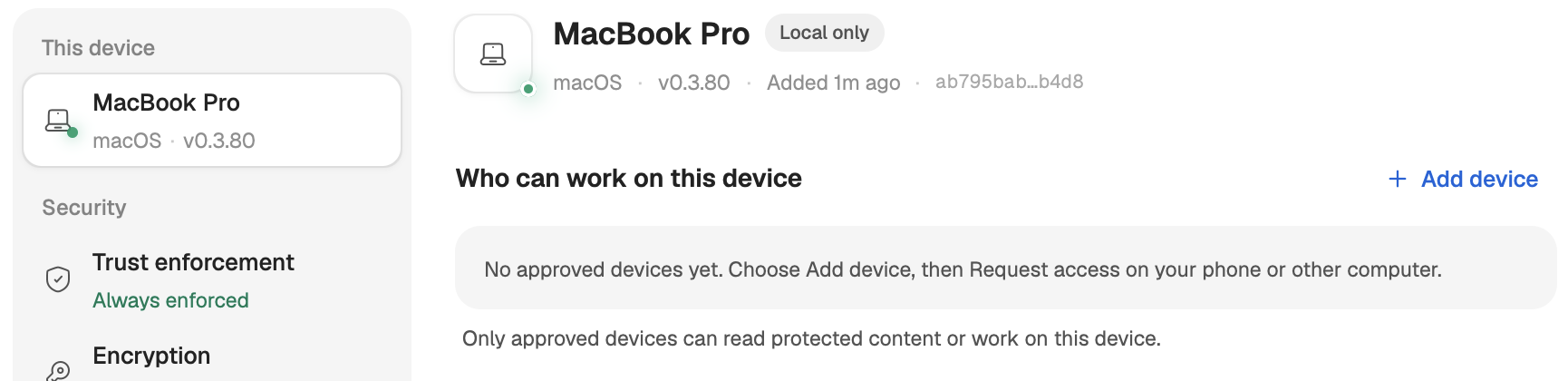
Your Mac and the server find each other through your Kelrova account. Signing in is not enough to control a server: the server must also approve your Mac's key once, with a six-digit code. Until then the server answers only the requests needed to pair. Approved devices and signatures explains why.
The steps
- Check the server requirements: Linux on x86_64 or ARM64.
- Add the server: run the installer, sign in, approve your Mac, and copy an agent login.
- Start sessions on it from the device picker in the composer.
- Watch its status, keep it up to date, and remove it when you no longer need it.
Note: Signed in only
Connect a server appears on Devices & security only while Studio is signed in to an account. A local-only workspace has no account device list for a server to join.