Billing, balance and invoices
See plan usage and spending, add prepaid credit, turn on on-demand scans with a cap, update a payment method and cancel or resume a subscription.
Where in the portalOrganization → Billing
Updated View as markdown
On this page
The Billing page shows what your plan includes, what has been used and what the organization's balance has paid for. Its menu groups Overview and Spending under Balance, and Plan & usage, Scan limits and Queue under Plan.
Where in the portalOrganization → Billing
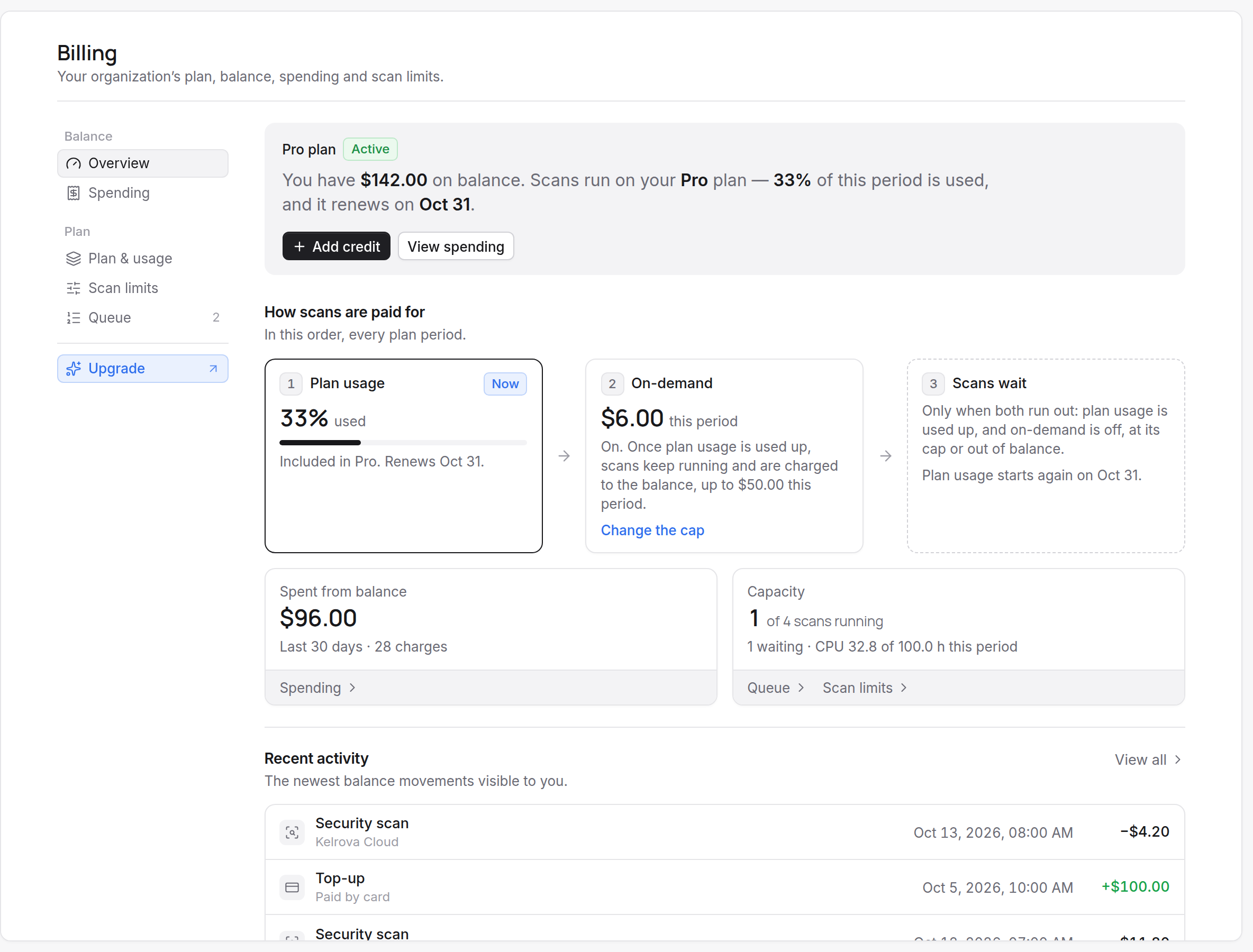
How scans are paid for
The Overview shows three stages in order.
- Plan usage is the percentage of this period's included usage that is used, with the day it renews.
- On-demand takes over once plan usage is used up. Scans keep running and are charged to the organization's balance.
- Scans wait when plan usage is used up and on-demand is off, at its cap or out of balance. They also wait when the plan is past due or has ended; see Plans and the trial.
Changing on-demand requires billing management access. You can set a cap: once on-demand reaches it, it stops for the rest of the period, and scans wait until the plan renews or the cap is raised. There is no metered overage.
Add credit
The balance is prepaid and topped up when you choose. Choose Add credit on the Overview or Spending page, pick an amount, and pay by card at checkout. The amounts are $10, $25, $50, $100 and $250. Tax is added at checkout. If the page says Still processing, the credit appears once the payment is confirmed.
Note
For refunds, see the refund policy.
Spending
Spending lists charges and credits by day, with a month picker. Entries include scan charges, credits, top-ups, top-up refunds and adjustments. Someone without billing access sees Spending is not visible to you instead.
Payment method, invoices and cancelling
On the Plan & usage section, Payment method & invoices opens a hosted page for the payment method and invoices.
Open Plan & usage
Choose Plan & usage in the Billing menu.
Choose Cancel subscription
Confirm in the dialog. The organization keeps its plan until the end of the period, and the page shows Cancels on with the date.
Resume if you change your mind
Choose Resume subscription before that date.
After the period ends, new scans and scheduled scans need a plan. Findings and settings stay available. Changing plans is covered in Plans and the trial.
Who can see and change what
| Access | What it allows |
|---|---|
| View billing | See the balance, spending and financial totals. |
| Manage billing | Change the plan, add credit, set on-demand and cancel or resume. |
Owners have both. Others receive them as grants on the Members page. Plan checkouts, plan changes, cancellations and billing portal visits appear in the audit log.