What a finding page shows
A tour of a finding page: the header, the Overview and Activity tabs, the Go Fix button, the side panel with its properties and the Adversary attack path.
Where in the portalSecurity → Findings → a finding
Updated View as markdown
On this page
Open any row of the Findings list and the finding opens as a page. This page names each part of it.
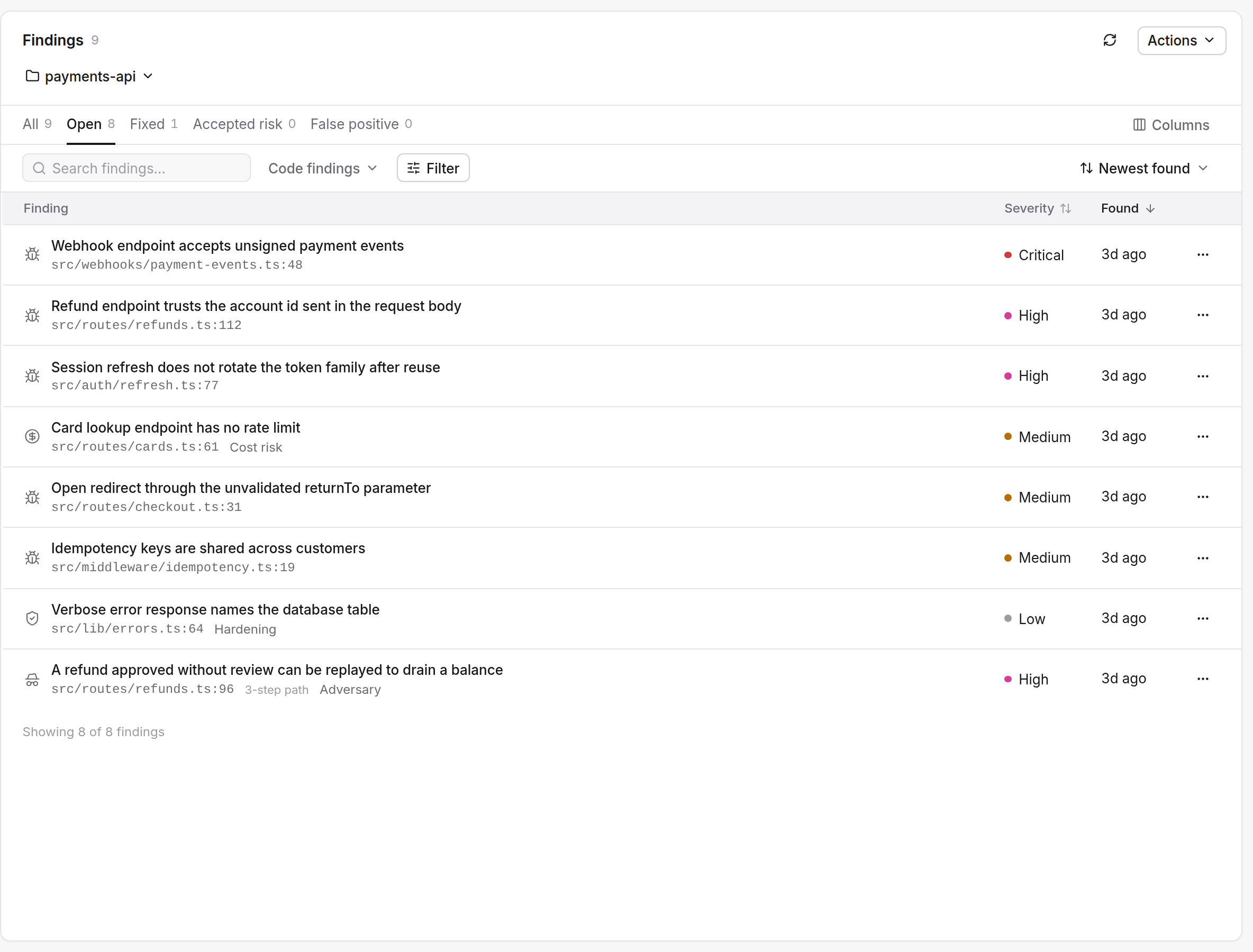
The list
The list has the tabs All, Open, Fixed, Accepted risk and False positive, each with a count. Rows show the title, the kind, the severity and the dates a finding was found and verified. On the All tab rows also show the status. Use Search findings…, Filter and Sort by to narrow it. A Columns menu hides the ones you do not need. See Severities.
The header
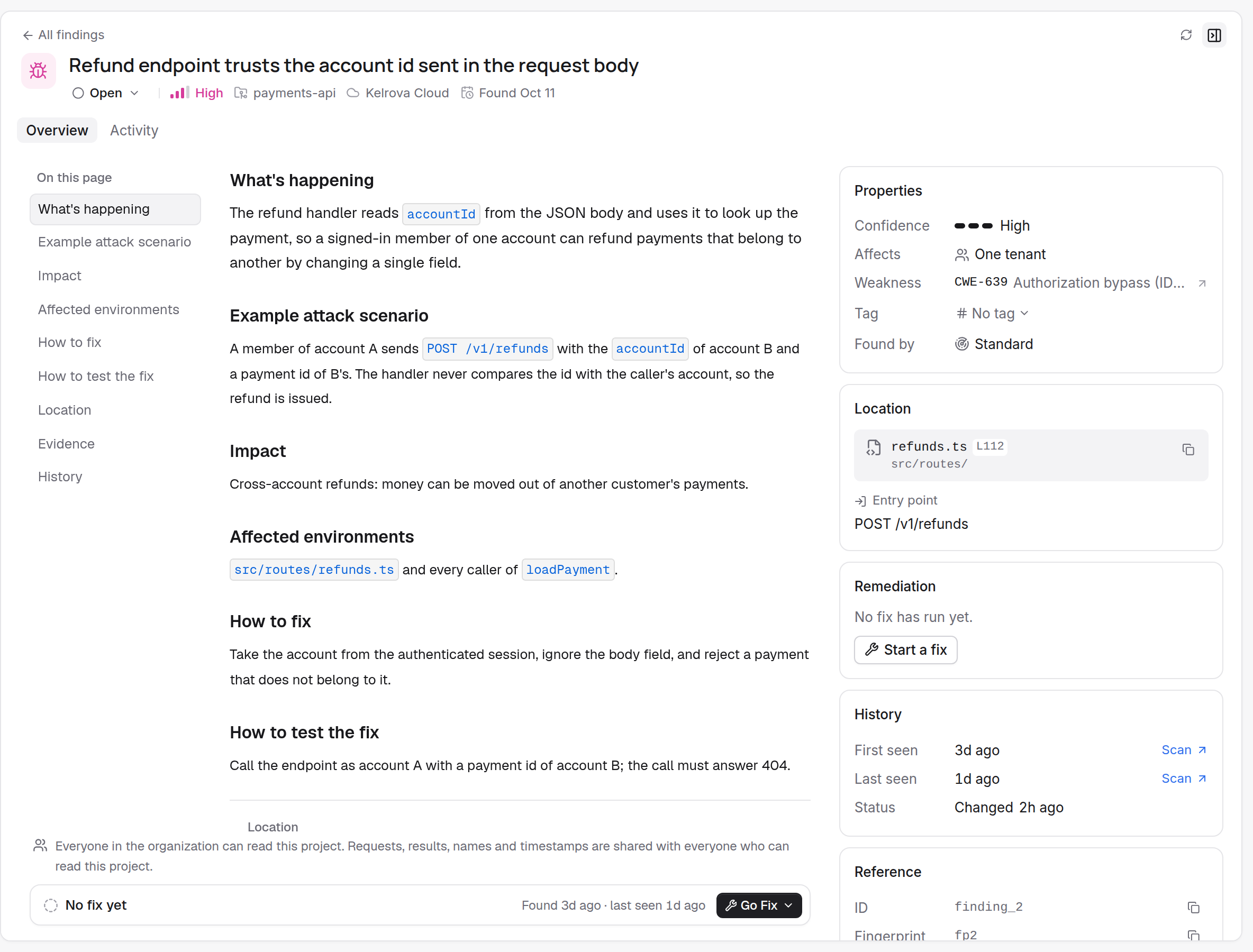
Under All findings you see the title and one line of facts:
- The status, which is a menu if you may change it.
- The severity.
- The kind, unless it is Vulnerability.
- Possible duplicate or Merged, when it applies.
- The project, Kelrova Cloud and when it was found.
Then come the tabs Overview and Activity, and the Go Fix button.
Overview
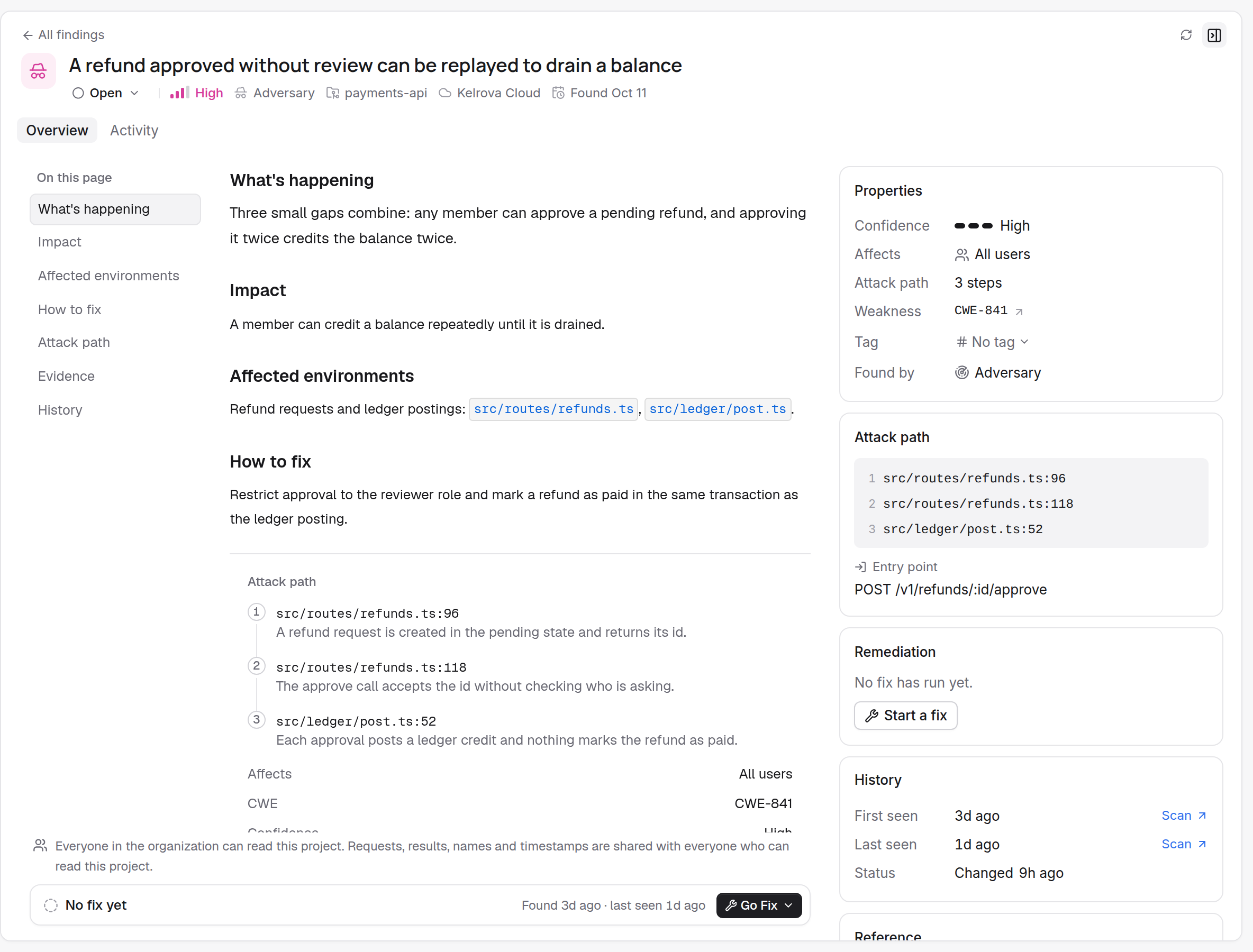
The Overview is the article: the sections from What's happening to How to test the fix, then Location or Attack path, Evidence and History. See Reading evidence.
An Adversary finding replaces Location with Attack path, and its side panel says Affects: One user, One tenant or All users.
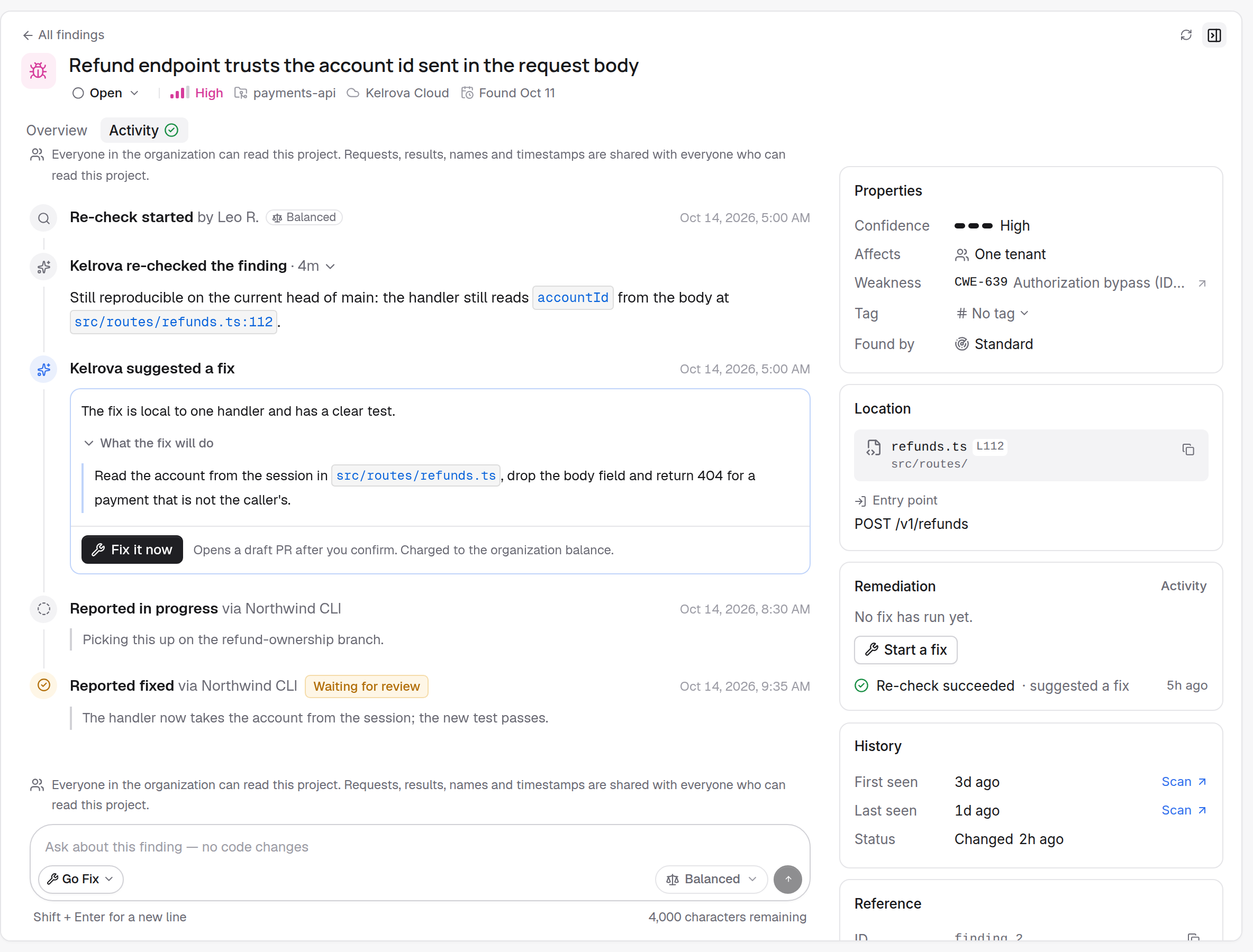
Activity
Activity lists what happened to the finding, in order, with who did it: status changes, fixes, re-checks, questions and reports from connected apps, such as Reported fixed via the app's name. A proposal waiting for a member appears at the top with Accept and Dismiss.
The side panel
The Finding details toggle opens a panel beside the article:
| Section | What it holds |
|---|---|
| Properties | Confidence, Affects, the number of attack path steps, the weakness (CWE), the tag, and which scan levels found it. |
| Location or Attack path | The file and line, or the first steps of the path, and the Entry point. |
| Remediation | Where a fix stands: Patch, PR, Gates, Merged. |
If the project has tags, the Tag row is a menu for members who may change findings. The line under a tag reads Set by scan or Set by you. See Tags.