Preferences and unsubscribe
Switch email categories off in Settings, or stop one kind of email from its footer link without signing in.
Where in the portalSettings → Notifications
Updated View as markdown
On this page
You can stop an optional email in two ways: with a switch in your settings, or with the unsubscribe link at the bottom of the email. Both stop one category of email and leave the rest.
Switch categories in Settings
Where in the portalSettings → Notifications
Open Notifications
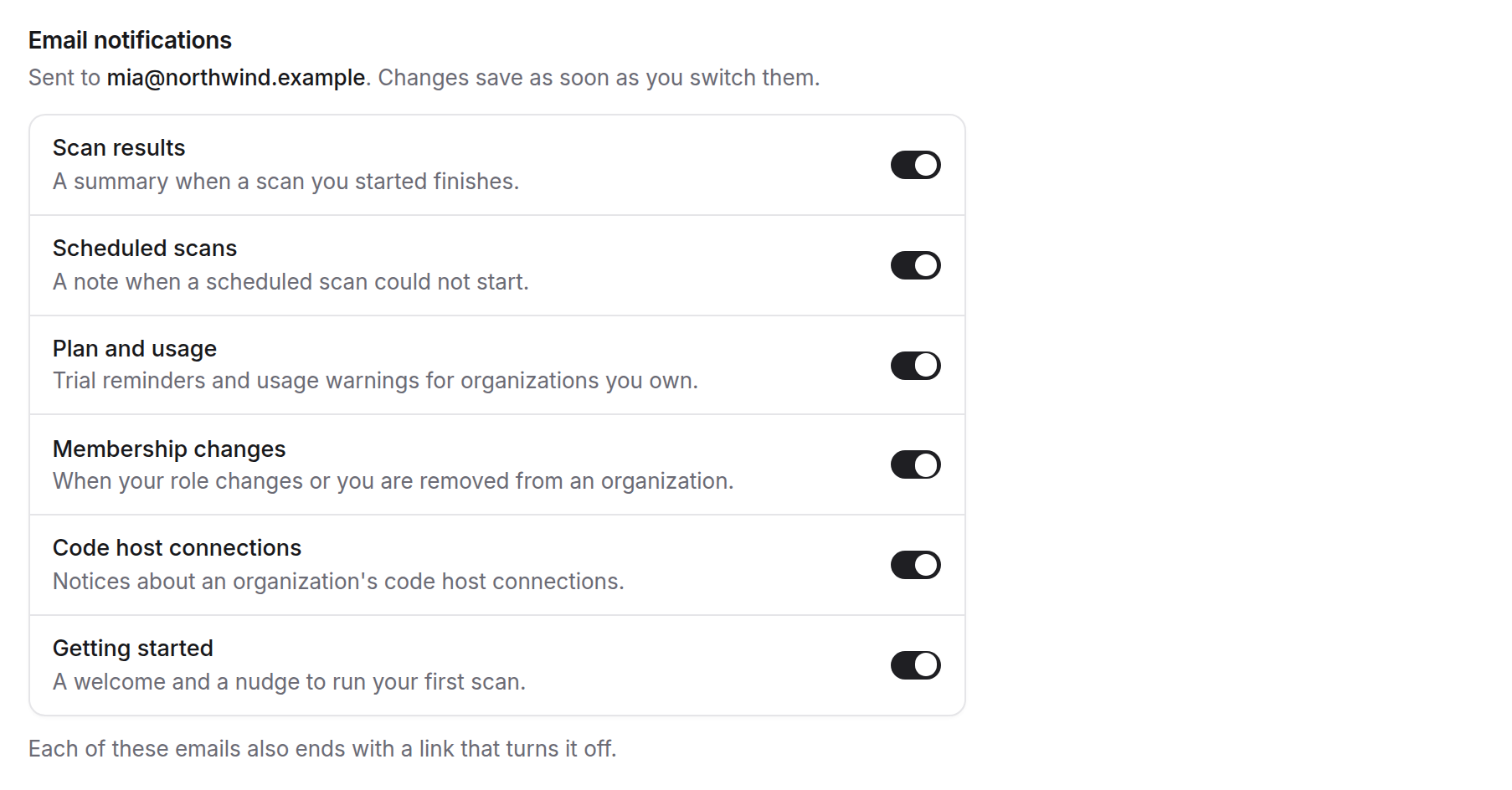
Choose Settings, then Notifications. The Email notifications section lists the emails you can switch off, with the address they go to.
Flip a switch
Turn a category off or on. The change saves as soon as you switch it, and a message confirms it, for example "Scheduled scans" emails turned off.
Check the result
If saving fails, the message says "Couldn't save your email settings." and offers Try again. The switch goes back to the last saved setting.
Below the switches, Always sent lists the emails that cannot be turned off. See Email notifications for every category and who sees it.
Unsubscribe from an email
Every optional email ends with an unsubscribe link, and your mail app may show its own unsubscribe option for these emails. The link stops the kind of email it came from. You do not need to be signed in.
Open the link
The page asks "Unsubscribe from these emails?" and names the kind of email, under "Emails about".
Press Unsubscribe
Nothing changes until you press the button, so opening the link by accident, or a mail scanner opening it, does not unsubscribe you.
Read the confirmation
The page says "You're unsubscribed" and names the emails you will no longer get. It adds that sign-in codes, security notices and billing alerts are always sent.
If the page says "This link is incomplete", the link was cut short. Open it from the email again, or choose your emails in Settings. If the page says "We couldn't unsubscribe you just now. Try again in a moment.", press Unsubscribe again.
Change your mind
The unsubscribe page links to your email settings with Manage email settings. If you are signed out, you sign in first. Turn the category back on with its switch. Optional emails are on by default, and a category you never changed stays on.
What a switch does not cover
- Emails that are always sent stay on, and have no unsubscribe link.
- Switching a category off applies to your own account. Other people keep their own settings.
Questions about an email you did not expect? See Getting help.