Connected apps and sessions
See the apps you approved and the places you are signed in, and revoke any of them from your settings.
Where in the portalSettings → Connected apps
Updated View as markdown
On this page
Two lists in your settings show what can act as you: the apps you approved, and the places you are signed in. You can end either at any time.
Where in the portalSettings → Connected apps
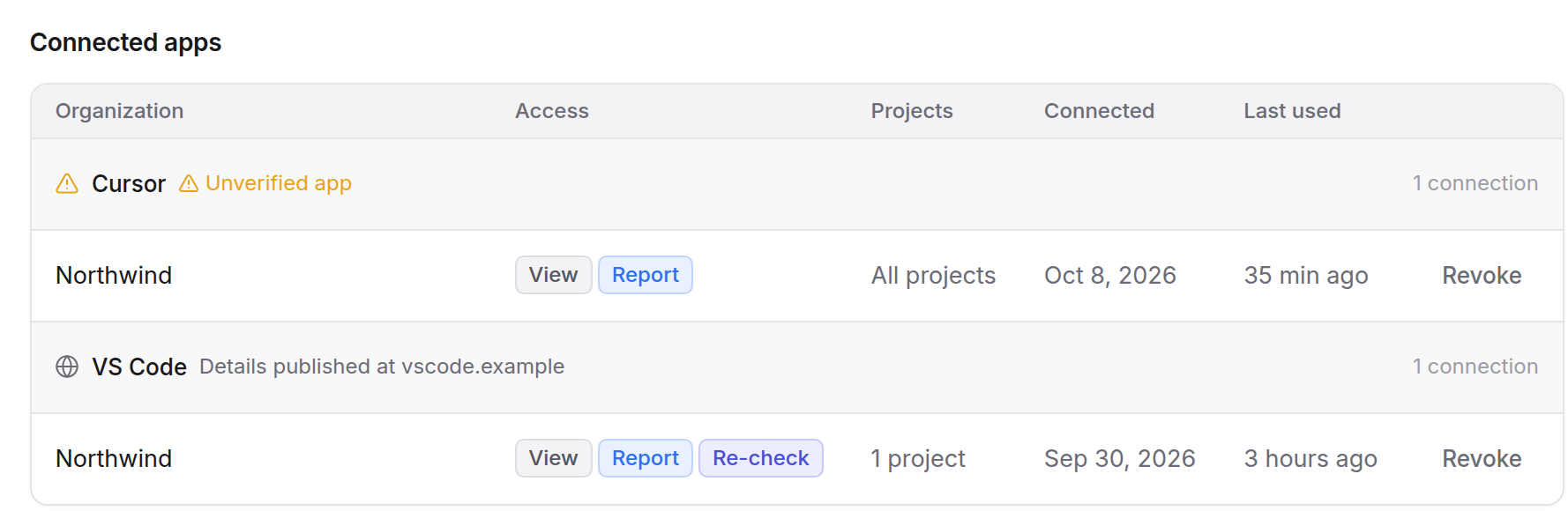
Connected apps
Connected apps lists the apps you approved on the consent screen, grouped by app. See Access levels and staying connected for how a connection starts.
Each app's heading shows its name, how many connections it has and one identity line:
- Details published at a host name: Kelrova read the app's details from that address.
- Unverified app: the app registered itself and Kelrova cannot say who runs it.
- Registered with Kelrova: an app Kelrova registered itself.
- Machine client: an organization's own machine client.
Each row is one connection and shows:
| Column | What it shows |
|---|---|
| Organization | The organization the connection works in. |
| Access | View, Report and Re-check, as granted. |
| Projects | All projects or a number of selected projects. |
| Connected | The date you approved it. |
| Last used | When the app last made a request. |
Every approval creates its own connection. Two laptops are two connections, each listed and revoked on its own.
Revoke an app
Find the connection
Open Settings → Connected apps and find the app and organization.
Choose Revoke
Choose Revoke on its row. A message confirms that the app no longer has access.
Revoking signs that app out of Kelrova for you. Its next call fails.
A connection with Stays connected also ends when it goes unused for 30 days, or when the organization's maximum connection age is reached. A connection without it lasts one hour. See Access levels and staying connected.
If no app is listed, the page says No connected apps: apps you connect through MCP appear there, with what each one can do.
Active sessions
Settings → Active sessions lists every place you are signed in to your account. Revoke anything you do not recognize.
| Column | What it shows |
|---|---|
| Session | The browser or app, and the system it runs on. Your current session is marked. |
| IP address | The IP address of the session. |
| Signed in | The date it signed in. |
| Last active | How recently it was used. The current session reads Now. |
- Choose Revoke on a row to sign that session out. Your current session has no button.
- Choose Sign out other sessions to end every session except the one you are using.
What owners and admins see
Owners and admins see every member's connections, with the member each belongs to, on the organization's MCP server pages. They can revoke a connection there. See Organization settings for MCP.