Export findings
Download a project's findings as a CSV file, either the current filters or every finding, and copy a single finding as JSON for your own tools.
Where in the portalSecurity → Findings → Actions → Export findings…
Updated View as markdown
On this page
Export gives you a project's findings as a file. A CSV file holds many findings, and a JSON block holds one.
Export a list as CSV
Narrow the list if you want to
In the Findings list, pick a tab, type a search or set filters. The export can follow exactly what you see.
Open the export
Choose Actions, then Export findings… under Data. The row is off while the list is empty. Anyone who can read the project's findings can export them.
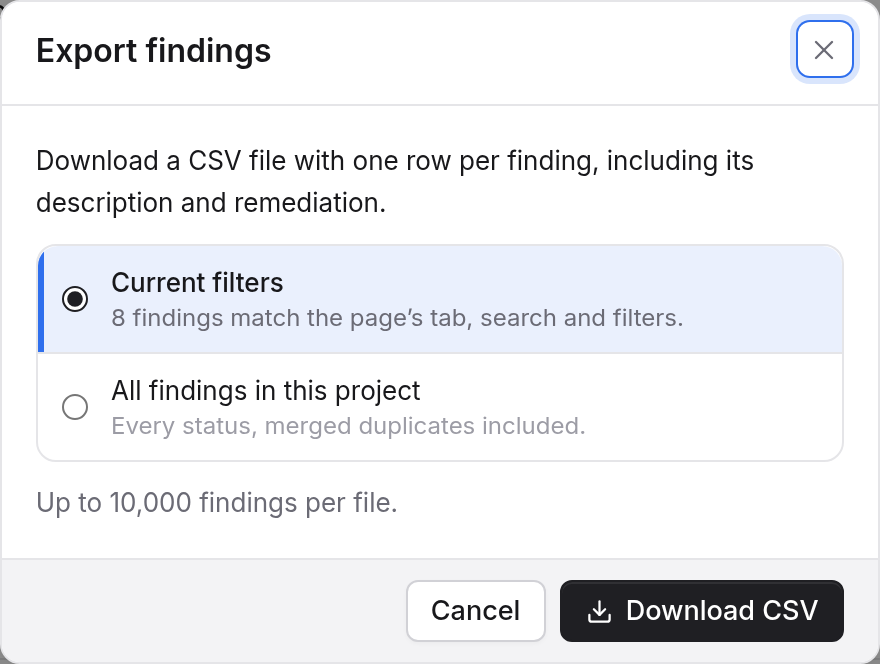
The Export findings dialog: Current filters or All findings in this project, then Download CSV. Choose what to export
The dialog offers two choices:
- Current filters exports every page of the list's tab, search and filters, not only the rows loaded on screen. It shows how many findings match.
- All findings in this project exports every status, merged duplicates included.
Download
Press Download CSV. The file has one row per finding, including its description and remediation, and the dialog closes when the download starts.
Limits and errors
One file holds up to 10,000 findings. A larger export is refused whole, and the dialog says how many findings matched. Choose Current filters and narrow them, then try again.
If you export too often, the dialog says Too many exports right now. Try again in a minute. Any other failure says Could not export findings. Try again. and leaves the dialog open.
Export one finding as JSON
Open a finding, choose Go Fix, then Export as JSON…. The dialog shows the finding in one JSON block with a Copy button. Chats and runs are not included. Paste it into your own agent.
See Go Fix: fix, re-check, ask for the other rows of that menu, and Triage a findings list for where exporting fits.