Members and roles
Invite people by email, understand Owner, Admin and Member, change roles, transfer ownership and delegate billing and audit access.
Where in the portalOrganization → Members
Updated View as markdown
On this page
An organization has three roles: Owner, Admin and Member. Owners and admins invite people and manage the list under Organization → Members.
Where in the portalOrganization → Members
The three roles
| Role | What it can do |
|---|---|
| Owner | Manages all organization access, billing and projects. |
| Admin | Invites and manages members, and reads the audit log. |
| Member | Reads the organization's plan and works in the projects they can open. |
Owners and admins always have access to every project. A member sees projects that are visible to the whole organization, plus any restricted project they are added to. See Project visibility and project roles.
Invite someone
Open the dialog
Choose Invite member at the top right of the Members page. Only owners and admins of a team organization see it.
Enter an email address
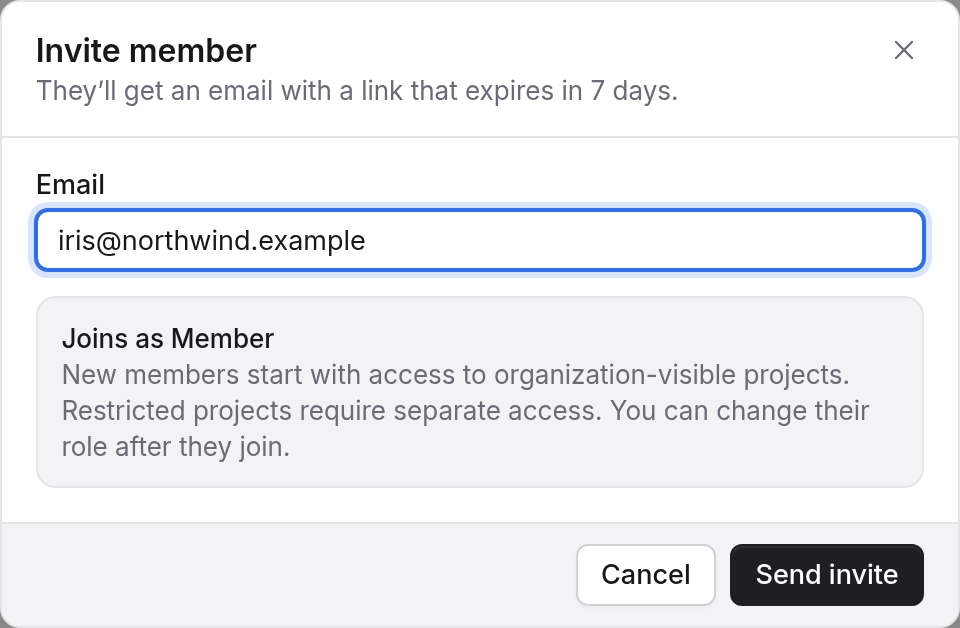
Type the address and choose Send invite. The person gets an email with a link that expires in 7 days.
Follow the invite
The Invites tab lists pending invites until they are accepted. From there you can resend or revoke an invite. An expired invite is marked Expired.
Every invite joins as a Member. Change the role after the person joins. If you invite an address that already has a pending invite, the dialog offers Resend with a fresh link.
Note: Invites count toward the plan limit
Members and pending invites together count against the plan's member limit. Basic allows up to 3; Go, Pro and Max have no limit. See Plans and the trial.
Change a role or remove someone
Open the … menu on a person's row.
- Make admin or Make member changes the role.
- Remove takes the person out of the organization after a confirmation.
- Leave workspace appears on your own row.
- Make owner… and Transfer ownership… are available to owners only.
An organization always needs an owner. The last owner cannot be removed or demoted; make someone else an owner or transfer ownership first. Changing ownership may ask you to confirm your identity.
Use the search box to find people by name or email, and the Role filter to narrow the list.
Delegate billing and audit access
Owners can grant individual members access to parts of the organization without changing their role. Open the Organization grants tab, which owners and admins can see, and switch on any of these:
| Grant | What it allows |
|---|---|
| View billing | See organization spending and financial totals. |
| Manage billing | Manage payment and billing settings. Includes View billing. |
| Read audit log | See organization administration history. Does not grant project access. |
Admins already read the audit log through their role, and it shows as included. Only owners can delegate grants. See Billing, balance and invoices.
Personal workspaces
A personal workspace has one owner and no one to invite. On the Members page it offers Create team workspace or Convert this workspace to a team. Converting keeps your plan, balance, projects, code sources and scans, and you stay the owner. It cannot be undone, and you will not have a personal workspace afterwards.