The New scan dialog
The four steps of the New scan dialog, and the instructions, threat model, excluded paths and report language that shape a scan.
Where in the portalSecurity → Scans → New scan
Updated View as markdown
On this page
The New scan dialog starts one scan in four steps: Project, Coverage, Models and Guidance. A scan you start runs once; to repeat it, add it to a schedule.
Where in the portalSecurity → Scans → New scan
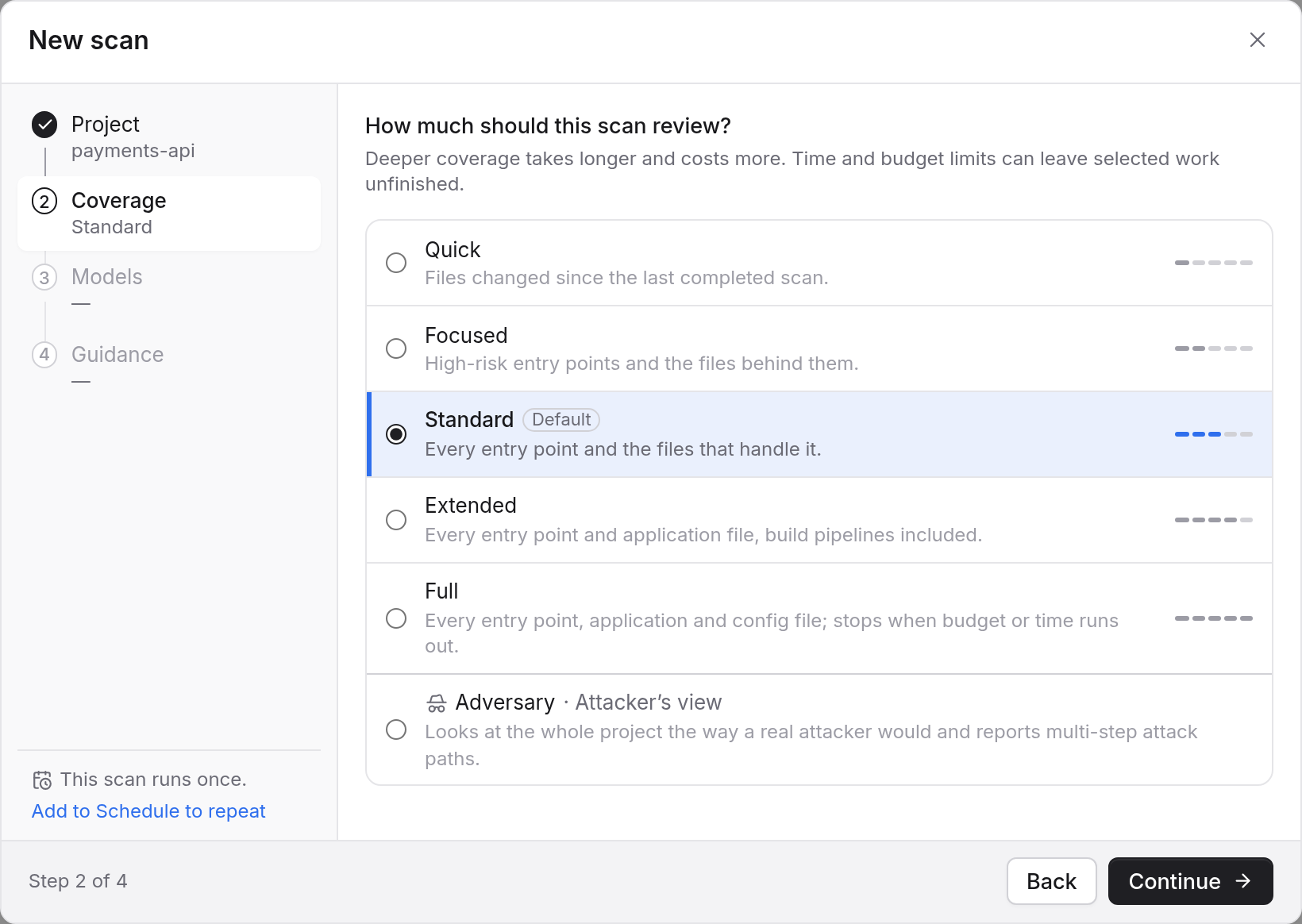
The four steps
The footer shows "Step 1 of 4" and so on. A rail on the left lists the steps with your choices so far, and you can jump to any of them.
Project
Pick the project to scan. The choice belongs to the dialog: the page behind it stays on its own project until the scan is in. Continue stays off until you pick a project that has a code source.
Coverage
Pick a level under "How much should this scan review?". Standard is the default. Quick shows how many files have changed since the last completed scan.
Models
Pick a model tier. Each card shows an estimate as a share of your plan. A line below reads "Covers N% of this project's files", with a warning when a level may leave part of the project out or may not finish in time. The warning names a level that does better when one exists.
Guidance
Set the report language, instructions and threat model. All three are optional. Then press Start scan.
What you can add
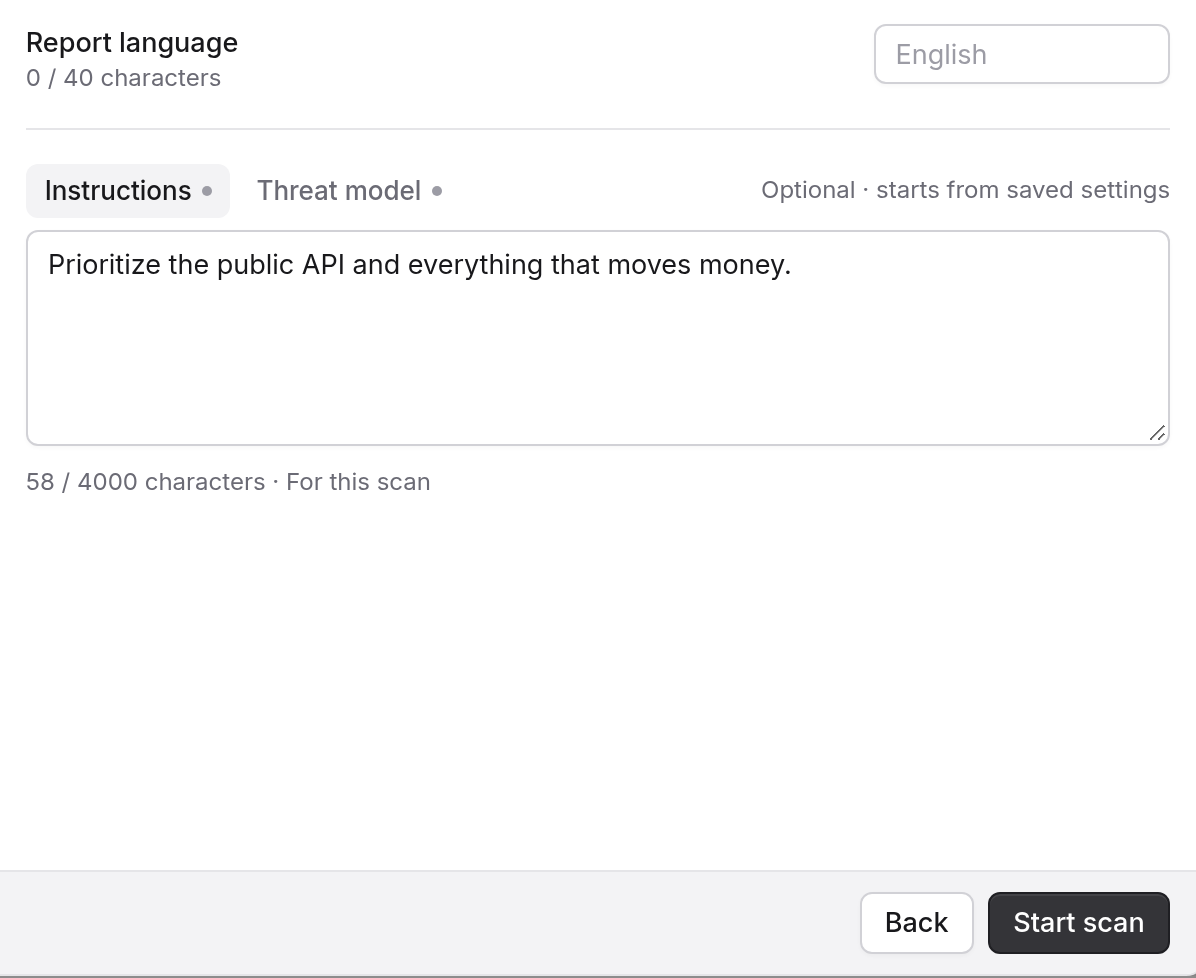
- Report language. The language of findings and summaries, up to 40 characters. Empty means English.
- Instructions. What to focus on or skip, up to 4,000 characters. They start from the project's saved text.
- Threat model. Up to 4,000 characters here. The project keeps four optional questions: what would hurt if it leaked, which entry points are public or internal, who to treat as hostile, and what you have accepted.
A dot on the Instructions or Threat model tab shows which text is filled in.
Excluded paths
Excluded paths are not in the dialog. They are set on each code source: up to 50 folders, which every scan of that source leaves out. A source shared by several projects applies its list to all of them.
A scan uses the list as it stood when the scan started. Editing it later changes nothing for queued or running work.
Kelrova also skips any file over 8 MiB. The scan then ends as partial, even when everything else was reviewed. See Complete, partial and cancelled runs.
When Start scan stays off
- A scan is already running for the project. The dialog says "Finish or cancel the running scan first."
- You do not have permission to run security scans.
- Your trial has ended. Choose a plan.
- A text is over its limit, or the project's source is too large after exclusions.
- Quick cannot start. See When Quick applies.
If your balance cannot cover the scan, the dialog says "Scan couldn't be started" and links to adding balance.
Repeating a scan
The rail says "This scan runs once." Its Add to Schedule to repeat link opens a new schedule with the same level. See Scheduled scans.