Set up a monorepo as several code sources
Split one repository into a code source per folder, keep vendored and generated folders out of scans, and group the sources into projects.
Where in the portalCode Sources, Projects, Scans
Updated View as markdown
On this page
A monorepo can be several code sources, one per folder. Each source is the same repository on the same branch with a different folder, and a project groups the sources that make up one product. This guide follows the order you meet the pages: connection, sources, exclusions, projects, first scan.
Connect the repository once
One connection covers every source in the repository. If it is not linked yet, follow Connect GitHub or Connect GitLab or Bitbucket. Kelrova sees only the repositories you link, and scans only read the code.
Add one code source per folder
Add the first folder
Owners and admins open Code Sources, choose Add source, pick the repository and the branch to review, and enter the folder that holds one part of the product, for example the API. The branch is the tracked branch: scans and fixes always work on it. Add a code source has the dialog in detail.
Repeat for each folder
Add the same repository again with the next folder. Each source has its own folder, its own excluded paths and its own size limit.
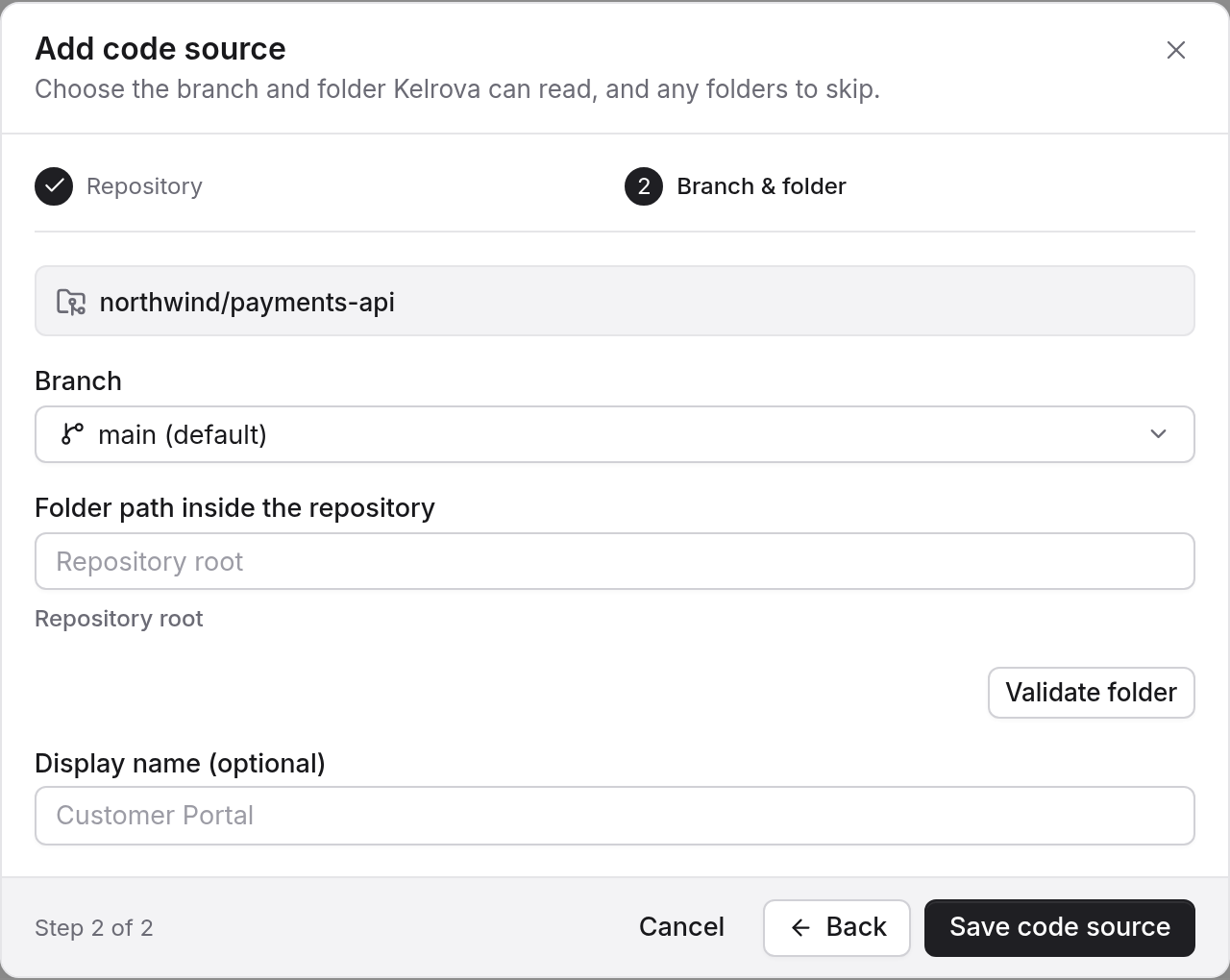
Exclude folders you never want reviewed
Excluded paths belong to each code source, not to the project. A list holds up to 50 folders, written relative to the repository root, such as vendor/ or a test fixtures folder. If one source is used by several projects, its list applies to all of them.
A run takes the list as it stands when the run is created, so a later edit changes the next scan, not one that is queued or running.
Note: Large files and large sources
Scans skip files larger than 8 MiB and finish partial because of it. A source also has a size limit of 1 GiB, measured after exclusions. The numbers are on Limits, and a partial run is covered in Finish a scan that ended partial.
Group the sources into projects
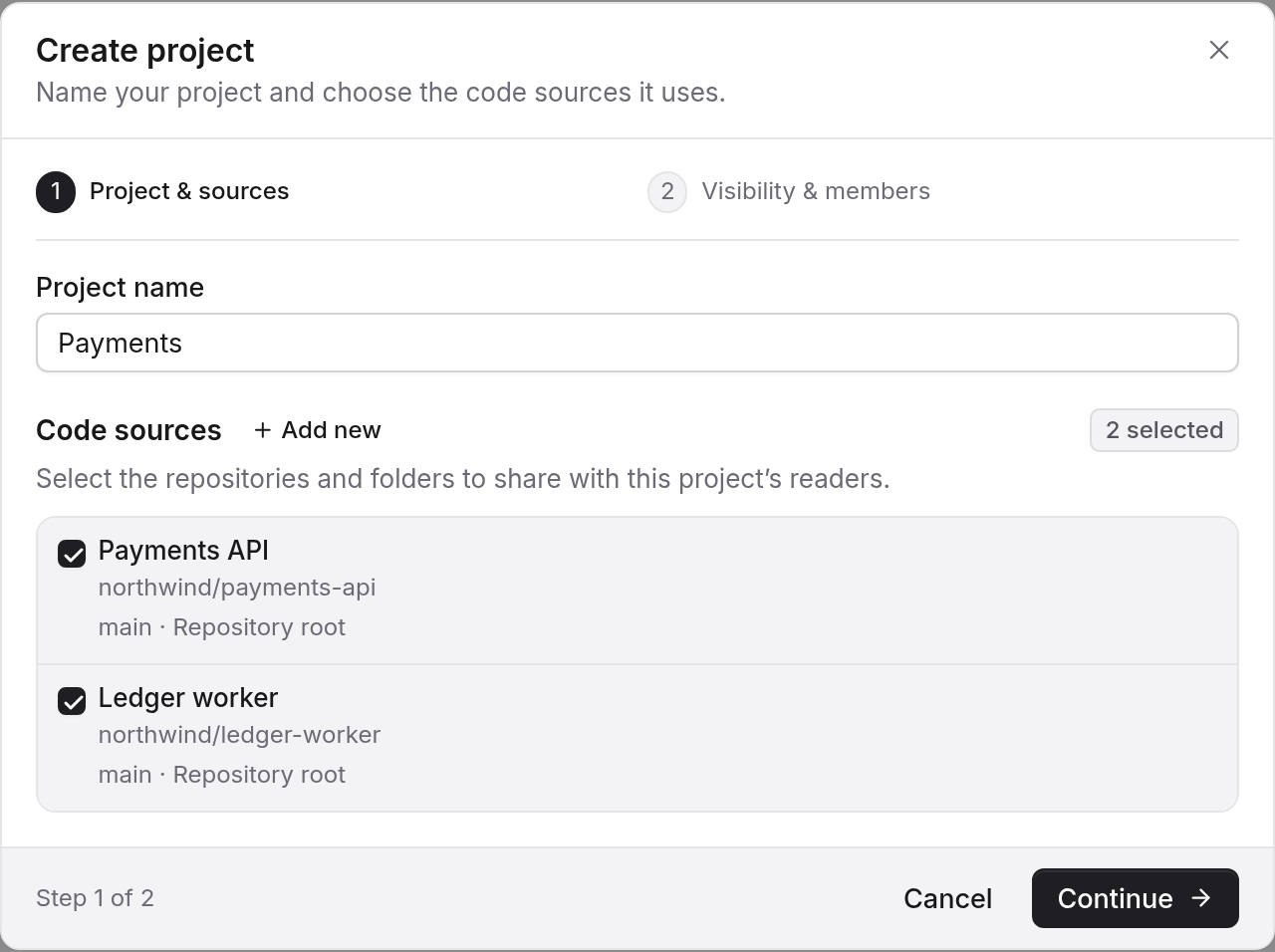
A project decides who sees its scans and findings, so group by audience as well as by product. Put the API and the web app in one project if the same people review both, or make a project for each if they do not.
Create the project
In Projects, choose New project, name it and tick the code sources it is made of. See Create a project.
Set who can see it
A project is visible to the whole organization or Restricted to the members you add. Project visibility and project roles explains the roles.
Run the first scan
In Scans, choose New scan, pick the project and a level; Standard is the default unless your plan locks it, and it suits a first review. The dialog also takes a report language, instructions and a threat model (The New scan dialog). Excluded paths are not in the dialog: they come from each code source. Levels are compared on Scan levels. Then read the result as described in Read the run page.
Fix from the right checkout
When an agent works in one folder of the monorepo, list_projects shows each project's sources. If more than one project matches the repository, pick the one whose source matches the repository, branch and directory. Setup is in Connect a client.