Onboard a team
Invite members, give them roles, decide who sees each project, set up notifications and let people connect their own agents.
Where in the portalMembers, Projects, Settings
Updated View as markdown
On this page
Bring a team in the order they need things: people, access to projects, the emails they get, then agents that work on their findings. An owner or administrator does the first steps; each person does the last two for themselves.
Invite members
Check the plan
A plan sets how many members can join, and pending invites count toward the limit. See Plans and the trial before inviting a larger team.
Use a team workspace
A personal workspace has no one to invite. On Members, choose Create team workspace or Convert this workspace to a team first. See Members and roles.
Send invitations
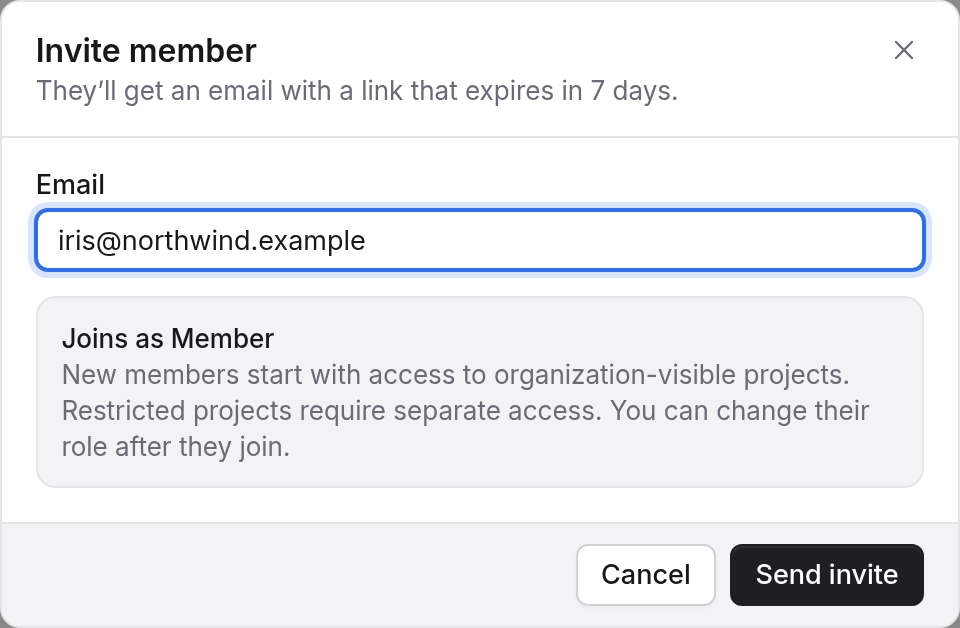
Owners and admins of the team open Members and choose Invite member. An invitation expires in 7 days. Every invite joins as a Member, and you change the role after the person joins. The roles are Owner, Admin and Member; see Members and roles.
Decide who sees each project
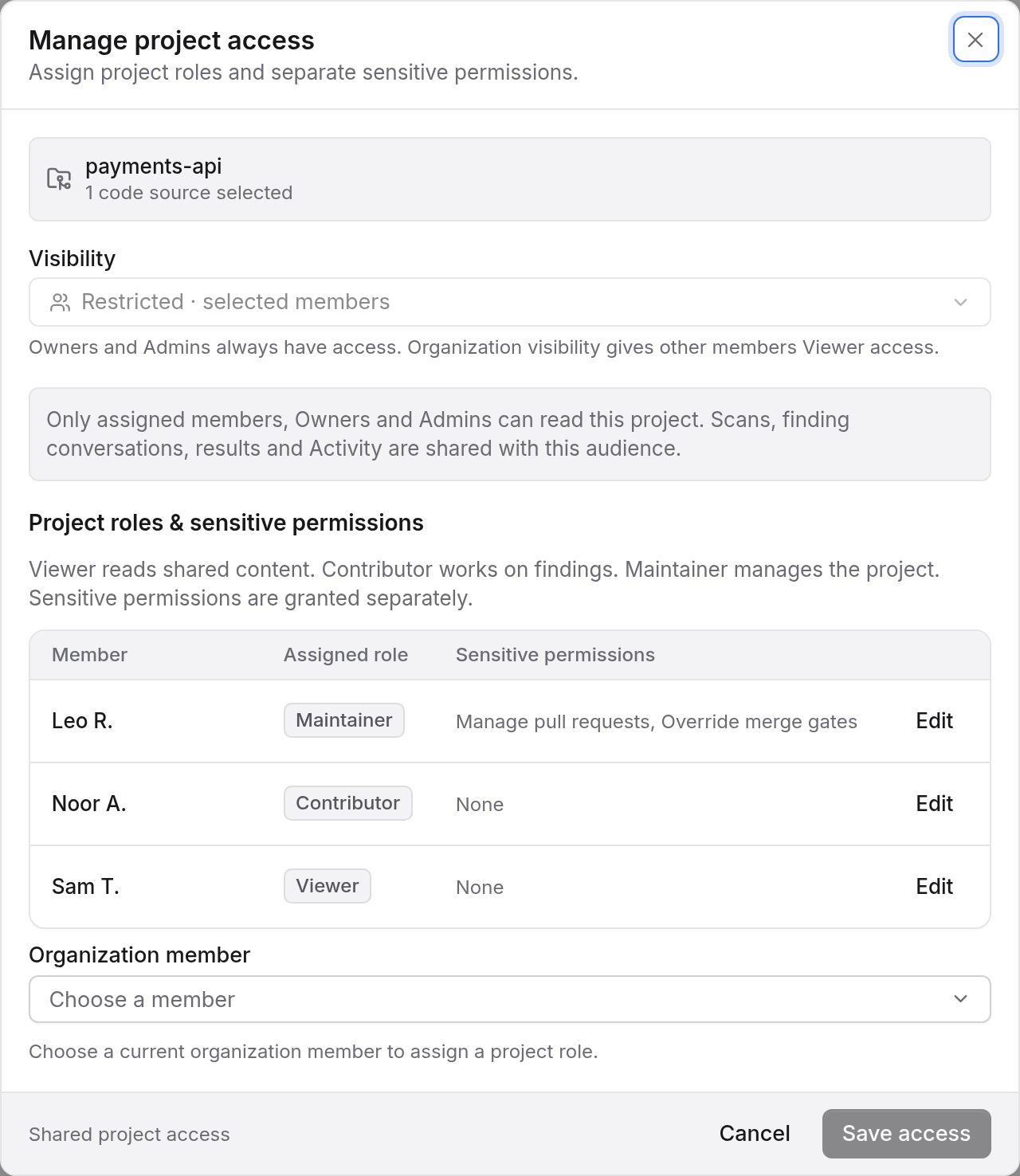
A project is visible to the whole organization, or Restricted so only the members you add can see its scans and findings. Each added member gets Viewer, Contributor or Maintainer. Set this before the first scan if the findings are sensitive. On Projects, open the project's … menu and choose Manage access. See Project visibility and project roles.
Set up notifications
Each person chooses their own emails in Settings → Notifications. Optional emails include Scan results, a summary when a scan they started finishes, and Scheduled scans, a note when a scheduled scan could not start. Owners also see Plan and usage, and owners and admins see Code host connections. Every optional email ends with an unsubscribe link; opening it changes nothing until the person presses Unsubscribe.
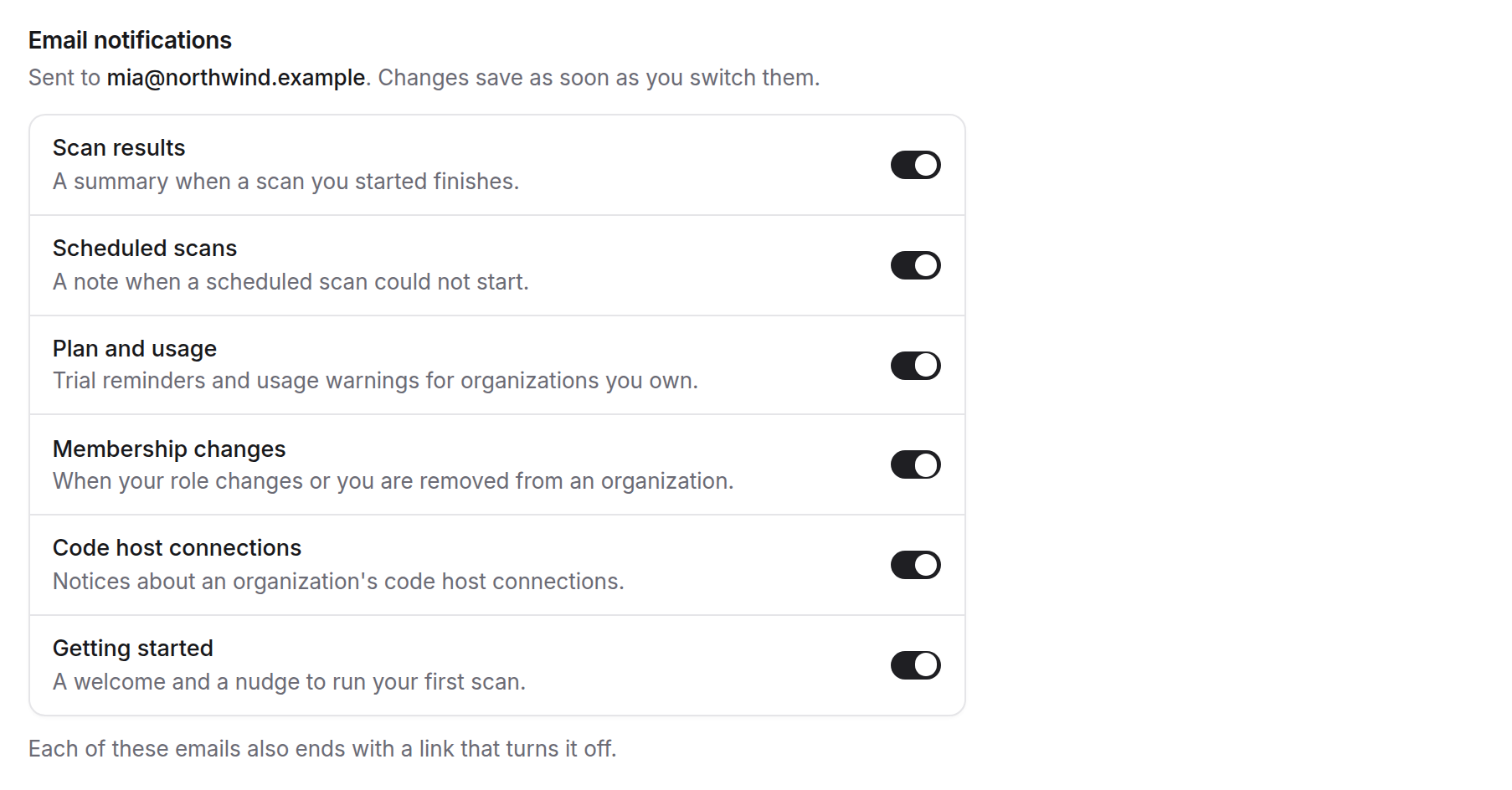
To have scans run on their own, add a schedule: Scheduled scans. The emails are listed on Email notifications, and Preferences and unsubscribe covers opting out.
Connect agents
MCP is included on every plan. Each member connects their own agent: the first connection opens the browser, where they sign in, pick the organization and projects and choose what the agent may do. A connection never sees more than its member can, and each one is listed and revoked under Settings → Connected apps.
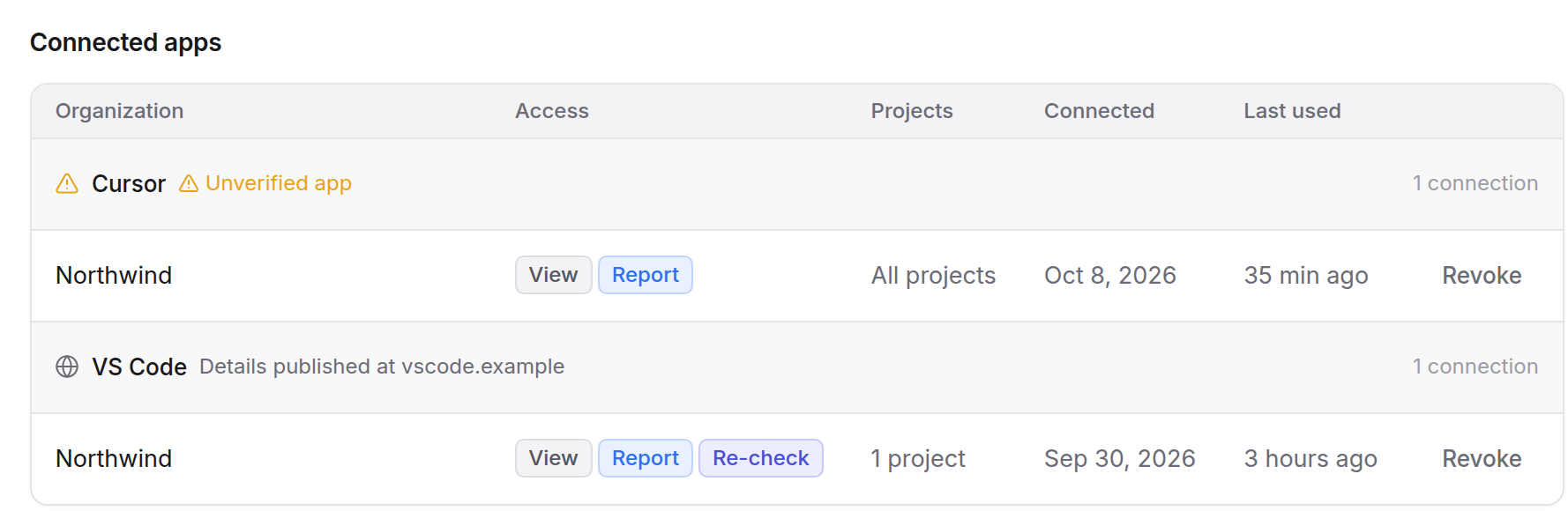
Send members to Connect a client and Access levels and staying connected. Owners and admins manage the rest under Organization → MCP server: the switch for the whole organization, whether agents may report or request re-checks, which apps may connect and how long connections last. See Organization settings for MCP. A member who leaves the organization ends their connections without anyone doing anything.
Note
Re-checks requested by agents count against the organization's scan usage. What a scan uses shows where it goes.
Next
Run the team's first scan together: Run your first scan. Billing is for owners and members an owner has given billing access (Billing, balance and invoices). Admins and members with the audit grant can read the Audit log.