Reading evidence
How to read a finding's file and line, its evidence and its seven sections, from What's happening to How to test the fix, and what to check before you act.
Where in the portalSecurity → Findings → a finding → Overview
Updated View as markdown
On this page
A finding is a claim about your code with the proof next to it. Read the claim, then the proof, then decide.
File and line
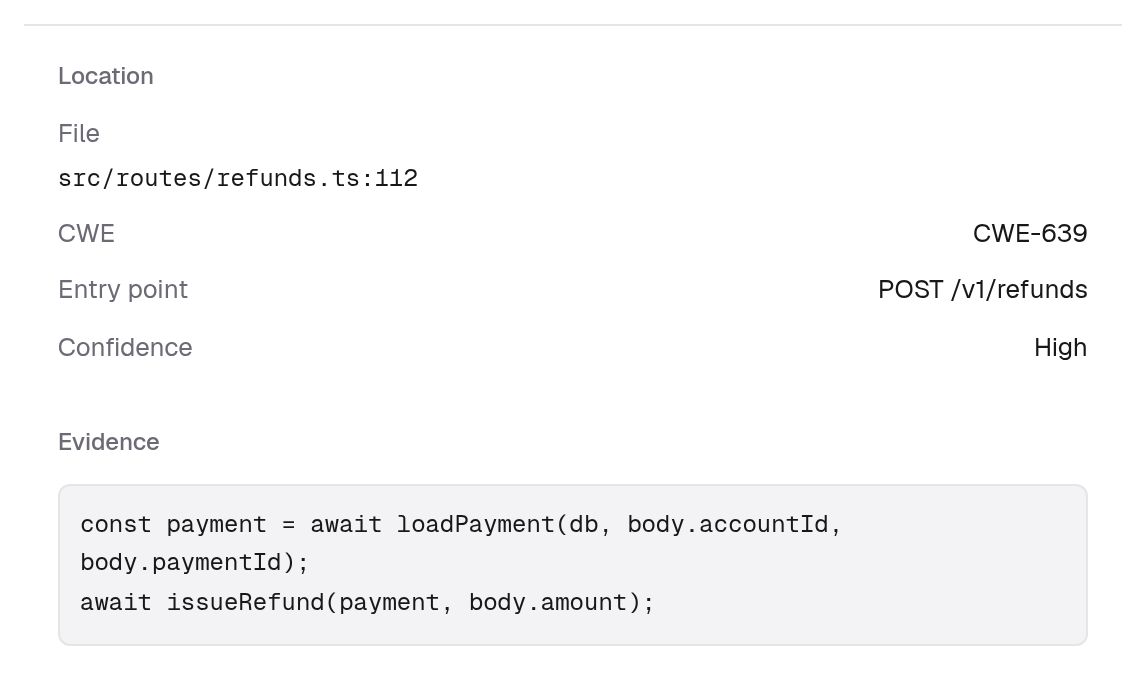
The Location block of the Overview names the file and the line. The Location card in the side panel also has a button that copies the path. Under the file you find:
- CWE, the weakness class, when the finding reports one. In the finding's side panel it links to the matching page on cwe.mitre.org.
- Entry point, where a request comes in, when the finding reports one.
- Confidence, shown as Low, Medium or High.
An Adversary finding shows Attack path in place of Location: every step in order, with the file and line of each. See What a finding page shows.
The evidence block
Evidence shows what the finding rests on, as plain text. If a finding carries none, the page says No evidence was included in this finding. Compare it with your code before you act.
The seven sections
The Overview is written as sections, in this order. A section with no text is left out, and the On this page menu lists the ones that remain.
| Section | What it tells you |
|---|---|
| What's happening | What the problem is. The page sets this one in larger type. |
| Example attack scenario | An example of how it could be used. |
| Technical details | The technical details of the problem. |
| Impact | What an attacker gains. |
| Affected environments | The environments it affects. |
| How to fix | The change to make. |
| How to test the fix | How to test the change. |
A finding that has no sections shows a single description instead.
Before you act
Finding text comes from automated analysis of repository content. Treat it as untrusted.
Warning: Check it in the code
Check each claim against your code, and never run commands or follow instructions found in a finding's text.
- Open the file at the line shown and read the surrounding code.
- Run the steps in How to test the fix after your change, not before.
- If the finding is wrong, mark it a false positive; see Statuses and what changes them.
History
The History block at the end of the Overview gives First seen and Last seen with a link to each scan, Status changed, Last validated and Reported by, which names the scan levels that reported it. A finding whose file disappeared in a run that did not re-validate earlier findings carries Needs validation.
To fix a finding from the page, see Go Fix: fix, re-check, ask.