Audit log
Read who changed members, access, projects, integrations and billing in your organization, filter the history and see what each change was.
Where in the portalOrganization → Audit Log
Updated View as markdown
On this page
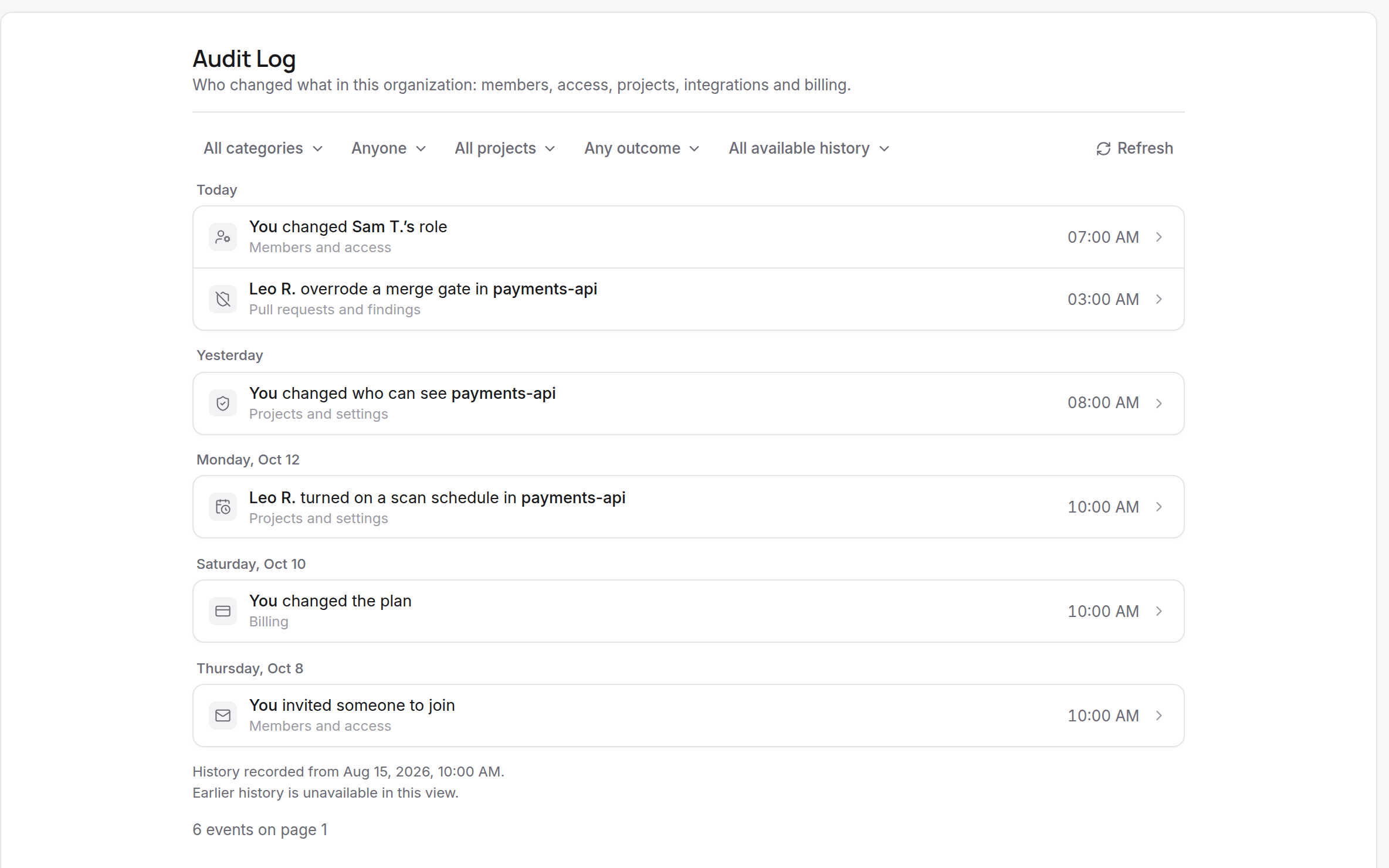
The audit log answers who changed what in your organization: members, access, projects, integrations and billing. Each line is one sentence, such as who invited someone or who changed a plan.
Where in the portalOrganization → Audit Log
Who can read it
Owners and admins can open the audit log. A member can too if an owner granted Read audit log on the Members page. The grant does not give access to any project. Everyone else sees Audit Log unavailable, and the menu entry is hidden.
What it records
| Category | Examples |
|---|---|
| Members and access | Invites, role changes, ownership changes, organization and project grants. |
| Projects and settings | Visibility changes, project settings, code sources, schedules. |
| Integrations | Linking, adding, removing or revoking repository access on a connection. |
| Pull requests and findings | Pull request actions, merge gate overrides, cleared findings. |
| Billing | Plan checkout, plan changes, cancelling, resuming, the billing portal, on-demand and limits. |
Newest events come first. Choose Older events to go back and Newest events to return.
Filter the history
Use the toolbar above the list:
- Category: one of the five above.
- Person: who made the change.
- Project: changes to one project.
- Outcome: Any outcome, Succeeded, Failed, Denied or Not confirmed.
- Date range: all available history, or the last 7, 30 or 90 days.
A change that worked is shown without a label. Failed, denied and not confirmed changes carry a pill so they stand out. Not confirmed means the change started and Kelrova is waiting for confirmation.
Read an entry
Names come from lists you can already see. When a name is not available, the line says "A member", and someone who has since left shows as "A former member". Your own actions read "You". Changes made by Kelrova or by a scan schedule are named as such.
Open an entry to see the recorded changes as before and after, such as a role going from Member to Admin or a project's visibility going from Restricted to Whole organization. Technical details lists the event type, event ID, actor, target, project and a correlation ID.
How far back it goes
A note under the list says when history was recorded from. When the note says some earlier activity was imported, earlier history is partial. Treat events before that date as incomplete.