Access levels and staying connected
What View findings, Report progress, Request re-checks and Stay connected allow, what the consent screen shows and how long a connection lasts.
Where in the portalSettings → Connected apps
Updated View as markdown
On this page
Every connection is approved once, by a member, on a consent screen in the portal. The member decides the organization, the projects and the access. The connection then works until it ends, as described below.
What happens when you connect
- The client sends you to
app.kelrova.comto sign in, if you are not signed in already. - The consent screen, titled Connect followed by the application name, shows who is asking and what for.
- Allow access returns you to the client. Deny returns an error to the client and creates nothing. Not you? Switch account signs you out and brings you back to this request to sign in as someone else.
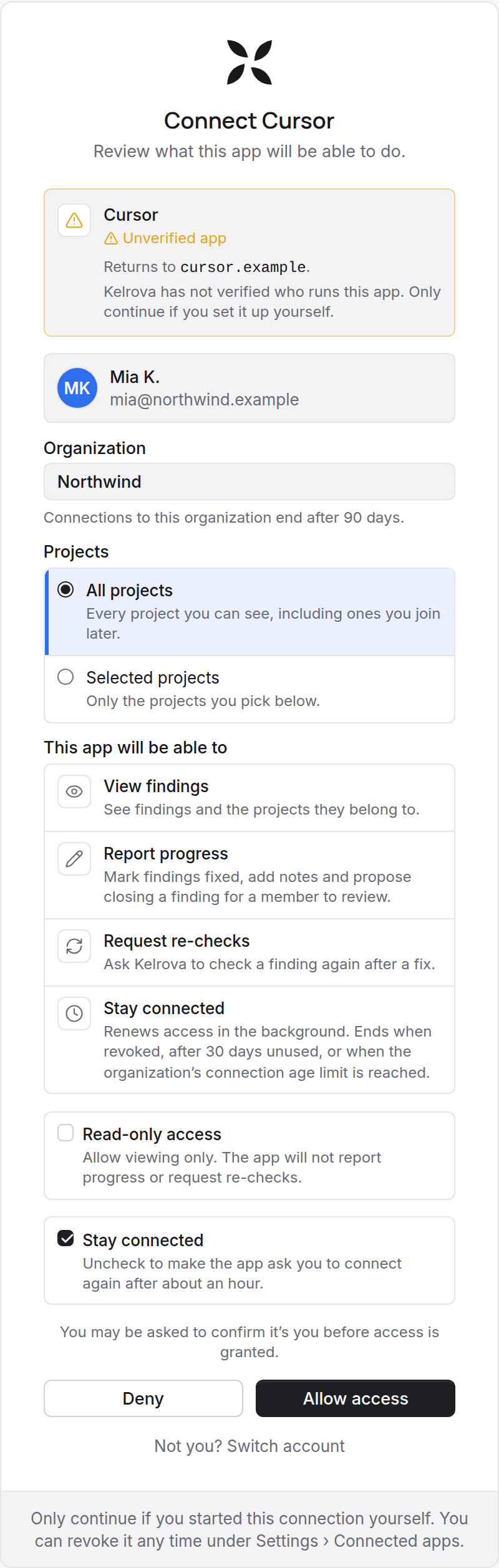
The consent screen shows:
- The application, with one identity line. Details published at a host name means Kelrova read the application's details from that web address; it says where the details come from, not who runs the application. Unverified app means the client registered itself and Kelrova cannot say who runs it. Continue only if you set the application up yourself.
- Where the application returns you to, for example
Returns to claude.ai. - Organization: a picker, or a fixed name if you belong to one. It also shows the maximum connection age when the organization sets one.
- Projects: All projects (every project you can see, including ones you join later) or Selected projects, which needs at least one project ticked.
- This app will be able to: the access it asks for. An access your organization or the chosen projects do not allow is struck through with the reason, for example "Turned off by this organization".
- Read-only access: a checkbox shown when the application asks to report or request re-checks. Ticking it grants viewing only, and the button reads Allow read-only.
Granting reports or re-checks may ask you to confirm your sign-in again first. Every approval creates its own connection: two laptops are two connections, and each is listed and revoked on its own.
Access levels
| Shown on the consent screen as | Lets the agent | Notes |
|---|---|---|
| View findings | Find projects; list and read findings and their activity | Always part of a connection. |
| Report progress | Report a finding as fixed or in progress, add a note, or propose closing it as a false positive or an accepted risk for a member to review | Includes viewing. May need a recent sign-in to grant. |
| Request re-checks | Ask Kelrova to re-check one finding | Includes viewing. May need a recent sign-in to grant. Each re-check is a costed run on your organization's plan. |
| Stay connected | Keep the connection alive without signing in again | The client has to ask for it. |
An agent's effective access on every call is your live access to the organization and project, narrowed by the projects you selected and by the access you granted. If you lose access to a project, or leave the organization, the connection stops seeing it on the next call.
Staying connected
Kelrova issues a refresh token only when the connection holds Stay connected. A client that can refresh but does not ask for this access gets none.
- With it, the client renews its access in the background. The connection lasts until you or an administrator revokes it, until the organization's maximum connection age ends it, or until it goes unused for 30 days.
- Without it, the access lasts one hour. After that the client sends you through sign-in and the consent screen again, and each time creates a new connection.
Which access a client asks for is the client's choice. For Claude Code, name all of it in oauth.scopes (setup). For the other clients Kelrova has not confirmed what they ask for. If Stay connected is missing from This app will be able to, expect to approve the client again after an hour.
See and revoke your connections
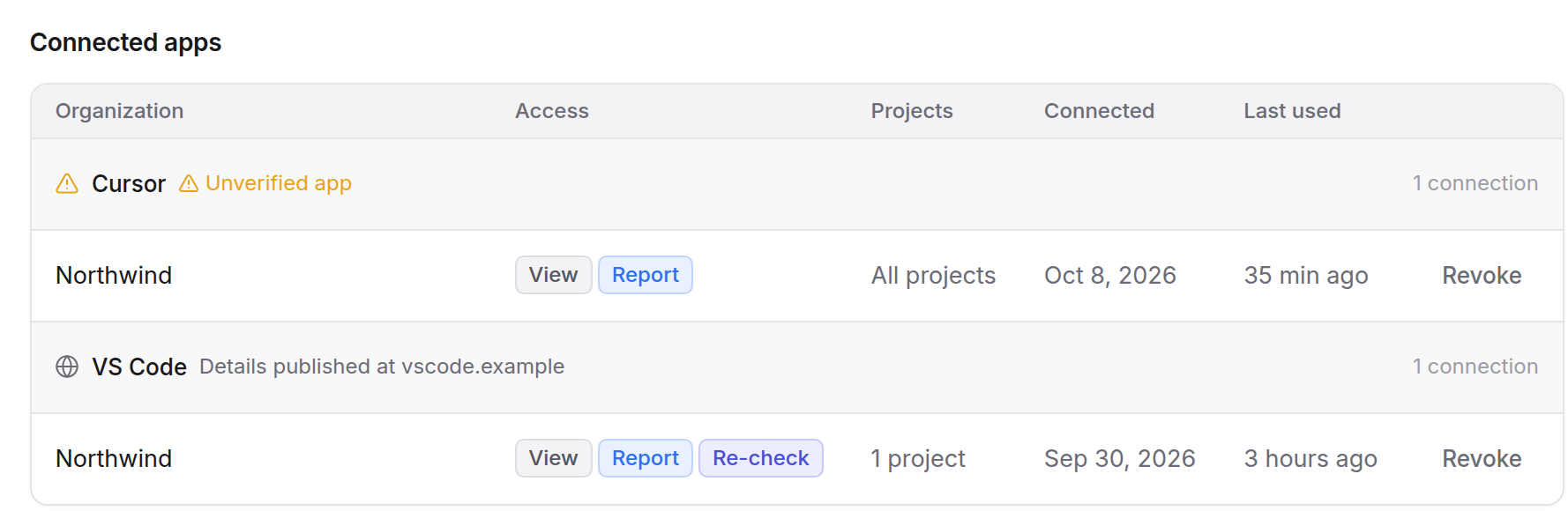
Every member sees their own connections under Settings → Connected apps, grouped by application, with the access, the projects, when each was connected and when it was last used. Revoke signs that app out of Kelrova for you: its next call fails with an authentication error. See also Connected apps and sessions.