Project visibility and project roles
Choose whether a project is open to the organization or restricted, and give people Viewer, Contributor or Maintainer roles and sensitive permissions.
Where in the portalProjects → ⋯ → Manage access
Updated View as markdown
On this page
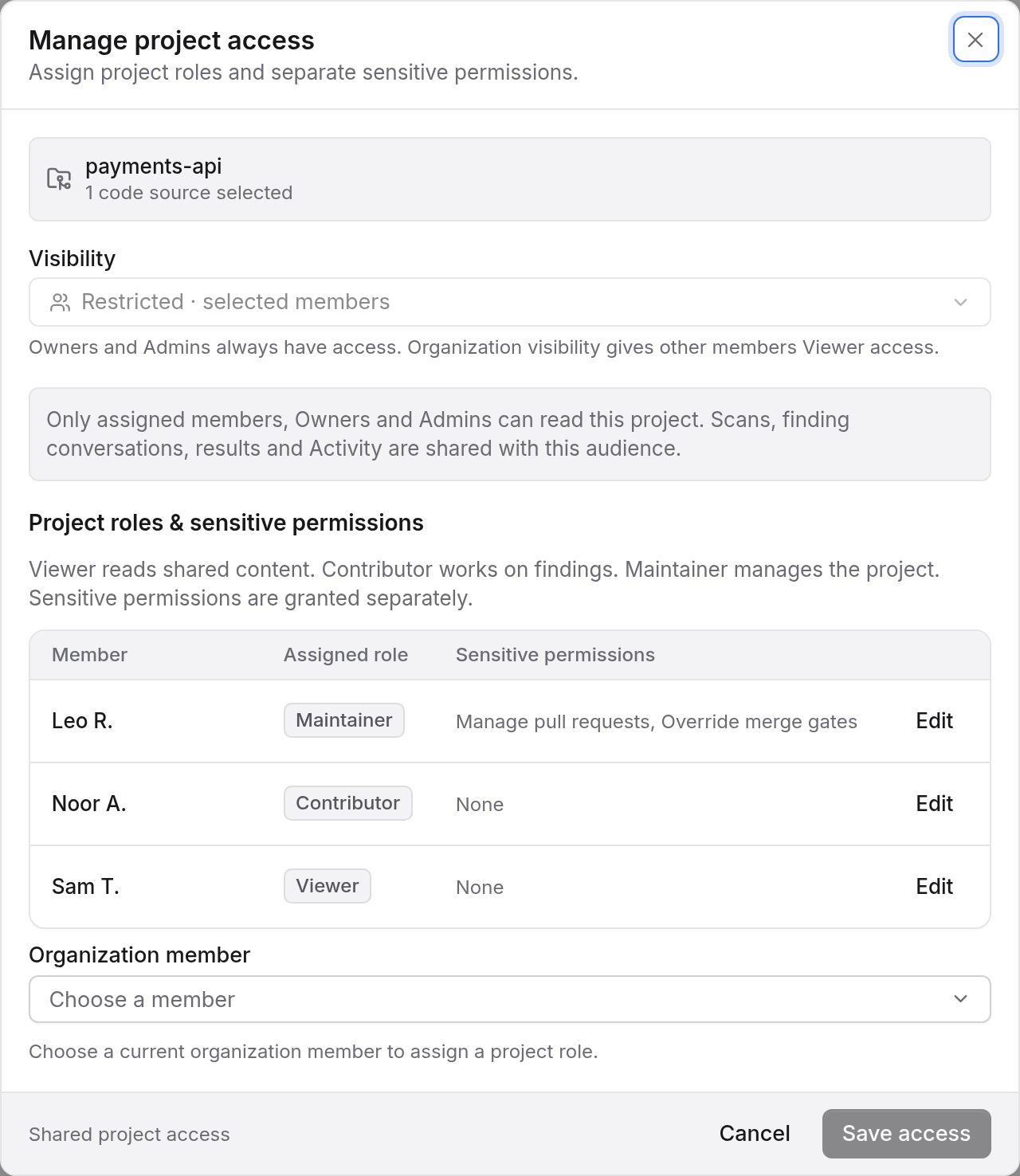
A project has a visibility and, for the people you add, a project role. Visibility decides who can open it; the role decides what they can do there.
Where in the portalProjects → ⋯ → Manage access
Visibility
You choose visibility when you create a project and can change it later in the project's settings.
| Visibility | Who can open the project |
|---|---|
| Organization | Every member, as a Viewer. |
| Restricted | Owners, admins and the members you add. |
Owners and admins always have access. Scans, finding conversations, results and Activity are shared with everyone who can open the project. A restricted project with nobody added shows Owners + Admins in the project list.
Project roles
Roles apply to a person in one project.
| Role | What it allows |
|---|---|
| Viewer | Read shared project content. |
| Contributor | Run scans and work on findings. |
| Maintainer | Manage project settings and access. |
In an organization-visible project, members who were not assigned a role keep Viewer access. Assigning a role adds to that.
Sensitive permissions
Some actions are granted on their own, apart from the role:
- Manage pull requests
- Override merge gates, which also requires Manage pull requests
- Clear findings
Only an owner, or a maintainer who has those permissions, can change them. See Merge gates for what overriding a gate means.
Give someone access
Open Manage access
On the Projects page, open the … menu on the project and choose Manage access. A new project has to be created first.
Choose a member
Pick an organization member from the list, or choose Edit on a person who already has access.
Set the role and permissions
Choose a project role and tick any sensitive permissions, then choose Save access.
Take access away
Choose Remove explicit access on a person's assignment. This also clears their sensitive permissions. Owners and admins keep their organization access, and in an organization-visible project members keep Viewer access.
To change who is an owner or admin, see Members and roles.