Tags
Label findings by area with up to 15 tags per project: set them up, see how a tag is chosen, change one on a finding and filter the Findings list by tag.
Where in the portalSecurity → Settings → Tags
Updated View as markdown
On this page
Tags are optional labels for the areas of a project, such as API, Web app or Auth. Each new finding gets the tag that fits it best, so you can filter findings by area.
Set up the tags
Open Tags
Choose Security, then Settings, then Tags in the Security settings menu.
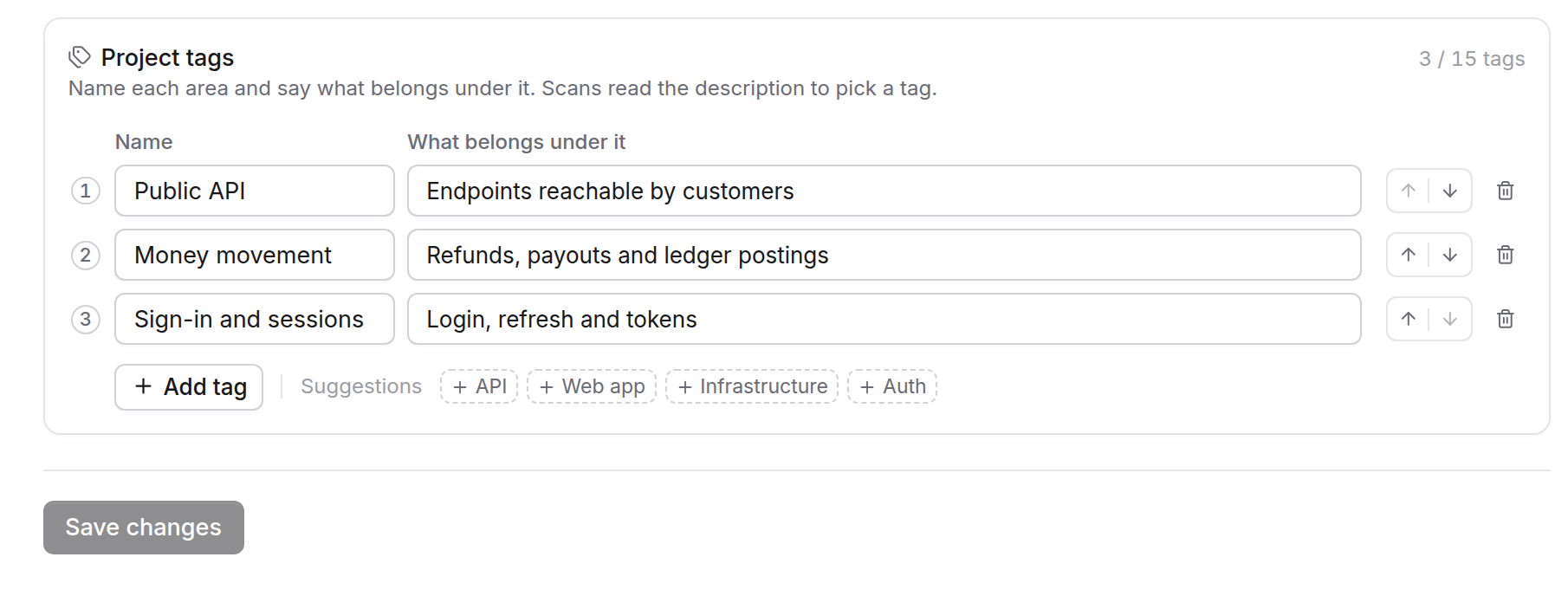
The Project tags card: three tags, each with a name and a description of what belongs under it. Name an area
Add a tag with a name and a description of what belongs under it. The page suggests API, Web app, Desktop app, Infrastructure and Auth, leaving out names already listed; one click adds one as a row to edit. The arrows move a row up or down and the bin removes it. The card counts your tags out of 15.
Save
Press Save changes; Discard drops your edits. You need permission to manage security findings to edit tags.
The limits are 15 tags per project, 40 characters for a name and 240 for a description. Two tags cannot share a name, whatever the capitals.
Tags only label findings. They do not change what a scan looks for.
Remove a tag
Removing a saved tag archives it on the next save. Findings that already have it keep it, and new scans do not use it. An archived tag shows as archived and cannot be picked for a finding.
Change a tag on a finding
A finding's side panel has a Tag row. Members who may change findings pick from No tag and the active tags. The line under it reads Set by scan or Set by you.
Filter by tag
Press Filter in the Findings list. When the project has tags, a Tags section lists them with checkboxes, followed by Untagged. Pick several to see their findings together; Clear removes the choice. The dependency view has no tag filter.
Your own agent can list the findings of one tag too. See The six tools.